8
XTL
™
500
User Guide
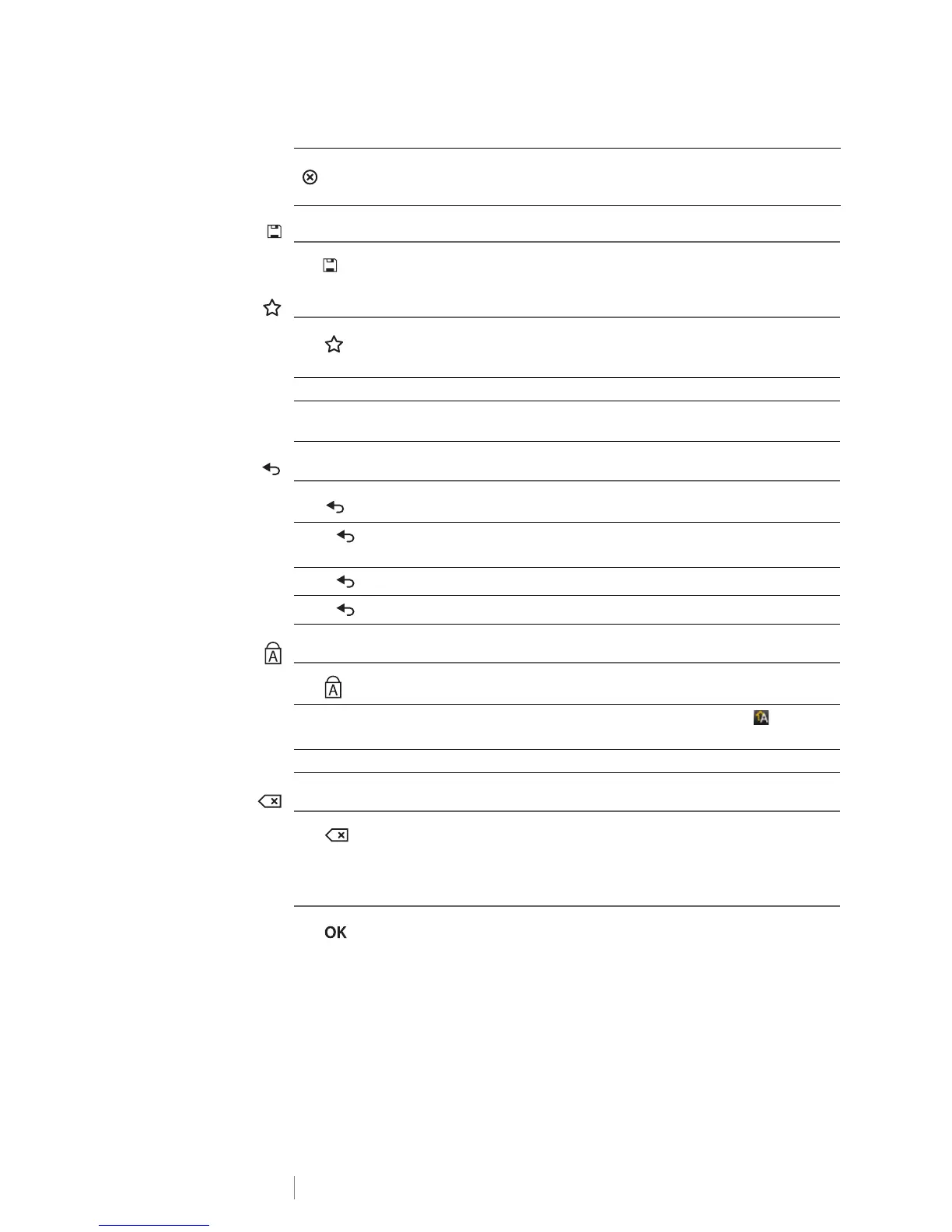
Save
The key saves the labels you are currently editing. See
Saving Labels
on page 37.
Favorites
The key opens the list of labels and images that you previously assigned to
Favorites.
Back
The key cancels an action or exits from a menu without making a selection.
Caps Lock
The key toggles capitalization on and off.
Backspace
The key deletes the character to the left of the cursor. When an object is
selected, deletes the object.
OK
The key makes a selection, such as choosing a label application, a label file,
an image, a list item, or a setting.
in a list screen
Deletes a saved label. Also deletes a template or an image
added by you. Included images or templates cannot be
deleted.
Selecting a favorite label Opens that label file in the appropriate label editor.
Selecting a favorite image
Inserts the image into the label being edited at the current
cursor postion.
Press
on a label edit
screen
Undoes the last edit to the label.
Press
on a wizard screen
Moves back one page of the wizard.
Press
in a list or menu
Moves up one level in the list or menu.
Caps lock turned on
All letters that you enter are capitalized. The indicator
appears in the status bar.
Caps lock turned off All letters entered appear in lowercase.








 To Next Page