PFD Operation
4-8 SkyView SE Pilot’s User Guide - Revision I
To set the VS bug:
1. Enter the Joystick Function Menu.
2. Move the joystick up or down to highlight (VS).
3. Click the joystick or move it left or right to close the menu (this is optional).
(VS) will now display just above that joystick. The vertical speed bug setting on the PFD will be
outlined to signal that it is selected. Turn the joystick to adjust the vertical speed bug. Note that
while the vertical speed bug is changing, its display window lights up in cyan to draw your
attention to it.
You can synchronize the vertical speed bug with the current vertical speed by pressing and
holding the VS joystick to the left or right for 2 seconds or middle (½ second click).
The vertical speed bug is used by the autopilot as a target vertical speed when it is climbing or
descending. Reference the Autopilot Operation section for more information regarding
autopilot functionality, symbology, and operation information.
Magnetic Heading Indicator/ Directional Gyro
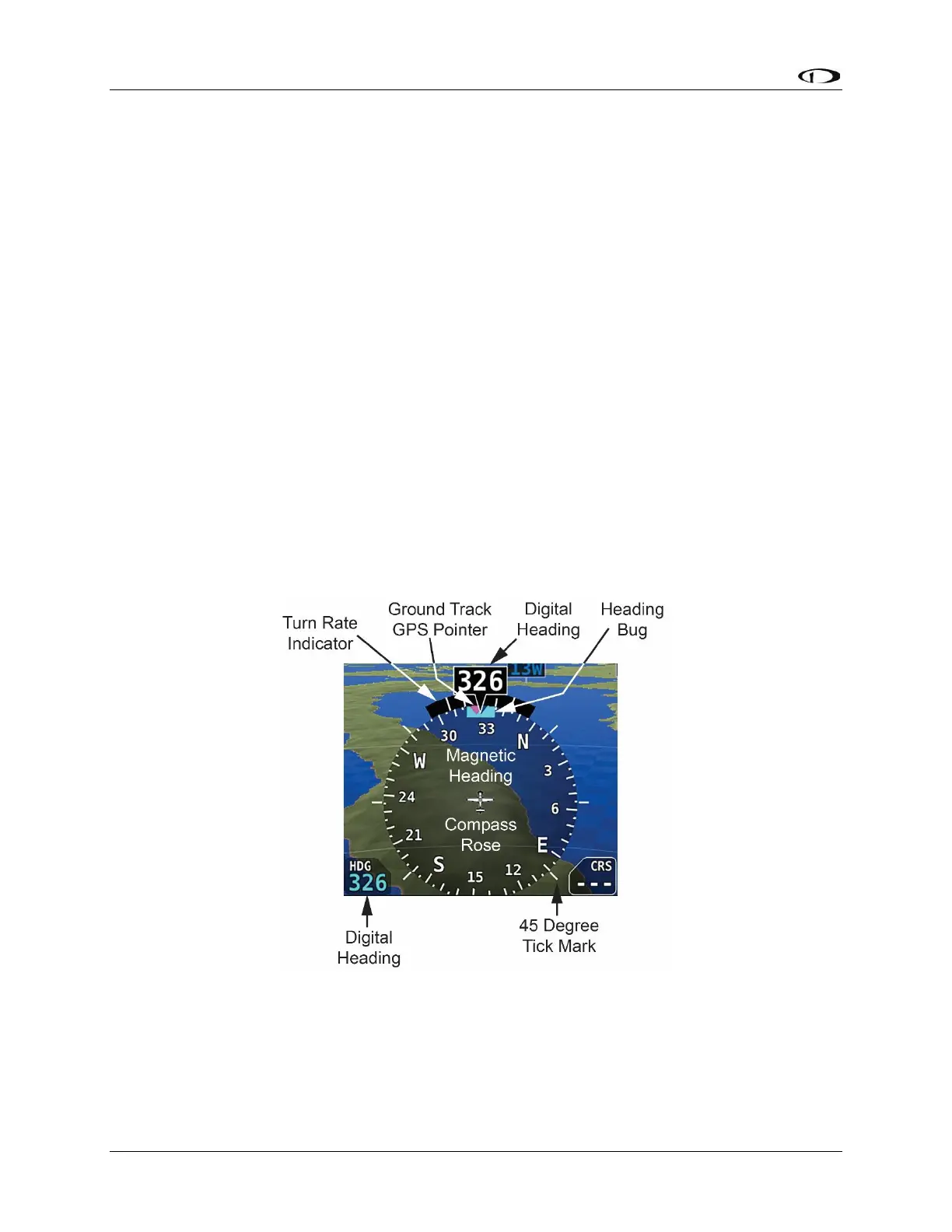
The Magnetic Heading Indicator/ Directional Gyro is displayed on the lower center of the PFD
and incorporates a magnetic heading compass rose, magnetic heading digital display, turn rate
indicator, ground track GPS pointer, heading bug, and heading bug digital display. Figure 16 is
an example SkyView SE Magnetic Heading Indicator/ Directional Gyro.
The compass rose displays in heading-up orientation. The cardinal points are displayed as
letters, and 30 degree increments are displayed numerically without the trailing zero (e.g., 330
degrees is displayed as 33). The numeric display at the top of the compass rose indicates


 To Next Page