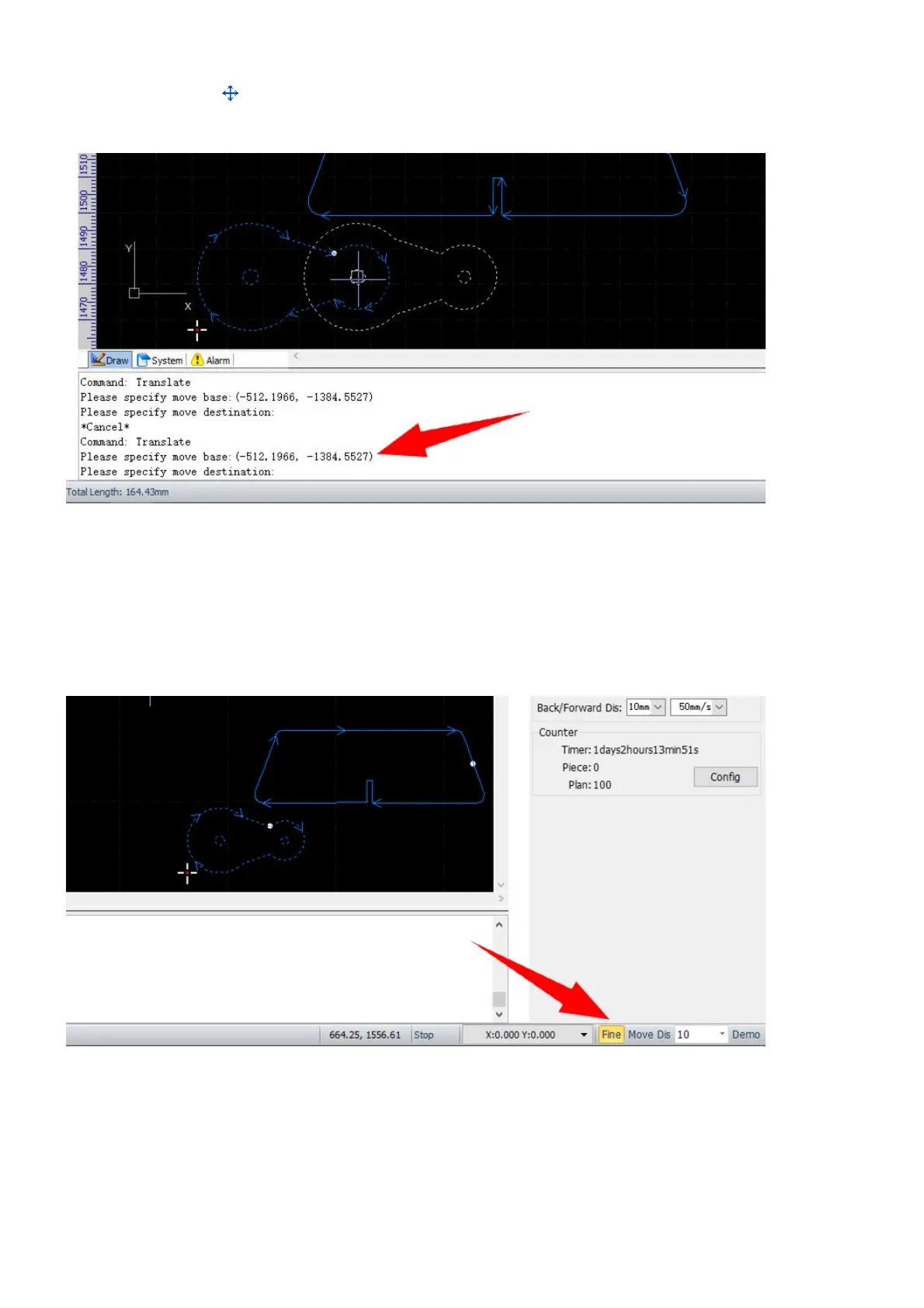
Select the command Translate to move the selected objects by dragging and setting, follow the prompts
in the Draw command window to complete the command.
In this way, you can move the objects precisely by choosing an appropriate reference point and moving it to,
for example, a snapped key geometry point. There is an another way to move the objects in a specific step.
Click on the button Fine on the bottom right to enable the fine translating function. The selected objects will
be moved in the specified step when the arrow keys on the keyboard are pressed down. Or there will be a
new copy created at the target location if the Ctrl key is held at the same time, instead of moving the original
objects.
For quick move, just press down the left mouse button on a drawing element of the selected objects, and then
drag the objects to where you want. And you can create a new copy with the Ctrl key held, same as above.
Check the menu command Disable drag and copy in Home>Select will disable the fine translating and the
quick move functions, only the Translate function left effective.



 To Next Page