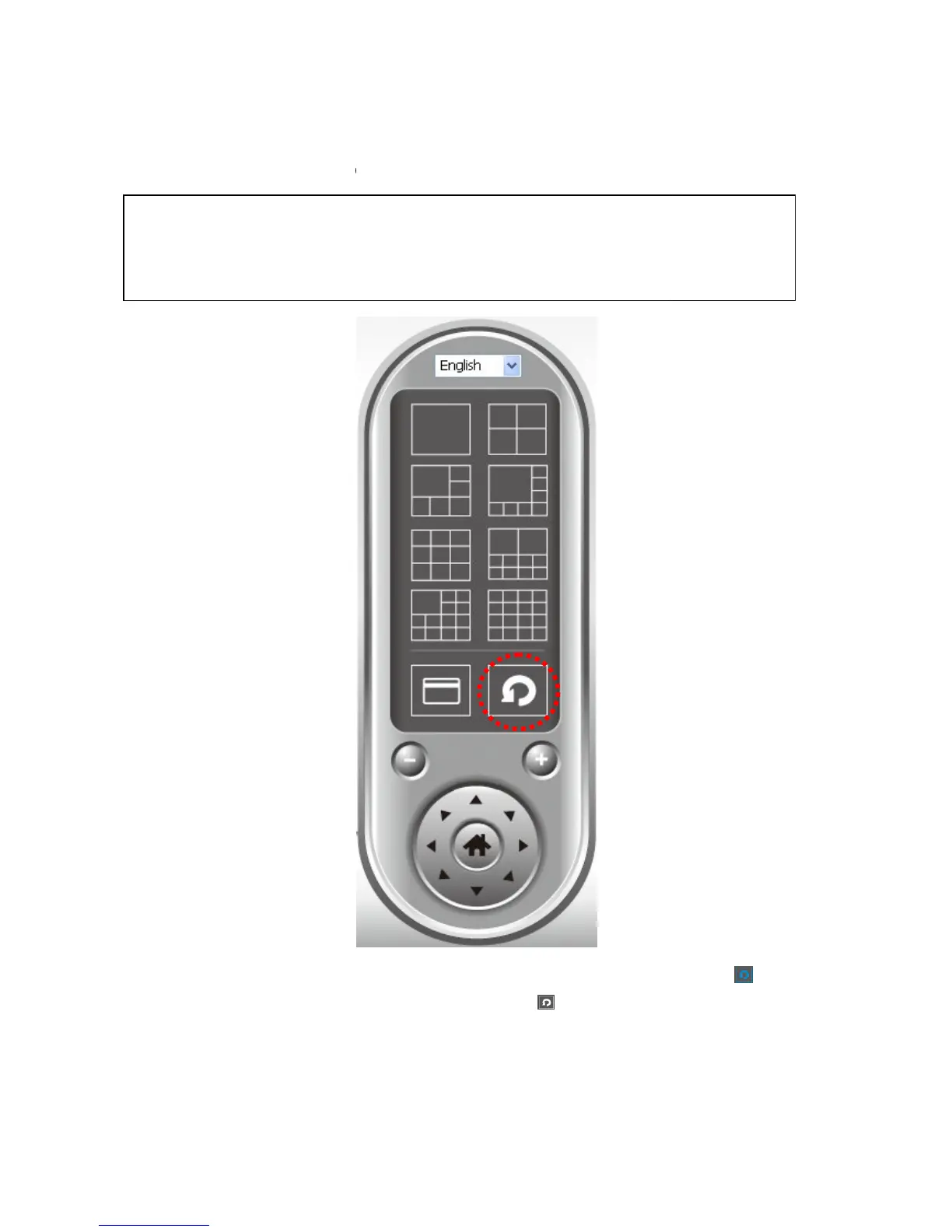
If you have more than one camera configured, and you wish to switch the displaying image
between cameras, you can click ‘Scan’ button to switch between all configured cameras.
Click ‘Scan’ button once to activate scan function (scan icon will become blue
again to stop scanning (scan icon will become white
NOTE: If a camera is configured but disconnected, it will still be displayed in a
left corner of display image).
If you have more than one camera configured, and you wish to switch the displaying image
between cameras, you can click ‘Scan’ button to switch between all configured cameras.
Click ‘Scan’ button once to activate scan function (scan icon will become blue
again to stop scanning (scan icon will become white
NOTE: If a camera is configured but disconnected, it will still be displayed in a
left corner of display image).
If you have more than one camera configured, and you wish to switch the displaying image
between cameras, you can click ‘Scan’ button to switch between all configured cameras.
Click ‘Scan’ button once to activate scan function (scan icon will become blue
NOTE: If a camera is configured but disconnected, it will still be displayed in a


 To Next Page