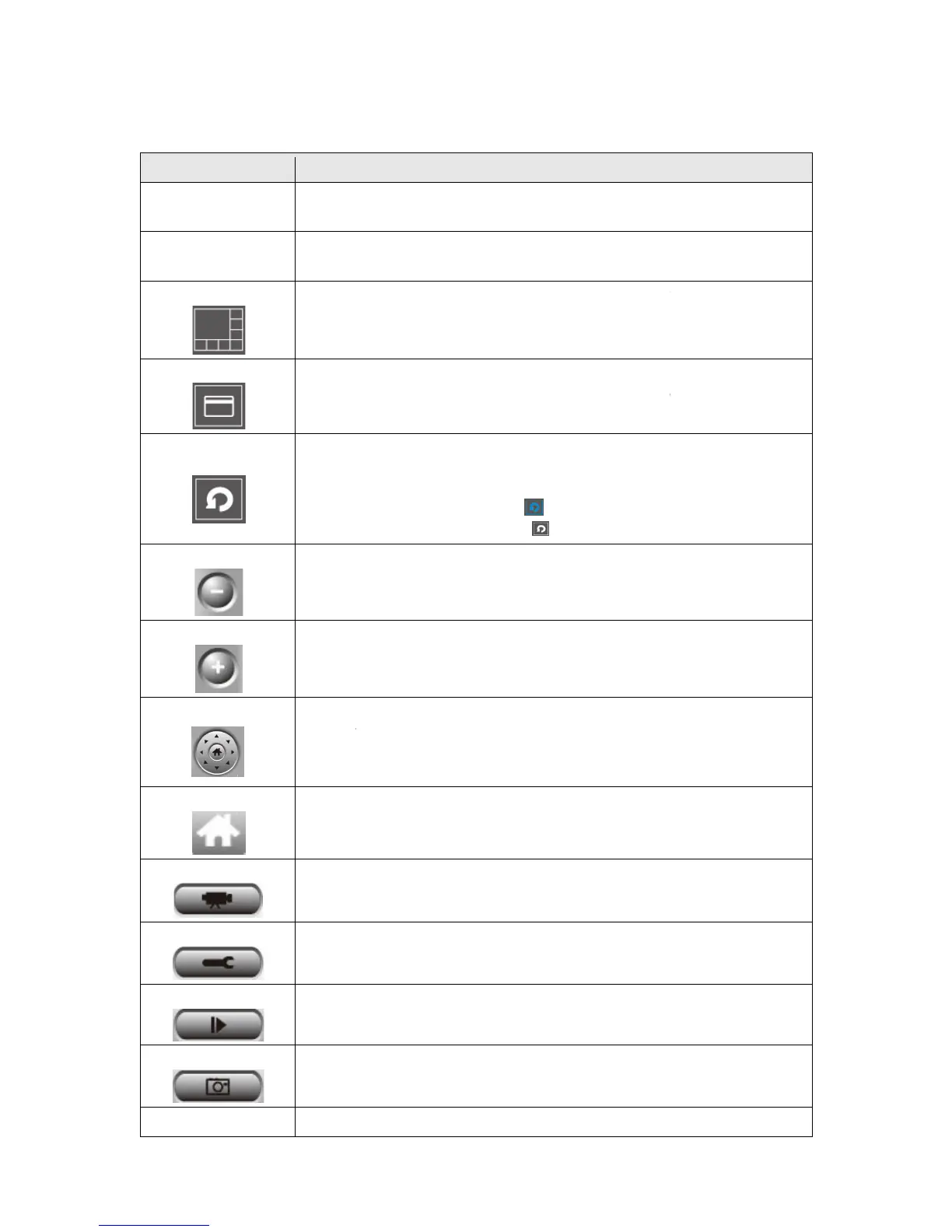
You can put the mouse cursor on a certain component and see its button name, and here’re
detailed descriptions of all buttons:
The image of all connected cameras will be displayed here.
a language from this dropdown menu to change display
Change camera image display layout (Click a layout icon to
change camera display layout). There are 8 kinds of available
camera’s image), press ‘ESC’ key to quit full screen mode.
Click this button and the IP camera surveillance software will
switch displaying the image of all connected camera
automatically. Click this butt
(scan icon will become blue
(scan icon will become white
out (To see more objects).
This function is only available for supported cameras.
This function is only available for supported cameras.
There are 8 directions in PTZ control ring. If the camera you
connect support PTZ, you can use PTZ control ring to change the
direction that camera points
This function is only available for supported cameras.
Click this button to return the camera to ‘Home’ (default) position.
This function is only available for supported cameras.
Playback a recorded video file.
Take a snapshot of current camera.
Displays all system messages like camera is disconnected etc.
You can put the mouse cursor on a certain component and see its button name, and here’re
detailed descriptions of all buttons:
The image of all connected cameras will be displayed here.
a language from this dropdown menu to change display
Change camera image display layout (Click a layout icon to
change camera display layout). There are 8 kinds of available
witch to full screen mode (only display all
camera’s image), press ‘ESC’ key to quit full screen mode.
Click this button and the IP camera surveillance software will
switch displaying the image of all connected camera
automatically. Click this butt
on once to activate scan function
(scan icon will become blue
), click again to stop scanning
(scan icon will become white
out (To see more objects).
This function is only available for supported cameras.
This function is only available for supported cameras.
There are 8 directions in PTZ control ring. If the camera you
connect support PTZ, you can use PTZ control ring to change the
direction that camera points
This function is only available for supported cameras.
Click this button to return the camera to ‘Home’ (default) position.
This function is only available for supported cameras.
Playback a recorded video file.
Take a snapshot of current camera.
Displays all system messages like camera is disconnected etc.
You can put the mouse cursor on a certain component and see its button name, and here’re
The image of all connected cameras will be displayed here.
a language from this dropdown menu to change display
Change camera image display layout (Click a layout icon to
change camera display layout). There are 8 kinds of available
witch to full screen mode (only display all
camera’s image), press ‘ESC’ key to quit full screen mode.
Click this button and the IP camera surveillance software will
switch displaying the image of all connected camera
on once to activate scan function
), click again to stop scanning
This function is only available for supported cameras.
This function is only available for supported cameras.
There are 8 directions in PTZ control ring. If the camera you
connect support PTZ, you can use PTZ control ring to change the
This function is only available for supported cameras.
Click this button to return the camera to ‘Home’ (default) position.
This function is only available for supported cameras.
Displays all system messages like camera is disconnected etc.


 To Next Page