DCP 350
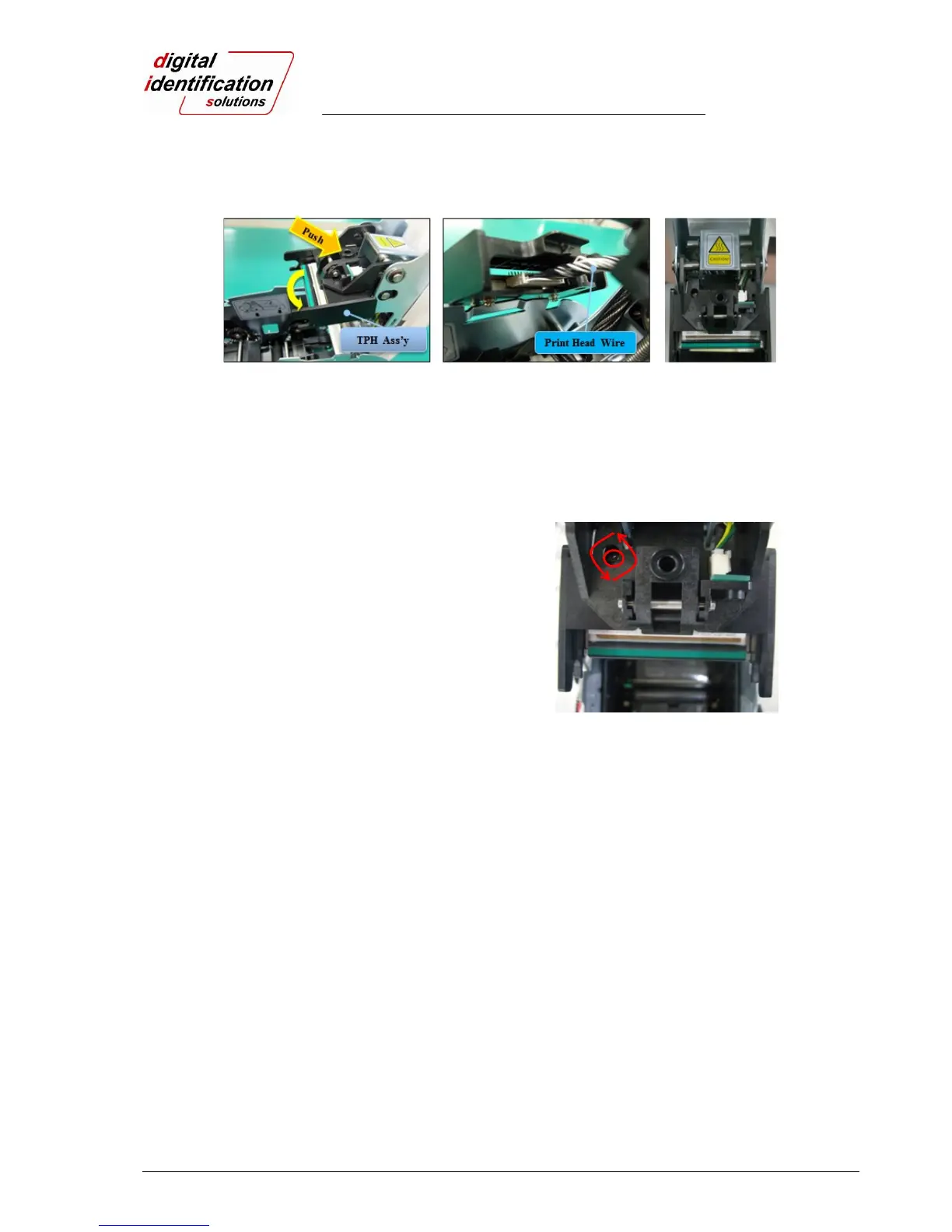
Step2: Installing the new TPH
(1) Connect new TPH to the print head wire.
(2). Put the new TPH on the Shift and pull it up until be locked as shown in Pic. 132.
Pic.106 Print head replacement
4. Setup the print position and the color density.
After installing the new TPH, you must reset the print position and the color density using
CardPrinterSetup utility. Refer to “4.1.2 Default setting”
5. Calibration of Print Head Angle
To get the best print quality, the TPH
should be located vertically with card
surface.
If print quality has a problem, it could be
caused by print head angle.
Through Adjusting print head angle by
screw (red mark in the Pic.107), you can
achieve a good print quality.
(Use the appropriate screw driver to adjust,
and turn the screw by 90 degrees at a
time.)
Pic.107 Print head angle
6.3 Card movement
6.3.1 Cards can’t enter into the printer from input hopper.
Non-standard cards or bad cards.
Change the cards. You can use only ISO CR-80 card (54mm x 86mm).
Card thickness control lever is set improperly.
Regulate the card thickness control lever to fit the current card thickness.
Bad card array.
Array the cards again and put them on input hopper as section 2.2 in this manual.
Cards have static and moisture.
Remove the moisture or static.
6.3.2 Card Transfer Error occurs when the ribbon is coiled around the transfer roller
or the printing roller.
Open the top cover and remove the card and the coiled ribbon from EDIsecure
®
DCP 350 printer using front
LED buttons. If this problem occurrs frequently, check the below things.


 To Next Page