DCP 350 User Manual
3 Driver configuration
3.1 Checking printer properties
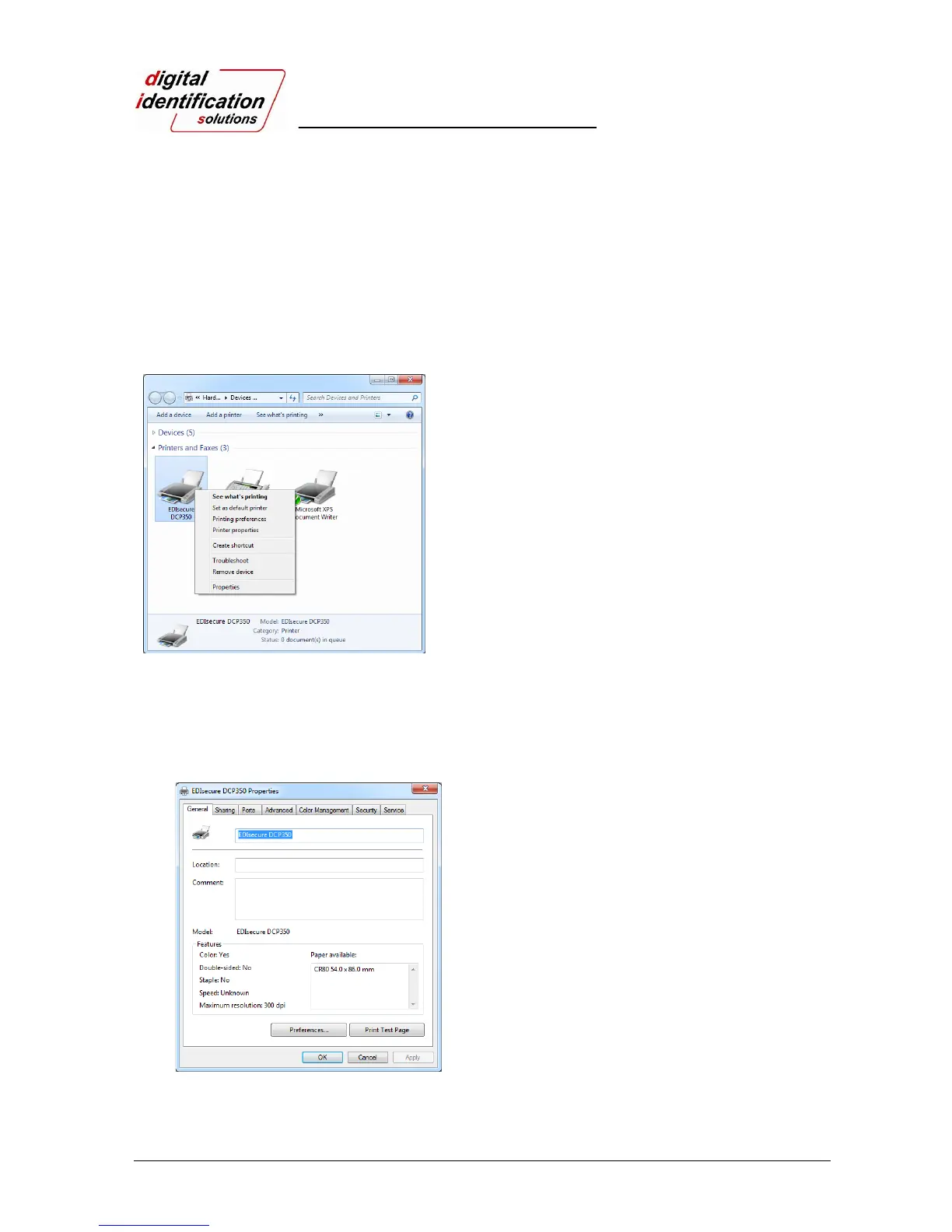
To check printer properties, you need to open printer driver. Please open “Drivers and Printers”
and right-click “EDIsecure
®
DCP 350 Card Printer”. Click “Properties”. For Windows 7, please
click “Printer Properties”.
Pic.63 Printer properties 1
When you click “Printer Properties” as like Pic.63, a
device driver of “EDIsecure
®
DCP 350 Card Printer” is
shown.
3.2 Changing printer properties
In the general tab shown as Pic.64, you can check the printer model and specifications.
Pic.64 Printer properties 2
3.2.1. Printing Preferences
Please click “Printing Preferences” shown on the
bottom of Pic.64.
There are 3 tabs of “Layout”, “Paper/Ribbon /Quality”
and “Side/Media”.


 To Next Page