EasyManua.ls Logo

Elan HC6 - User Manual

Elan HC6
61 pages
Print Icon
To Next Page IconTo Next Page
Loading...
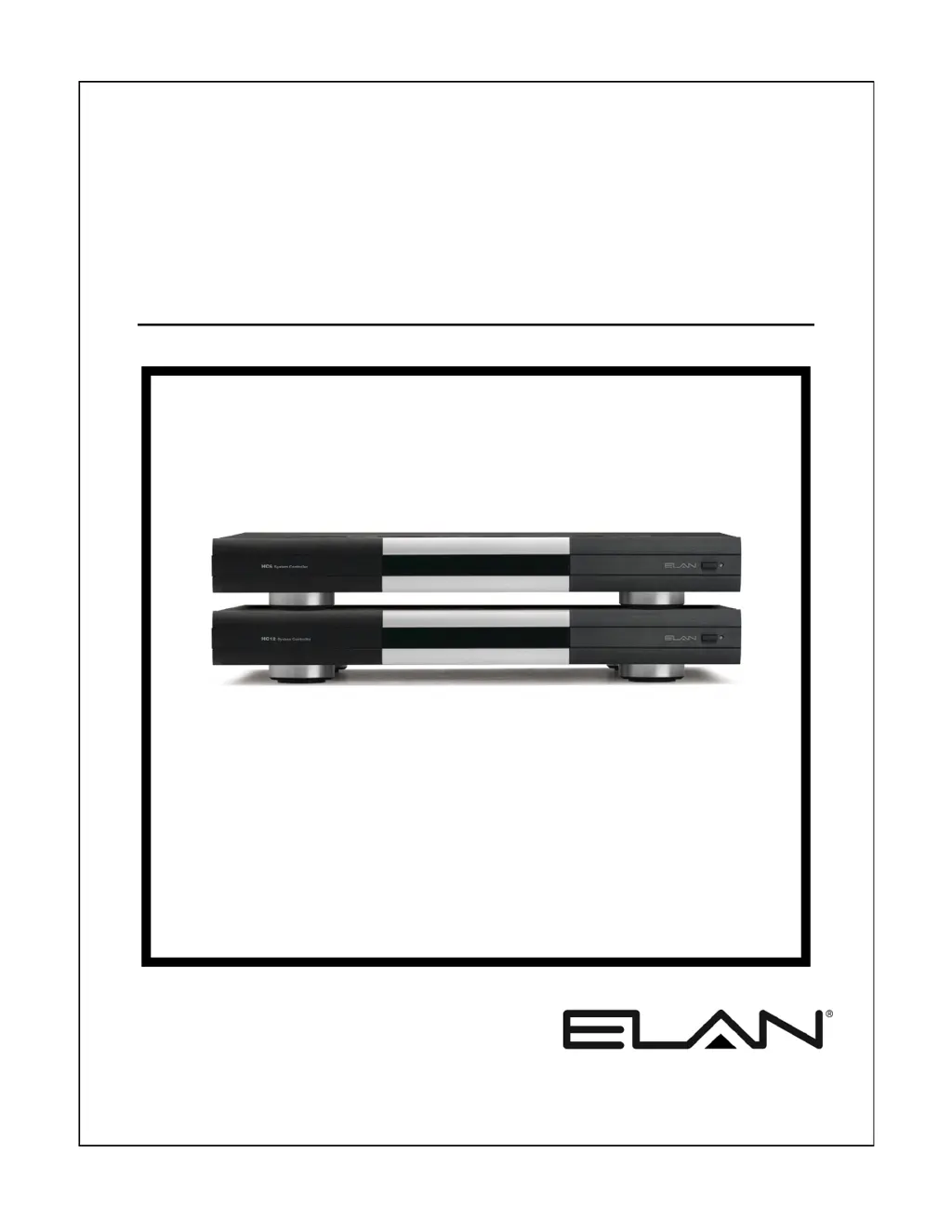
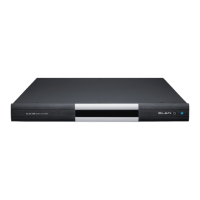
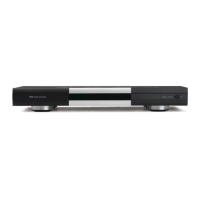
HC6/HC12
System Controller
INSTALLATION MANUAL

Table of Contents

Other manuals for Elan HC6

Questions and Answers

  • C
    craig21Aug 22, 2025
    Why can't I access my Elan HC6 system from outside the local network?
    • J
      jorge73Aug 22, 2025
      If your Elan Controller system functions properly on the local network but cannot be accessed externally, consider the following: * Verify that the System Name and Password are correct. * Ensure that the router's port forwarding settings are correctly configured. * Check for a working Internet connection and correct network settings and Ethernet connections if necessary. * Confirm DNS resolution by verifying DNS settings with your Internet Service Provider.
  • K
    Kenneth LivingstonAug 25, 2025
    What to do if there is no On Screen Display (OSD) or Source Video on Elan HC6?
    • M
      Martha RyanAug 25, 2025
      If you're experiencing a lack of On Screen Display (OSD) or Source Video with your Elan Controller, here's what you should check: * Inspect the video output cables for any faults and replace them if needed. * Ensure that the Component Video Out from the System Controller is properly connected to the monitor. * Verify that the correct monitor input is selected.
  • H
    Hannah AndersonAug 26, 2025
    Why can't I access Elan Controller in g! ConnectPro even though it shows up?
    • C
      Charles DuffyAug 26, 2025
      If the Elan Controller appears in g! ConnectPro but remains inaccessible, consider these potential causes: * The password may not be entered or is incorrect. Ensure you are using the correct password. * A computer or network firewall might be blocking the connection. Try temporarily disabling the firewall or creating an exception in the firewall settings. * The computer and System Controller might be on different sub-nets. Correct the sub-net connections or programming to ensure they are aligned.
  • K
    kjacksonAug 28, 2025
    How to troubleshoot Elan Controller when IR controlled devices are not responding?
    • R
      Roy CareyAug 28, 2025
      If IR controlled devices are not responding to the Elan Controller, try the following: * Check and correct the wiring, ensuring TIP is the IR Signal and SLEEVE is GND. * Verify the emitter's functionality and replace it if faulty. * Ensure the programming is correct. * Confirm that the IR emitter or cable is connected to the correct IR port. * Verify that the correct IR port is programmed. * Check if the IR device is functioning with its original remote or power the device. * Address any potential IR interference or flooding, especially from Plasma and LED TVs.
  • J
    jacobsjenniferAug 29, 2025
    Why is there no audio output from the internal player on my Elan HC6 Controller?
    • W
      William HansenAug 30, 2025
      If you're not getting any audio from the internal player on your Elan Controller, here are a few things to investigate: * Check the RCA cables for any faults and correct or replace them as needed. * Make sure the correct Source Input is selected. * Verify that the Audio Out from the System Controller is connected to the correct Source Inputs. * Confirm that the Internal Player has a track selected and is playing. * If using a NAS device, troubleshoot the NAS device for any issues.
  • D
    Dawn StewartAug 31, 2025
    What causes relay controls to not work on Elan Controller?
    • N
      Nicholas MillerSep 1, 2025
      If the relay controls are not functioning on your Elan Controller, consider these potential issues: * Check for faulty wiring and ensure the same color code is used for COM, NO, and NC terminations at both ends. * Verify that you are connected to the correct relay. * Ensure that the correct relay is programmed. * Confirm that the Event Map programming is correct. * If using a Sense Input Trigger, verify its operation and ensure you are using the correct sensor. * Check that the sensor is connected to the correct input. * Verify that the relay-controlled device is functioning and powered.
  • K
    Kathleen ScottSep 4, 2025
    Why does Elan HC6 Controller show OSD but no Source Video?
    • C
      Courtney NashSep 4, 2025
      If your Elan Controller displays the OSD but no Source Video, the problem might be: * Faulty video input cables. Try verifying or replacing them. * The source device might not be functioning or powered. Check its operation and power it on if necessary. * The matrix switcher might not be functioning or powered. Verify its operation and power it on.
  • C
    Christopher HansenSep 6, 2025
    What to do if Elan Controller has feedback but no control of device?
    • S
      Seth HernandezSep 6, 2025
      If you are getting feedback from a device but have no control using the Elan Controller, check the following: * Inspect the wiring on the RECEIVE pins for faults and correct it, verifying the RECEIVE using Comm port LEDs. * Verify the serial cable length and shorten it if necessary. You could also use RS-232 to RS-485 adapters. * Ensure the correct driver is being used.
  • B
    Bryan RivasSep 8, 2025
    Why are Event Maps or Conditionals not working properly on my Elan HC6?
    • M
      Martha DavisSep 8, 2025
      If Event Maps or Conditionals aren't functioning as expected on your Elan Controller, try these troubleshooting steps: * Check the wiring for any faults. * Ensure the sensor is connected to the correct Sense Input. * Verify that the Event Map or Conditional is programmed to the correct Sense Input. * Confirm that the sensor is being activated. * Make sure you are using the correct sensor for the application.
  • D
    denisefernandezSep 10, 2025
    Why is the Source Video incorrect when OSD displays on Elan HC6 Controller?
    • D
      Dylan NicholsonSep 10, 2025
      If the OSD displays correctly, but the Source Video is incorrect on your Elan Controller, it could be due to: * The Source Video being connected to the incorrect input of the matrix switcher. Ensure it's connected to the correct input. * The incorrect Video output of the matrix switcher being connected to the Video Input of the System Controller. Verify that the correct output is connected.

Summary

Introduction

The ELAN Story

Background of ELAN Home Systems and its history in multi-room audio/video systems.

HC6;HC12 Features

Details the key features and capabilities of the HC6/HC12 System Controller.

Applications Overview

Overview of sub-systems controllable by the HC6/HC12, like Lighting, Security, and Media.

HC6;HC12 Front Panel Display

Illustrates and describes the front panel components and their functions.

HC6;HC12 Rear Panel Connections

Details and labels all rear panel ports and connectors for system integration.

System Design and Applications

System Design Introduction

Steps for mapping and detailing system components for effective design planning.

Pre-Wire Recommendations

Specifics and recommendations for pre-wiring an HC6/HC12 system for optimal operation.

HC6 Controlling an ELAN M86 A

Describes connecting and controlling an ELAN M86A Multi-Room Audio Controller.

HC12 Controlling an ELAN S86 A and V85

Details controlling ELAN S86A and V85 components using the HC12 System Controller.

HC12 Controlling ELAN S128 P with C2 Controller

Connecting HC12 to S128P and C2 controller for system automation and features.

HC6 Internal Player and IP Video Server

Setup for streaming audio using the Internal Player and IP video server integration.

HC12 Controlling a Sunfire TGR-401 Receiver

Controlling a Sunfire TGR-401 AV receiver using the HC12 via serial commands.

Connections

RS-232 Connections

How to integrate devices using RS-232 serial communication for control and feedback.

RS-485 Connections

Connecting to RS-485 controlled devices using specific wiring and naming conventions.

VIANet Connection

How to connect TS2 touchpads and ELAN VIANet devices for system communication.

Relay Connections

Connecting relays for automated events like lift or screen operation.

Sense Input Connections

Using Sense Inputs to trigger Event Maps and conditional macros.

IR Output Connections

Connecting IR emitters to control various devices from the system controller.

External IR Input Connection

Receiving IR input from receivers for On-Screen Display (OSD) control.

Audio Output Connections

Connecting Internal Player's audio outputs to multi-room controllers or home theater systems.

Component Video Input; Output Connections

Displaying video sources and OSD on a monitor using component video connections.

Ethernet Connections

Connecting to touchscreens, NAS devices, and the internet via Ethernet.

USB Connections

Connecting USB modems for messaging features like answering machines.

IR Link Connection

Accommodates multiple IR outputs for system expansion and controller integration.

IR Link Connection Advanced Application

Advanced application for IR routing with multi-zone controllers and zone emitters.

Operation

Power Switch and Front Panel LED

Location and function of the power switch and the front panel power indicator LED.

Rear Panel System Status LEDs

Explains the function of the four system status LEDs on the rear panel.

Serial Port LEDs

Describes the amber and green LEDs for serial port activity (transmit/receive).

VIANet Port LEDs

Explains the function of the VIANet port LEDs for data transmission and reception.

Ethernet Port LEDs

Details the LEDs for Ethernet port link (connection) and activity.

Precision Panels

PPWM Precision Panel

Interface between HC6/HC12 and zone panels, covering IR, Sense, Relays, and RJ-45.

PPIR Precision Panel

Connection point for IR receivers and zone located serial controlled devices.

PPIS Precision Panel

Connection point for Global Caché GC-IRE for IR to RS-232 conversion.

PPRM Precision Panel

Provides connections for IR output, Sense input, Relay output, and RJ-45.

PPSP Precision Panel

Provides DC power distribution for up to 8 in-wall panels.

PPVN Precision Panel

Connects TS2 touchpads and PPIR panels to the System Controller.

Troubleshooting

General Troubleshooting

Common issues like no power, power switch off, or tripped circuit breakers.

Serial Device Issues

Troubleshooting no control or feedback from serial devices, including wiring and drivers.

VIANet Communication Problems

Resolving issues with VIANet communication and device control.

Relay Control Issues

Diagnosing problems with relay controls not working due to wiring or programming.

Sense Input and Event Map Issues

Troubleshooting Event Maps and conditionals not working properly with sensors.

IR Operation Problems

Solutions for IR controlled devices not responding due to faulty wiring or emitters.

Audio Output Troubleshooting

Troubleshooting no audio output from the Internal Player, checking cables and inputs.

Video Display Issues

Resolving issues with OSD display or source video, including cable and input problems.

Ethernet Connectivity Issues

Troubleshooting system controller visibility and access issues over Ethernet.

Network Information

IP Configuration Guide

Recommended steps for changing IP address to a static address for network stability.

Port Forwarding Settings

Details on configuring router ports for remote access and service connections.

Rack Mounting

Rack Mounting Instructions

Instructions for securely mounting the HC6/HC12 in a standard 19" equipment rack.

Specifications

Device Specifications

Lists connector types, power consumption, dimensions, weight, and internal player capacity.

Elan HC6 Specifications

General IconGeneral
Power Supply12V DC
RS-232 Ports2
Operating Voltage12V DC
TypeController
CompatibilityELAN System
CommunicationEthernet, RS-232, IR
Ethernet1
Communication InterfacesEthernet, RS-232, IR
Operating Temperature0° to 40° C (32° to 104° F)

Related product manuals