6.2 Connecting the optional USB keyboard
Ensure all power cables are routed to avoid sharp bends, hot surfaces, pinches, and abrasion.
6.2 Connecting the optional USB keyboard
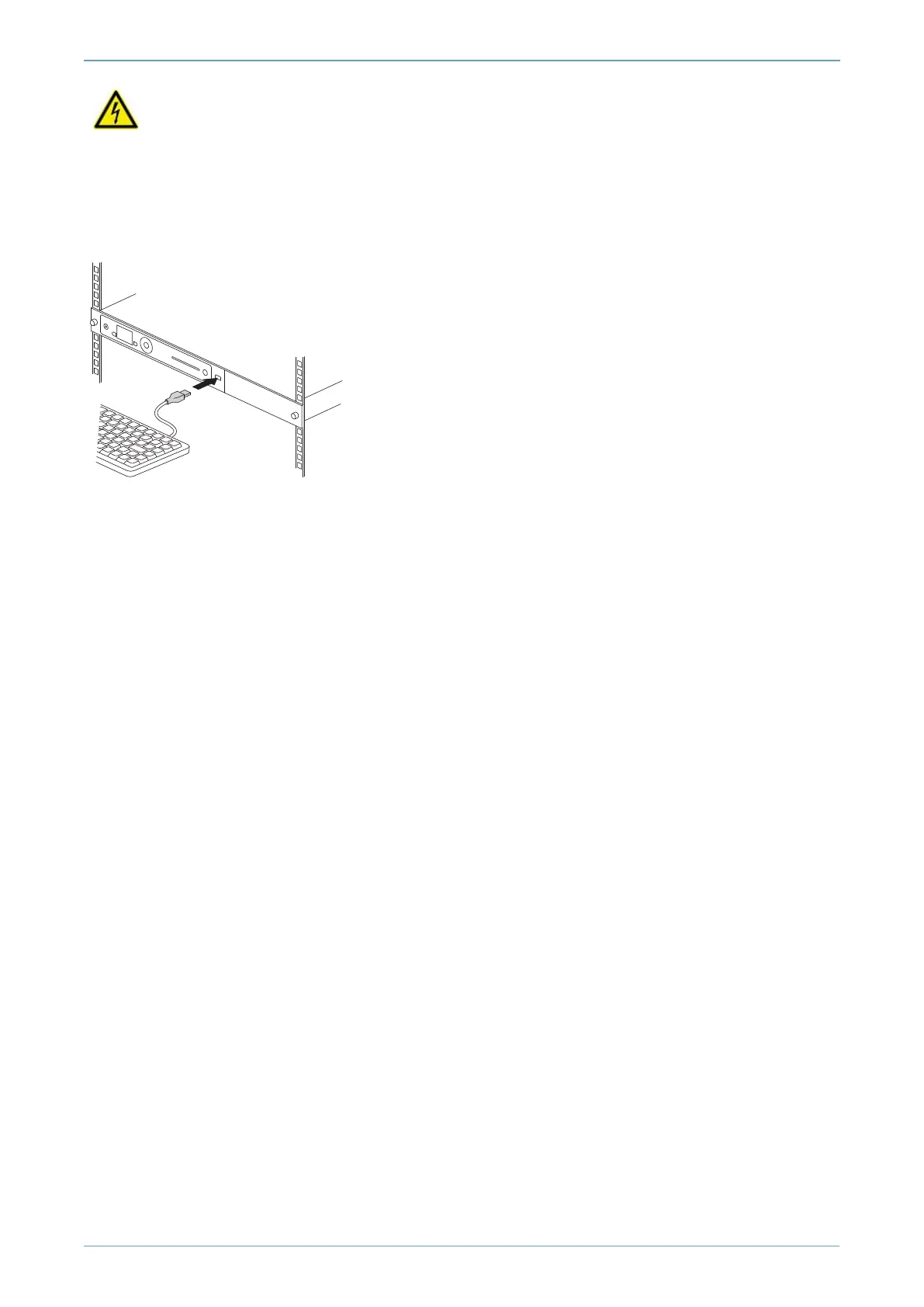
Figure 3. Connecting the optional USB keyboard
Instead of using the controls on the front panel to configure the nShield Connect, you can use a US or
UK keyboard (see Figure 3). You might find a keyboard easier for entering dates and IP addresses.
You connect the keyboard to the USB connector on the front of the nShield Connect.
6.2.1 Configuring an nShield Connect for your keyboard type
To configure an nShield Connect for your keyboard type, select System > System configuration >
Keyboard layout and then choose the keyboard type you require.
When you have connected a keyboard and configured the nShield Connect for its use, you can enter
numbers and characters directly into the display. See the User Guide for more about using a keyboard
and keystroke shortcuts.
6.3 Checking the installation
Ensure that:
l The nShield Connect is safely and securely installed
l The mains cables and Ethernet cable are securely fitted
l The nShield Connect powers up successfully when you turn on the power supply at the rear of the
HSM.
nShield® Connect - Installation Guide
Page 33



 To Next Page