20
Note: This setting can be locked by an administrator. If you cannot access this setting, contact your
administrator for assistance.
1. Press the home button, if necessary.
2. Select Settings > General Settings > Basic Settings > Operation Time Out.
3. Press the OK button to toggle between On and Off.
Parent topic: Using the Control Panel
Preventing PC Connection via USB
You can disable access to your product from a USB-connected computer. This restricts non-network
access to the product.
Note: This setting can be locked by an administrator. If you cannot access this setting, contact your
administrator for assistance.
1. Press the home button, if necessary.
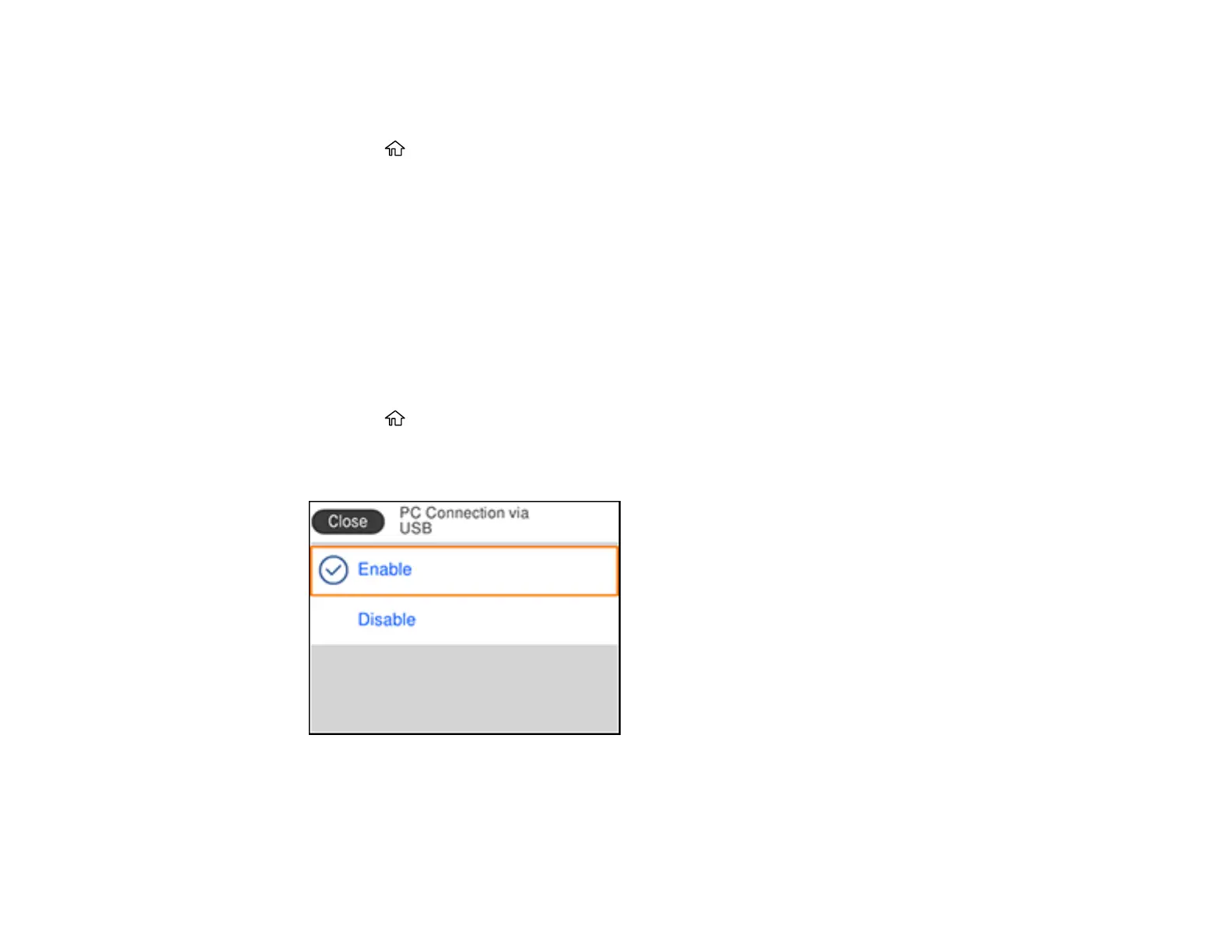
2. Select Settings > General Settings > Printer Settings > PC Connection via USB.
You see a screen like this:
3. Select Disable and press the OK button.
4. Do one of the following:
• Select Yes and press the OK button to restart the product.









 To Next Page