❏ Dry the printouts completely before ling or displaying them. When drying the printouts, avoid direct sun light,
do not use a dryer, and do not touch the printed side of paper.
❏ Try to use genuine Epson ink cartridges. is product is designed to adjust colors based on the use of genuine
Epson ink cartridges.
e
use of non-genuine ink cartridges may cause print quality to decline.
❏ Epson recommends using the ink cartridge before the date printed on the package.
❏ For best results, use up ink cartridge within six months of opening the package.
❏ When printing images or photos, Epson recommends using genuine Epson paper rather than plain paper. Print
on the printable side of the genuine Epson paper.
Related Information
& “Paper Handling Precautions” on page 23
& “List of Paper Types” on page 25
& “Checking and Cleaning the Print Head” on page 68
& “Aligning the Print Head” on page 69
& “Available Paper and Capacities” on page 24
The Position, Size, or Margins of the Printout Are Incorrect
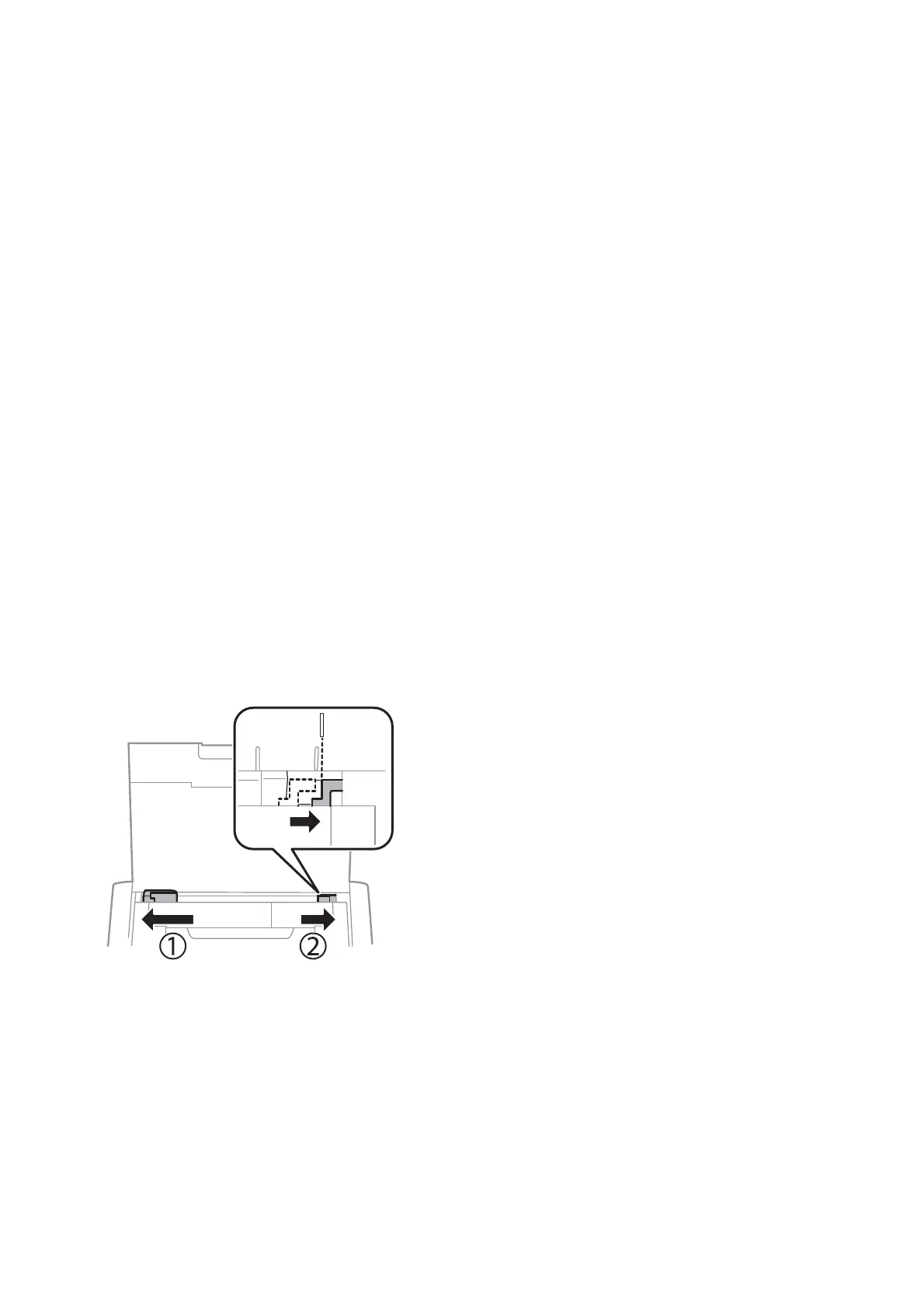
❏ Load paper in the correct direction, and slide the edge guide against the edge of the paper.
❏ If the printout bias toward the right side, and is cropped the right part, the paper may not be loaded in the
correct position. Slide the edge guide to far le, slide the part on the right side to far right, and then load paper
again.
❏ Select the appropriate paper size setting on the control panel or in the printer driver.
❏ Adjust the margin setting in the application so that it falls within the printable area.
❏ During borderless printing, the image is slightly enlarged and the protruding area is cropped. Adjust the
amount of enlargement.
❏ Wi n d o w s
Click Settings of the Borderless on the printer driver's Main tab and select the amount of enlargement.
❏ Mac OS X
Adjust the Expansion setting from the print dialog's Print Settings menu.
User's Guide
Solving Problems
89



 To Next Page