1716
3.1.1.1 Changing Views Alternative Process
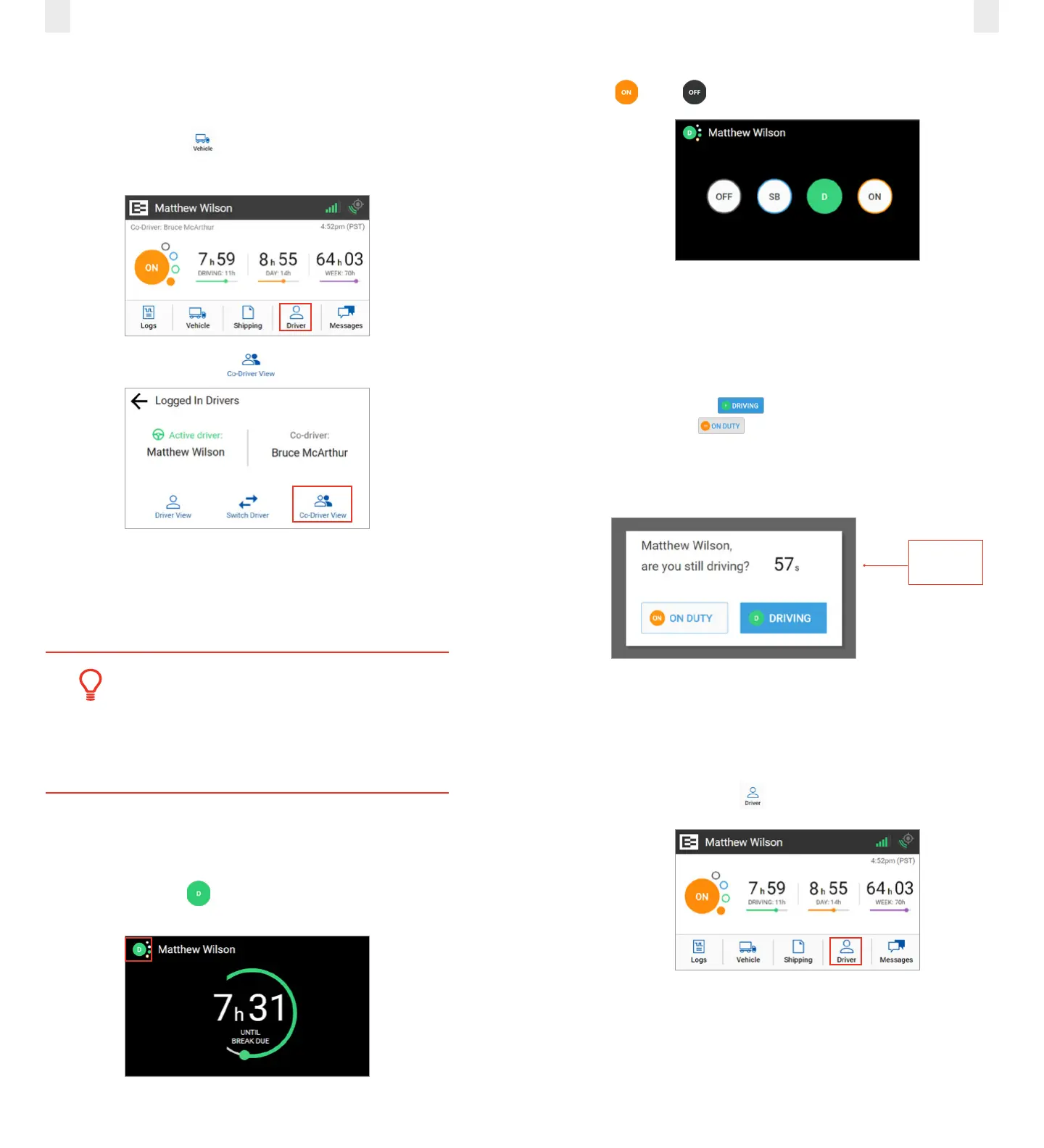
Perform the following steps to change views from the Driver
view (default) to the Co-Driver view.
1. Tap the Driver icon on the Home menu. The Logged-in
Driver screen appears.
2. Tap the Co-Driver View icon.
3. Co-driver: Enter your PIN at the prompt. The co-driver’s
driver profile screen displays.
Note: This process can be applied in reverse if you begin
from the Co-Driver View.
Tip:
• EROAD ELD logs are secure and prevent
unauthorized access to another driver’s logs.
• You must enter your PIN number at the
prompt, if you begin from an opposite view.
3.1.2 Exiting Driving Mode
Perform the following steps to exit driving mode when you
stop driving.
1. Tap on the Driving duty status icon that appears next to
your name when you stop driving.
2. Tap the duty status that applies to the change (such as On
or O ). You are returned to the Home screen.
3.1.2.1 Exiting Driving Mode Alternative Process
The screen on the EROAD ELD automatically changes if your
vehicle is stationary for five minutes. You have 60 seconds to
respond to the prompt, otherwise, your status changes to On
Duty if you ignore the prompt.
• Tap the Driving button if you are still driving or tap
the On Duty button if you are not driving.
Note: Use the duty status icon to change your duty status, if
needed. See section 2.3.1, Duty Status for more information.
60-Second
Counter
3.2 ADDING A CO-DRIVER
Both the active driver and co-driver must be logged into the
EROAD ELD, when driving with a co-driver. Co-driver login can
be accomplished using the following steps.
1. Tap the Driver icon on the Home menu.



 To Next Page