3534
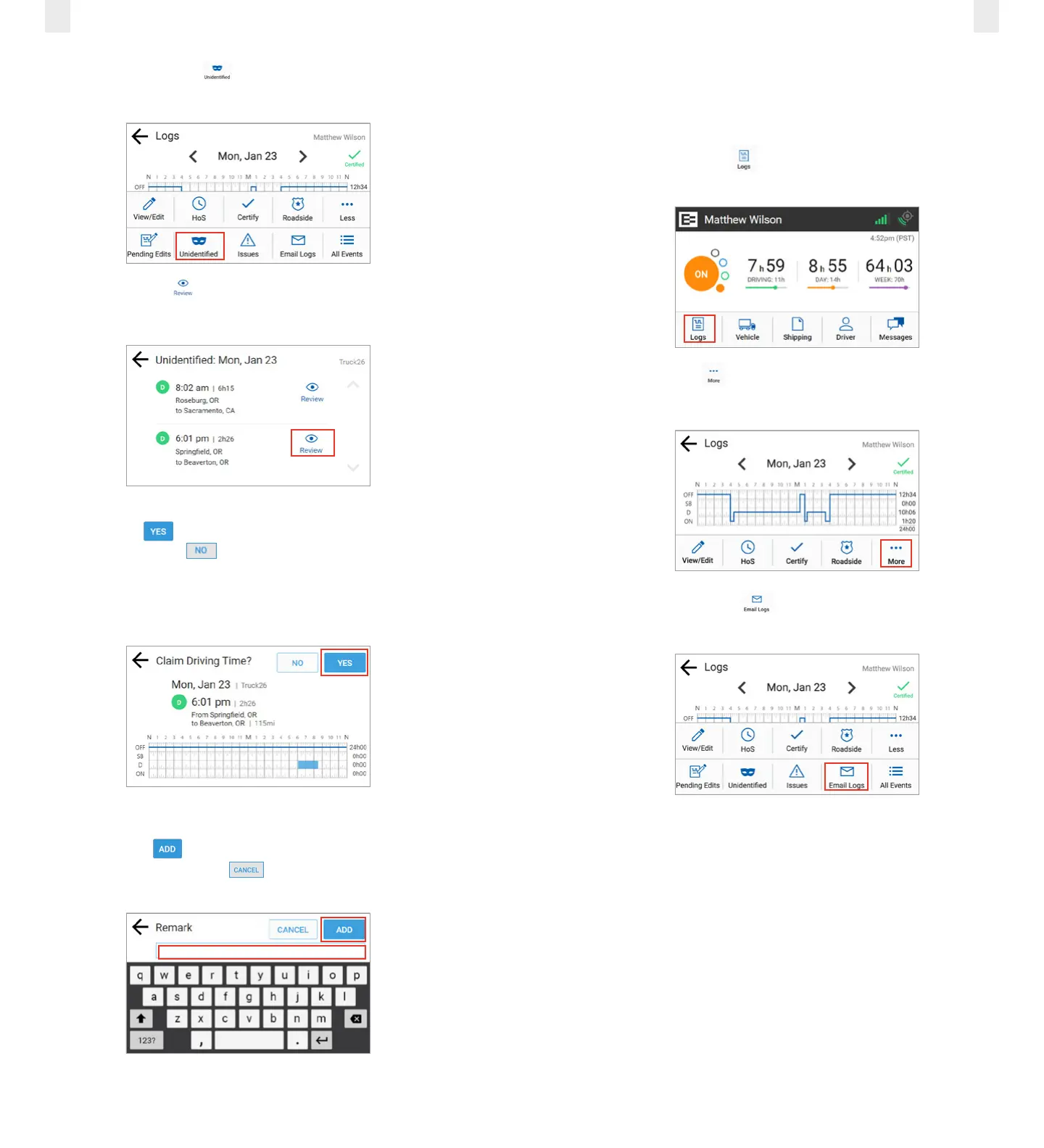
3. Tap the Unidentified icon. The Unidentified screen
displays the records that need to be claimed.
4. Tap the Review icon to see details about the driving
time. The Claim Driving Time screen appears
5. Tap the Yes button to claim this driving time for your
logs or tap the No button, if this time is not yours. The
Claim Driving Time screen updates the graph (highlighted
in blue) to display how your logs look after you claim this
time.
6. Enter a description in the Remarks field.
7. Tap the Add button to enter the remark in your
record or tap the Cancel button. A confirmation
message shows that this time is added to your logs.
4.4 EMAILING LOGS TO YOURSELF
It is good practice to keep a backup copy of your logs. Perform
the following steps to email your logs from the EROAD ELD to
your email address.
1. Tap the Logs icon on the Home screen. The Logs
screen appears.
2. Tap the More icon on the Logs screen. The Logs menu
expands to reveal additional menu options.
3. Tap the Email Logs icon. The Email Logs screen
appears.



 To Next Page