1918
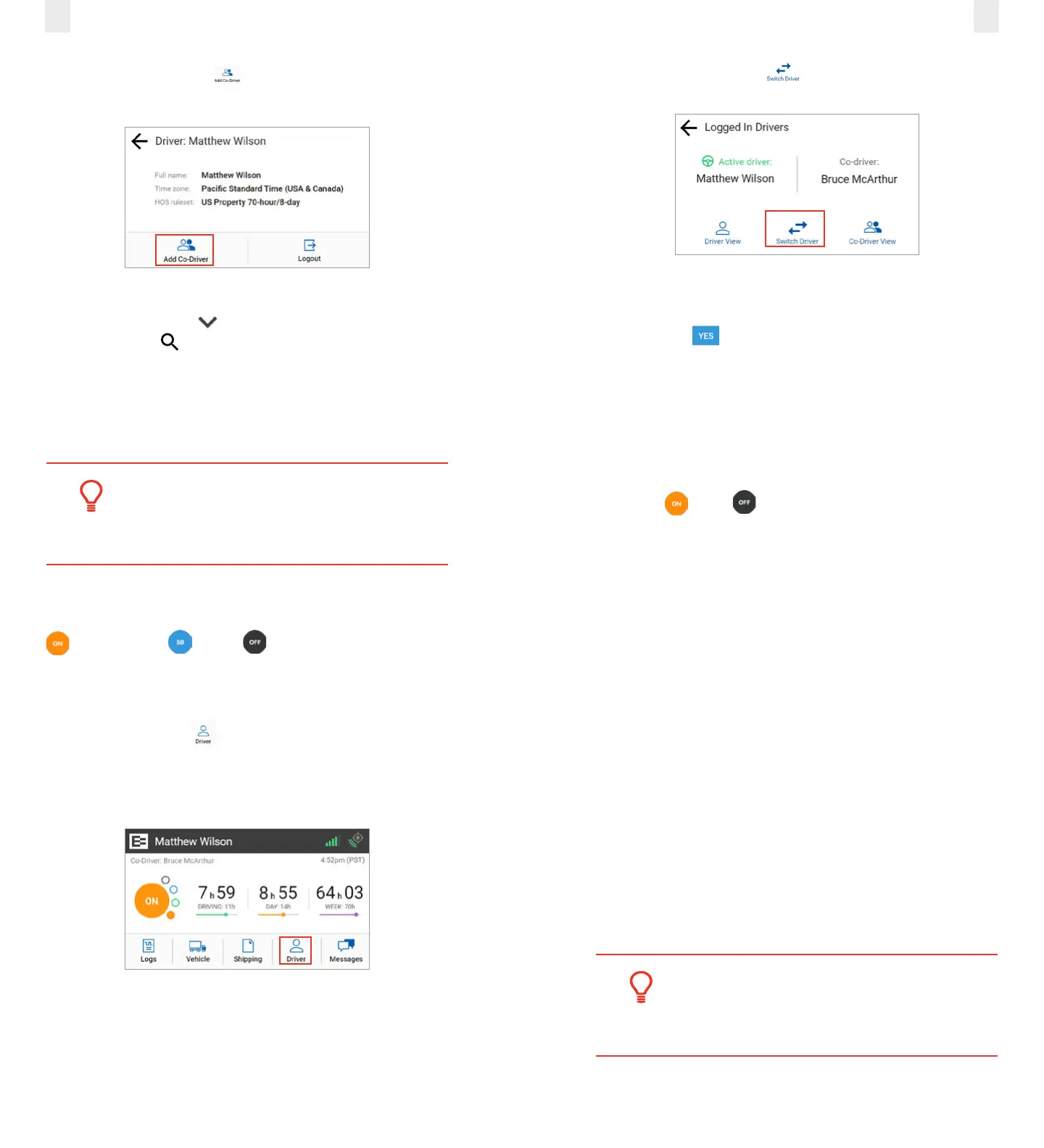
2. Tap the Add Co-Driver icon on the Driver menu. The
Co-Driver Login screen appears.
3. Tap the co-driver’s name.
Note: Tap the Down arrow to see the rest of the list or
tap the Search icon to find your name.
4. Co-Driver, enter your four-digit PIN number.
See section 2.1, Logging in to the EROAD ELD for more
information about the login screens.
Tip:
Driving time is applied to the active driver if the
co-driver does not login.
3.3 Changing Drivers
The Active Driver must change his duty status to On Duty
, Sleeper Berth or OFF before changing drivers
on the EROAD ELD, when a co-driver is present. Perform
the following steps before the vehicle is in motion when you
change drivers.
1. Tap the Driver icon on the Home menu. The Logged
In Drivers screen displays the Active Driver’s name on the
left side and the Co-Driver’s name on the right side of the
screen.
2. Tap the Switch Driver icon.
3. Enter the active driver’s PIN.
4. Tap the Yes button. A confirmation message appears.
Note: See section 4.2, Swapping Driving Time if you made a
mistake and recorded driving time for the wrong driver.
3.4 Changing Vehicles
Perform the following steps if you must move from one vehicle
to another vehicle.
1. Tap On or O at the Home screen in the first
vehicle to change your duty status.
See section 2.3.1, Duty Status for more information.
2. Perform the logout procedure in the first vehicle.
See section 3.9, Finishing Your Day / Logging out for
more information.
3. Perform the login procedure on the EROAD ELD in the
second vehicle and set your duty status.
See section 2.1, Logging in to the EROAD ELD and section
2.3.1, Duty Status for more information.
3.5 Viewing and Sending Messages
Motor carriers can send messages to drivers through Depot.
Drivers can view and send messages using the Messages icon
on the Home menu. An orange light illuminates on the ELD
when a message is unread.
• Unread messages are highlighted in orange.
• Read messages are highlighted in gray.
• Replies are highlighted in blue.
Tip:
The vehicle must be stopped before you reply or
send a message.



 To Next Page