4140
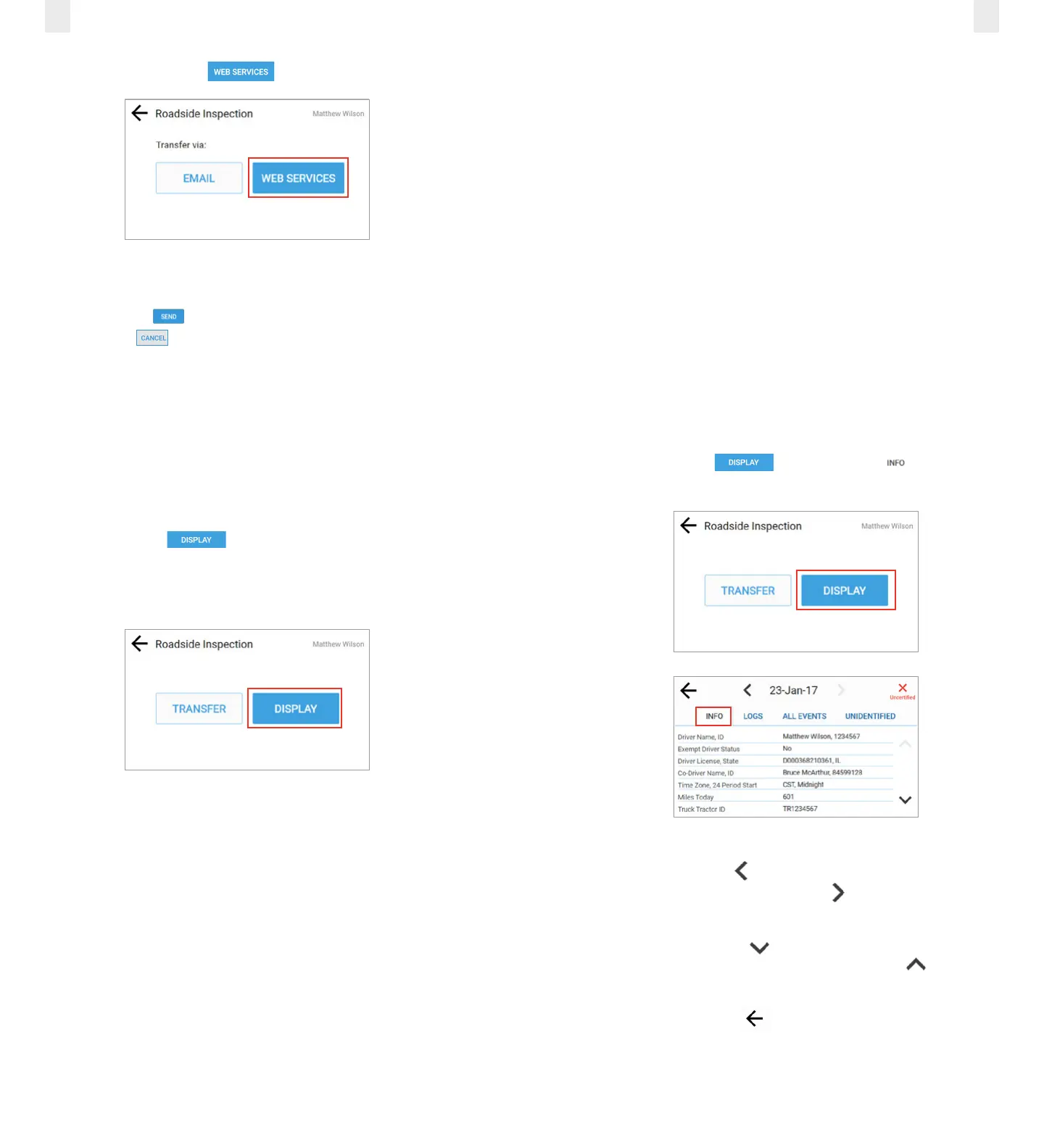
3. Tap the Web Services button.
4. Enter a description in the Comment field. See section 5.1.1,
Transfer Via Email for an illustration of the Comment field.
5. Tap the Send button to complete the transfer or tap
the Cancel button. A confirmation message appears
indicating whether the file was transferred successfully
or not.
5.2 DISPLAYING YOUR RECORDS
Perform the following steps to display driver records.
1. Ensure that you have completed the steps described in
section 5, Roadside Inspection.
2. Tap the Display button. The screen changes to
display four tabs of information: Info, Logs, All Events, and
Unidentified. These tabs are described in the following
subsections.
5.2.1 Viewing Header Information
Header information displays a variety of information on
driver status, truck and shipping information, and so on. The
header information demonstrates that your EROAD ELD logs
are compliant with regulations. This information includes the
following criteria:
• Driver Name, ID
• Exempt Driver Status
• Driver License, State
• Co-Driver Name, ID
• Time Zone, 24 (hour) Period Start
• Miles Today
• Truck Tractor ID
• Truck Tractor Vehicle Identification Number (VIN)
• Start – End Odometer
• Start – End Engine Hours
• Trailer ID
• Shipping ID
• Carrier, USDOT Number
• ELD Manufacturer, ID
• Data Diagnostic Indicators
• Unidentified Driver records
• ELD Malfunction Indicators
• Display Date
• Current Location
Perform the following steps to view the header information.
1. Ensure that you have completed the steps described in
section 5, Roadside Inspection.
2. Tap the Display button. The Info tab displays
by default.
3. Tap the Left arrow icon beside the date to back up to a
prior date, or tap the Right arrow icon beside the date to
advance to a current date.
4. Tap the Down arrow icon on the right side of the screen
to see more information, or tap the Up arrow icon to
move up to the top of the list.
5. Tap the Back arrow icon to return to the previous
screen.



 To Next Page