2726
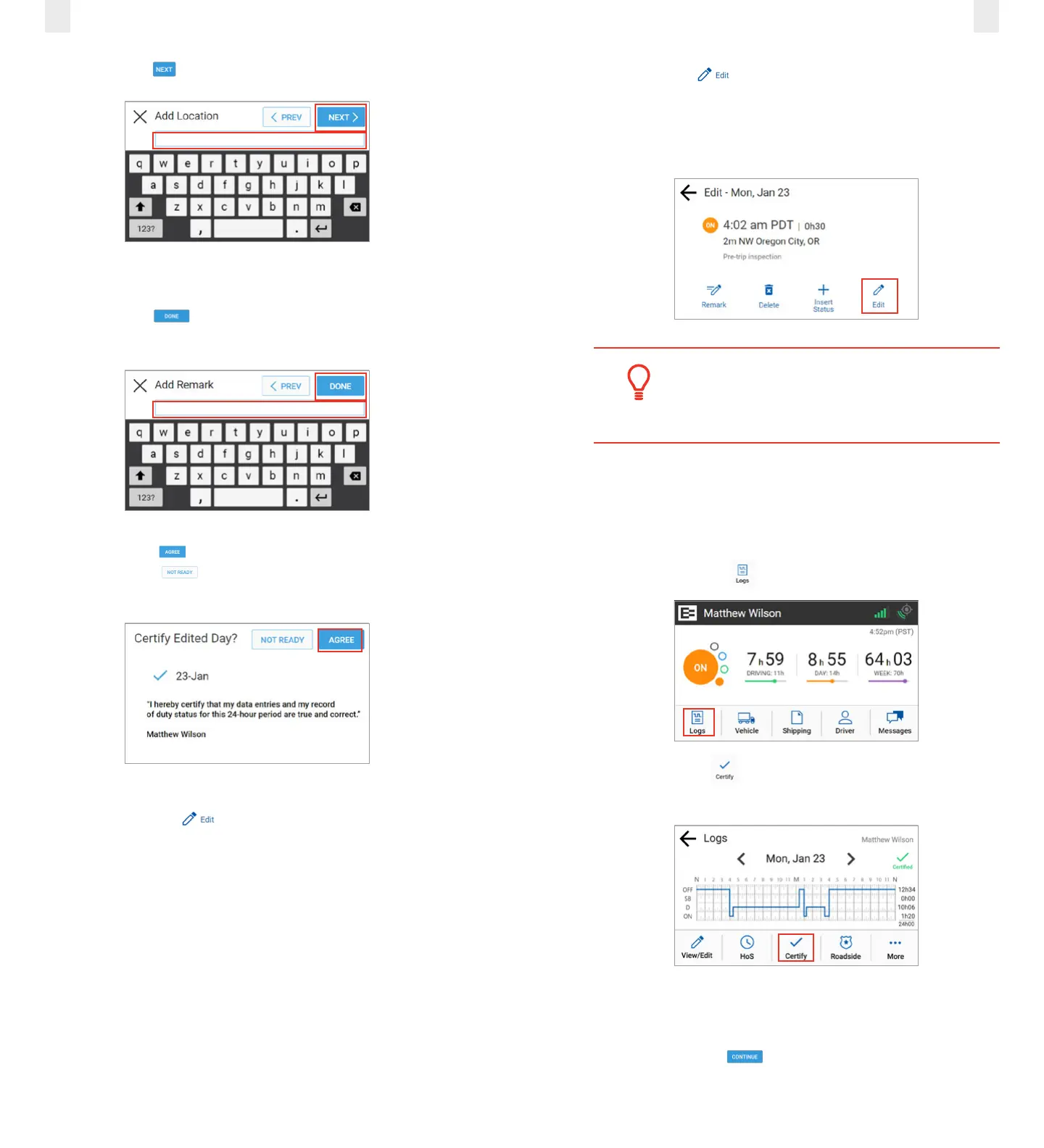
12. Tap the Next button. The Add Remark screen appears.
13. Enter your reason for inserting the record in the Add
Remark field.
14. Tap the Done button. The Certify Edited Day screen
appears.
15. Tap the Agree button if you are ready to certify or tap
the Not Ready button. The Logs screen appears with
a confirmation message.
3.7.4 Editing an Existing Record
You can use the Edit icon to correct an existing record.
Perform the following steps to correct an existing record.
1. Complete the steps described above under section 3.7,
Correcting Logs to open the Edit screen.
2. Tap the Edit icon. The Edit Status screen appears. The
EROAD ELD allows you to proceed through the edit wizard
to access the following screens: Edit Duty Status, Edit Start
Time, Edit CMV, Edit Location, and Add a Remark, in this
order.
Tip:
You must add a remark when editing your logs
to explain the reason for the edit.
3.8 CERTIFYING YOUR LOGS
It is best to certify your logs at the end of each trip. Perform
the following steps to certify your logs, if any previous days are
uncertified.
1. Tap the Logs icon on the Home screen.
2. Tap the Certify icon on the Logs screen. The Certify
screen displays.
3. (optional) Tap a check box (date) only if you want to disable
it because you are not ready to certify that date.
4. Tap the Continue button. A confirmation message
appears for the selected dates.



 To Next Page