1110
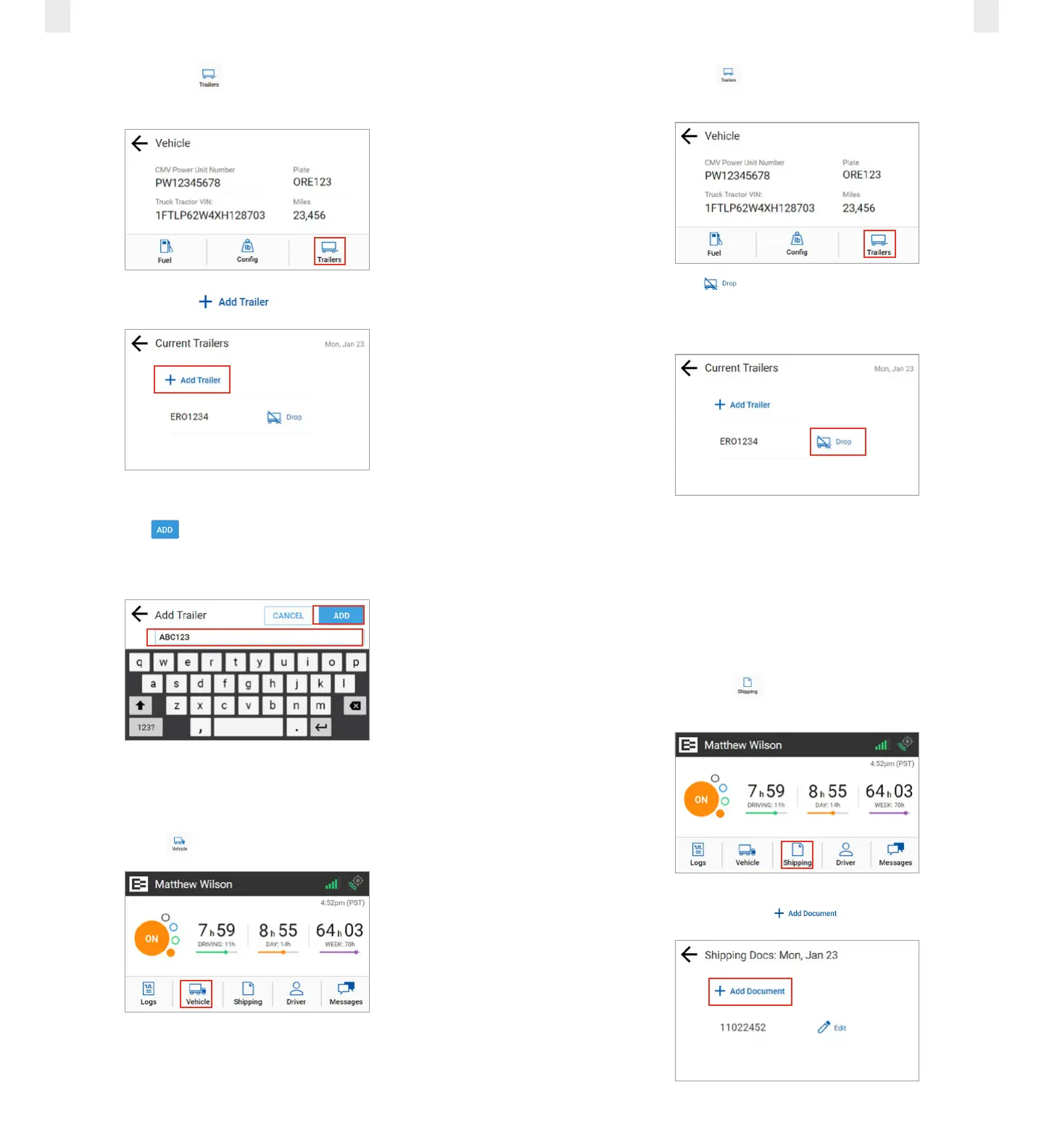
2. Tap the Trailers icon on the Vehicle menu. The Trailers
screen displays your list of trailers.
3. Tap the Add Trailer button.
4. Enter the trailer ID in the Add Trailer field.
5. Tap the Add button. The Connected Trailers screen
displays a confirmation message.
Note: You can connect from one up to three trailers.
2.5.2 Dropping Trailers
Perform the following steps to drop a trailer.
1. Tap the Vehicle icon on the Home menu.
2. Tap the Trailers icon on the Vehicle menu. The Trailers
screen displays your list of trailers.
3. Tap the Drop icon beside the trailer ID that you want
to drop. A confirmation message displays that the trailer
number was removed.
2.6 ENTERING A SHIPPING DOCUMENT
The EROAD ELD allows you to quickly enter a shipping
document (such as a bill of lading). The following sections
describe how to add or delete a shipping document.
2.6.1 Adding a Shipping Document
Perform the following steps to add a shipping document.
1. Tap the Shipping icon on the Home menu. The
Shipping Docs screen appears.
2. Tap the Add Document icon.



 To Next Page