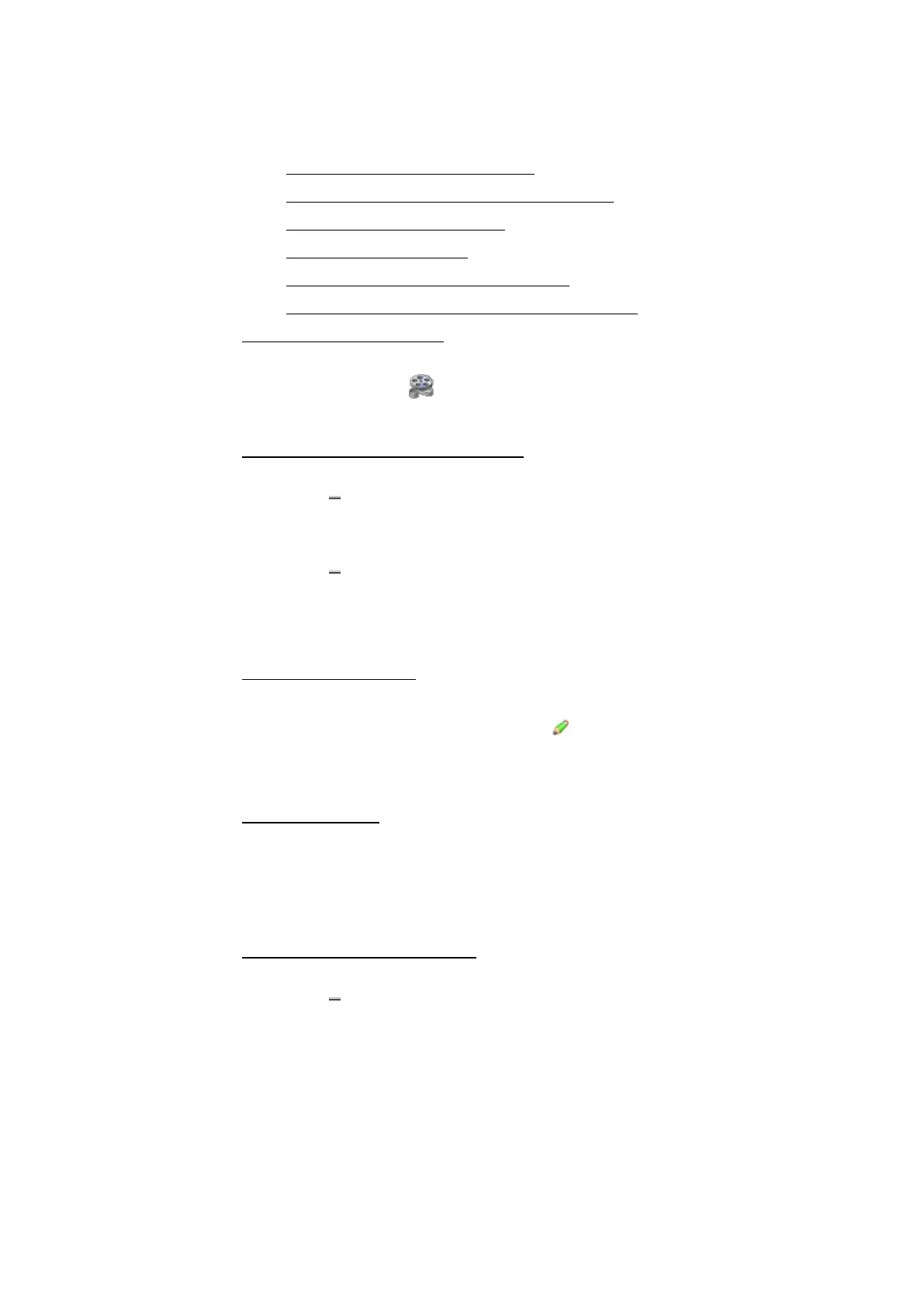
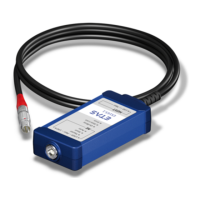
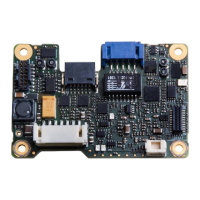
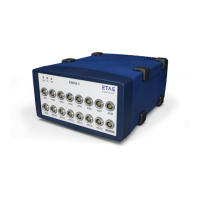
ETAS 5 Instruments
l "To show or hide the signal list" below
l "To define the appearance of the signal list" below
l "To show or hide columns" below
l "To reorder columns" below
l "To position signals in the signal list" below
l "To change the number of decimals" on the next page
To show or hide the signal list
To see how you can use strips and define the signals list settings of the oscil-
loscope, watch our video Instruments - Oscilloscope Strips.
Use the tab Instrument in the Properties window.
To define the appearance of the signal list
1. Do one of the following:
To show all columns of the signal list, you can adjust the width
of the signal list by double-clicking on the border between the
graph and the signal list.
To show the full content of a column in the signal list, you can
adjust the width of the column by double-clicking on the splitter
between the current column and the next column on the right
side.
To show or hide columns
1. Use the tab Instrument in the Properties window.
2.
In the Signal List Columns, click .
3. To show or hide a column, select or clear the checkbox of the
respective column name in the list.
To reorder columns
1. Move a column by dragging its column header to the new position
within the table header.
A line between the columns appears to indicate the new position.
2. Release the mouse button.
To position signals in the signal list
1. Do one of the following:
To sort the signals in ascending order per column, click one of
the column headers in the signal list. If you click the same
column header again, the signals are sorted in descending
order.
MDA V8.5 - User Guide 79



 To Next Page