140 Eos Family Operations Manual
Extracting RDM Fixture -currently getting the data required to create a fixture definition for
the device.
Extracting RDM Sensors - currently getting the sensor definitions from the device.
Offline - no model specific RDM data has been extracted from the device and it is now offline.
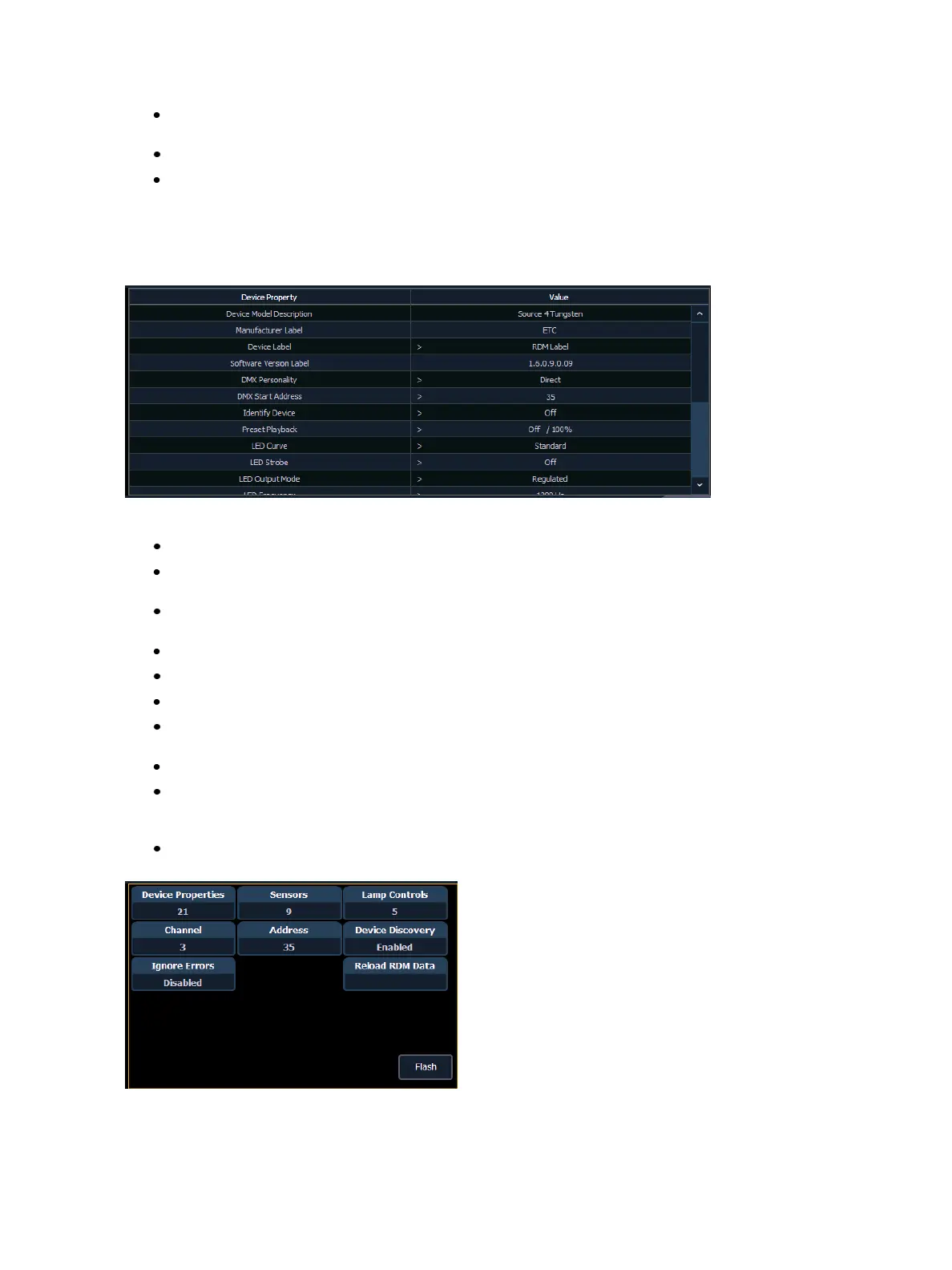
With a device or devices selected, you can edit various device settings in the property view, which
will display in the CIA. Items with a caret (>) are editable. When multiple devices are selected
together for editing, an “*” will show for data that is different between the selected devices.
The following buttons will also display in the property view:
{Device Properties} - opens the properties list for the selected RDM device.
{Sensors} - displays if the selected device has sensors. Pressing {Sensors} will open the sensors
list.
{Lamp Controls} - displays if the selected device has lamp controls.Pressing {Lamp Controls}
will open the lamp controls list.
{Channel} - channel number of the selected device.
{Address} - address of the selected device.
{Device Discovery} - allows for discovery ofRDMdevices.
{Ignore Errors} - when enabled, errors messages will not display in the live/blind displays. They
will still display in about and the properties display in patch.
{Reload RDM Data} - deletes the fixture data from the desk and reloads it from the device.
{Flash} - triggers the identify function of the RDM device. The identify function may defer
between different manufacturers' devices. For example, Wybron scrollers identify by wiggling
their gel back and forth.
{!} or {?} - displays if selected device has errors. Pressing {!}/{?} will open the error list.



 To Next Page