34
Component Identification and Explanation
Control Panel Operation and Navigation
on the opposite side in the upper right corner.
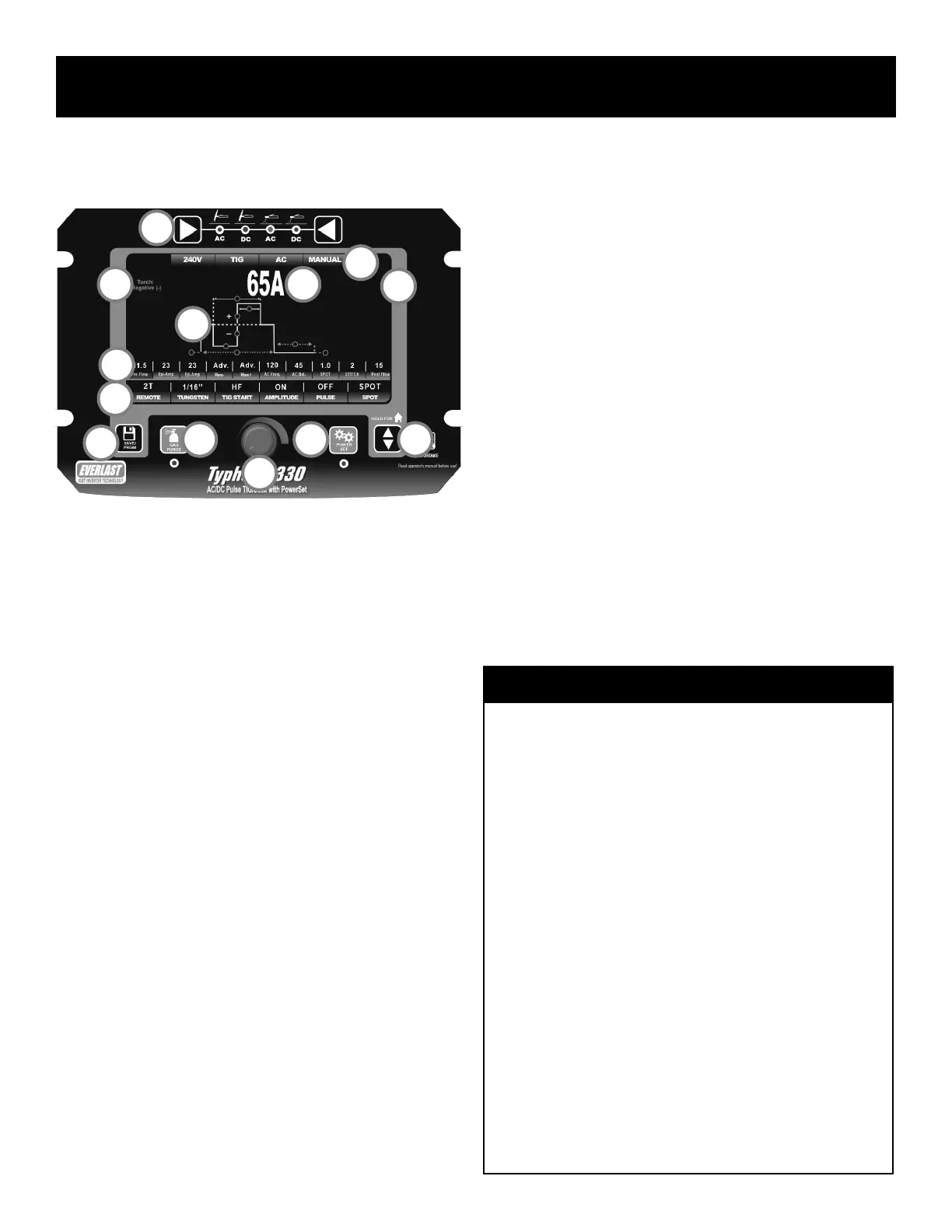
10. Weld Cycle Graph Line. The Weld Cycle Graph line serves as a key
visual guide that helps the user to better understand the role that the
selected parameter plays during the full weld cycle. The Weld Cycle
Graph represents all the relevant aspects of the weld cycle from be-
ginning to end. As each parameter in the Parameter Line (#11) is
selected for adjustment by using the adjustment/navigation knob (#4),
the small circle on the graph line that represents the location of the
selected parameter during the weld cycle will be highlighted red to
indicate and visually conrm the parameter being selected. As the
knob is rotated clockwise to the next parameter the red light will shift
right to the next logical function on the line. Conversely, turning the
knob counter-clockwise causes the light to shift to the parameter to
the left. As certain items on the Function Line (#12) are turned on or
selected, the graph will expand or transform in appearance. In some
cases such when the Spot Weld function is selected, the graph will
change more drastically and many items that are not relevant to the
function will be removed from the graph. See “Understanding the
Weld Cycle Graph” information in this section on next page.
11. Parameter Line. The Parameter Line represents all parameters availa-
ble for adjustment. From left to right, each parameter represents the
logical order and progression of the weld cycle from start to nish
and corresponds to the order of the Weld Cycle Graph. Press and
release the adjustment/navigation knob (#4) and then rotate the knob
to highlight the next parameter for adjustment. Press the knob again
to enter the adjustment mode so that the value can be increased or
decreased by turning the knob. When the parameter has been high-
lighted and selected for adjustment, the selected parameter and it’s
number value will turn red and expand slightly for better readability.
Depending upon the function that has been turned on or selected on
the Function Line (#12), the Parameter Line may expand, adding
more parameters. In some, but not all cases, when the function is no
longer needed or is changed, the Parameter Line may contract and
delete the irrelevant parameters from the Parameter Line.
12. Function Line. The Function Line represents the features and func-
tions that are available that can be used to customize the weld cycle
and general operation of the welder. Use the Up/Down Arrow (#6) to
select the Function Line for adjustment. Then, rotate the knob and
press and release it to adjust the status of the function. When certain
functions such as the Spot Weld function are selected, some of the
other functions become irrelevant to the operation of the function.
The irrelevant functions will become unavailable for selection and will
turn gray to indicate the unavailable status of that function. Also, de-
pending on the exact function that has been selected, the total num-
ber of parameters on the Parameter Line (#11) that are available for
adjustment may also be affected. In this case, if the parameters are
not needed for the operation of the selected function, these parame-
ters will be either grayed-out and unavailable for adjustment or will be
removed completely. If the parameter is removed, the graph line will
contract as these parameters are removed.
More specic information about the Weld Cycle Graph, operating parame-
ters, and specic functions of this unit as they relate to each process and
operation are depicted and explained in the following pages.
1
2
3
4
5 6
7
8 9
10
11
12
9a
Functions vs. Parameters vs. Status
This manual makes frequent use of both the words “functions” and
“parameters” and “status”. In some cases it may seem they could be
used interchangeably. And in a number of cases, there may be indeed
some limited interchangeability in the terms. But they are some clear
differences. To clear up the confusion between the terms, here is a brief
explanation of both Functions, Parameters and Status.
Functions typically indicate a condition of operation, whether something
is turned on or off. A function can also indicate a mode of operation,
such as 2T torch switch operation as opposed to Foot Pedal operation.
Functions will dictate the way the welder behaves and what parameters
are offered for adjustment to the user. For example, the selection of the
Tungsten size will limit the low Amp start of the unit. All functions of the
welder are located on the bottom line.
A parameter denes the type and range of the value that can be adjust-
ed. Pre-Flow, Post-Flow, Up-Slope, Down-Slope, Welding Amps, Pulse
Time On, etc. are all examples of parameters. Most all parameters rep-
resent a numerically based adjustment. In other words, Parameters have
a value associated with them. The exception to this is the Wave Form
Parameter. These are represented by words and symbols. Since the
wave forms can be set independently or equal for each Half-wave of the
AC cycle and can dramatically affect the weld- cycle just like numerically
based parameters, these are included as parameters instead of functions.
Status is typically used to indicate the condition of a function (On, Off,
etc.) or the value of a parameter. It can also indicate the static operating
condition or welding mode of the welder on the status bar at the top of
the menu screen.
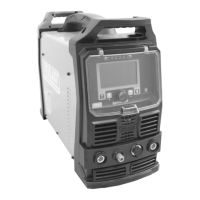
Above image is duplicated from the previous page for reading convenience.


 To Next Page