HD2014, HD2012, HD2011 Video Passport
TM
1RU Multi-Path Video Converter, Frame Synchronizer and Decoder
FRONT PANEL OPERATION Revision 0.1 Page 5-35
5.1.4.14. Setting the VBI Processing
The Vertical Blanking interval may be passed through to the composite analog video output or may
be blanked.
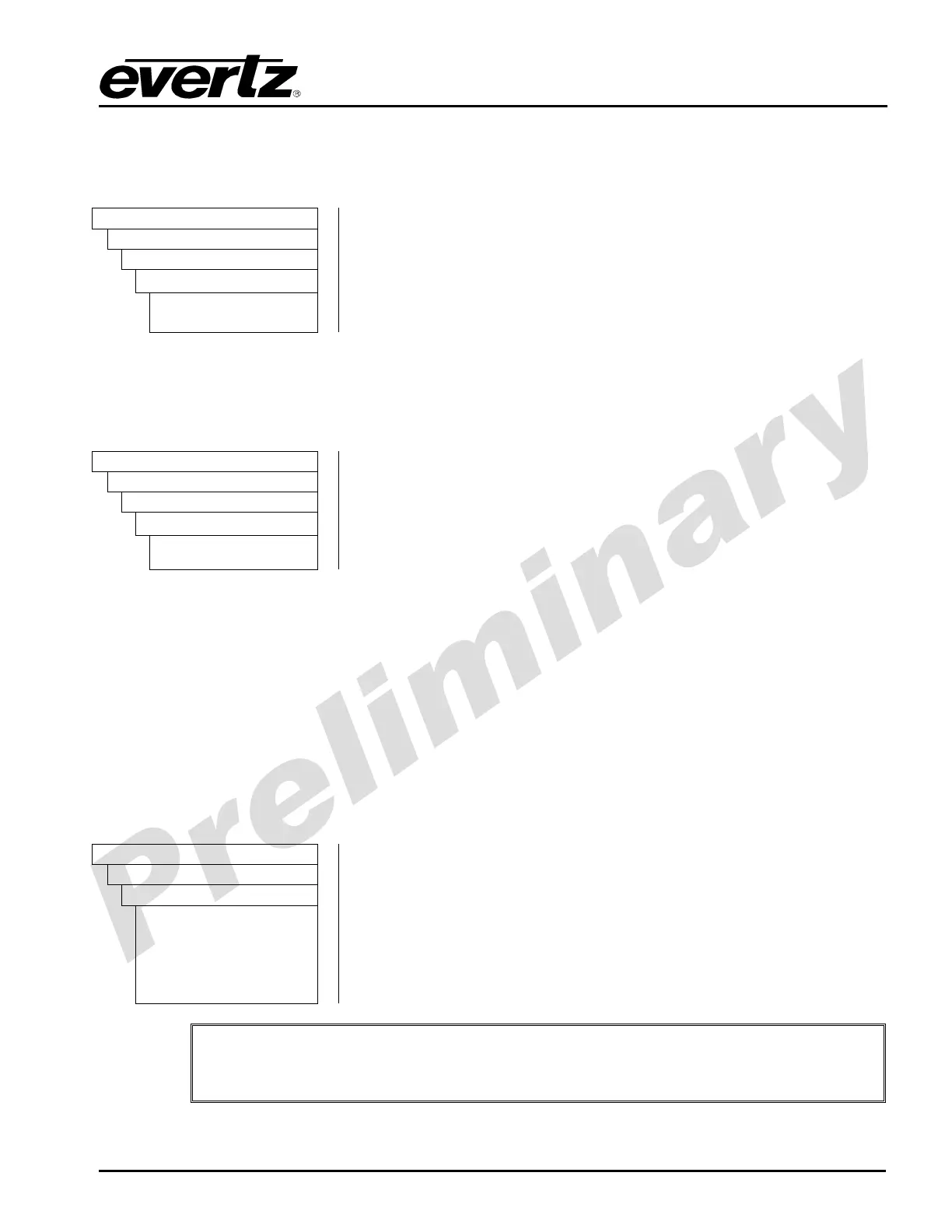
Video
AnalogOut
CompositeOut
vbiProcessing
Pass
Blank
When set to Pass, VBI lines will be passed to the composite analog
video outputs.
When set to Blank, VBI lines will be blanked on the composite analog
video outputs.
5.1.4.15. Setting the Master Video Level
The Master CVBS Video Level control enables the user to set the video level gain for the composite
video output.
Video
AnalogOut
CompositeOut
videoLevel
-64….64
To set the video gain, enter a value between -64 and 64 into the
Master CVBS Video Level Gain field. Level 0 is neutral.
Level -64 corresponds to -7.5% gain change
Level 0 corresponds to 0% gain change
Level 64 corresponds to 7.5% gain change
5.1.5. Configuring the DVI In Controls
5.1.5.1. DVI IN Configuration
The HD201x series has a DVI input that can be used to accept either 720p or 1080p input video
signals. 720p input signals are immediately frame synced and converted to SDI so that the signal can
then be routed to any other HD201x processing resource. 1080p input signals are immediately frame
synced, interlaced to 1080i and converted to SDI. The format of the DVI input signal must be defined
by the DVI Input control
Within the HD201X configuration tool, you must specifically configure the DVI input for the signal format
that is being applied.
Video
dviInput
format
Auto
1080p5994 > i
720p5994
1080p50 > i
720p50
"
At the time of writing this manual, the “AUTO” option is not enabled. You must
select 720p or 1080p. Again, note that when a 1080p DVI signal is applied to this
input, the signal is immediately interlaced to be a 1080i signal.



 To Next Page