exacqVision User Manual
1/24/2011
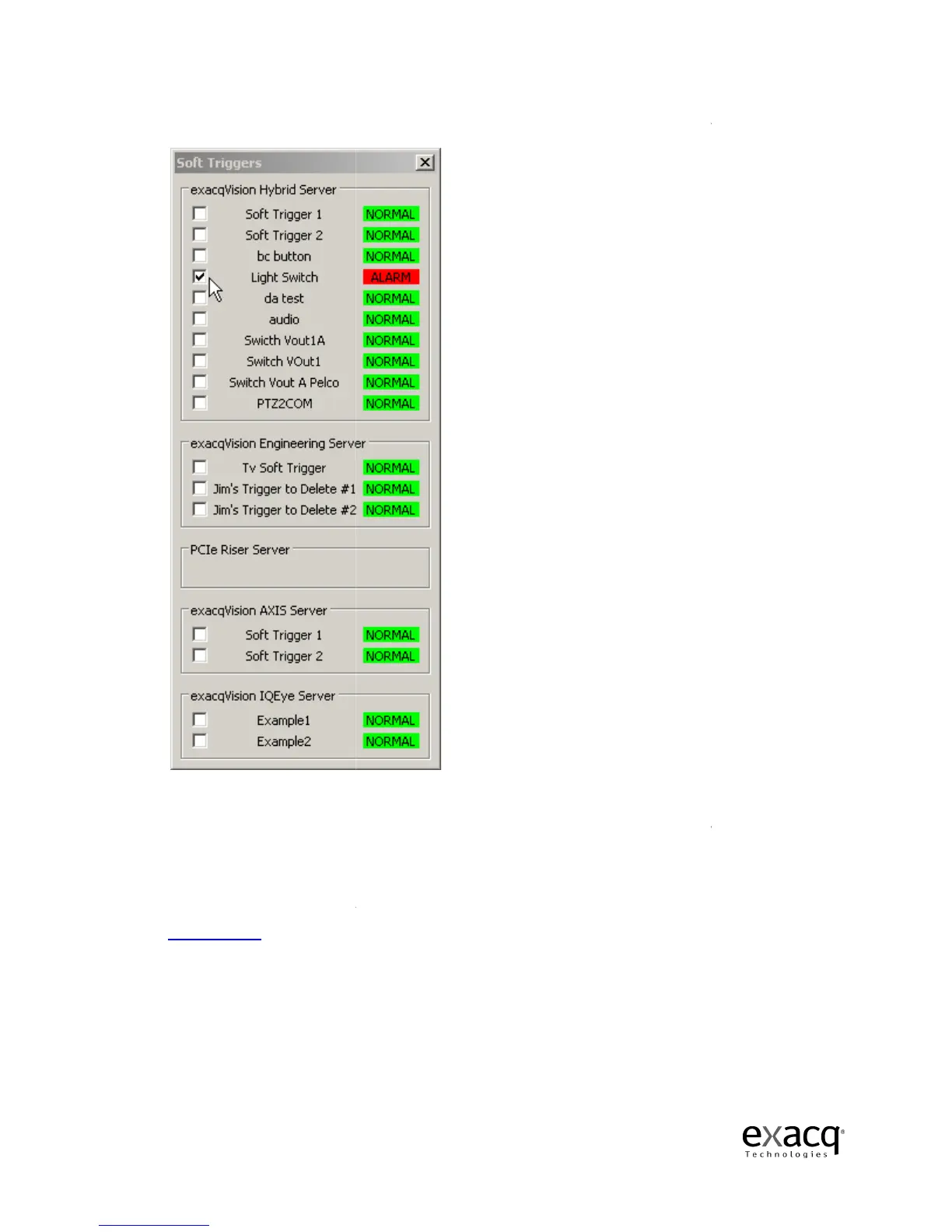
To activate a
Notice the status changes
has been activated.
To deactivate the soft trigger
the checkbox.
As an alternative to the Soft Triggers window, you can also create one
shortcuts by u
sing the Event Button feature
Client Setup, page 94
, for detailed instructions.
Page 48
soft triggers, simply sele
ct the corresponding checkboxes.
Notice the status changes
from Normal (green) to Alarm (red)
To deactivate the soft trigger
and return to a n
As an alternative to the Soft Triggers window, you can also create one
sing the Event Button feature
on the Client Setup screen
, for detailed instructions.
ct the corresponding checkboxes.
soft trigger
, simply deselect
, soft trigger
See



 To Next Page