exacqVision User Manual
1/24/2011
Video Playback
To select a camera for
multiple cameras for playback, press and hold the Control key and then click each of the camera
names. To select a range of consecutive cameras, press and h
camera name in the range, and then click the final camera name in the range.
To play back
cursor along
Clicking once will change the location of the Video Cursor.
button
window at the top-
displayed in the Video Playback windows depending
135.
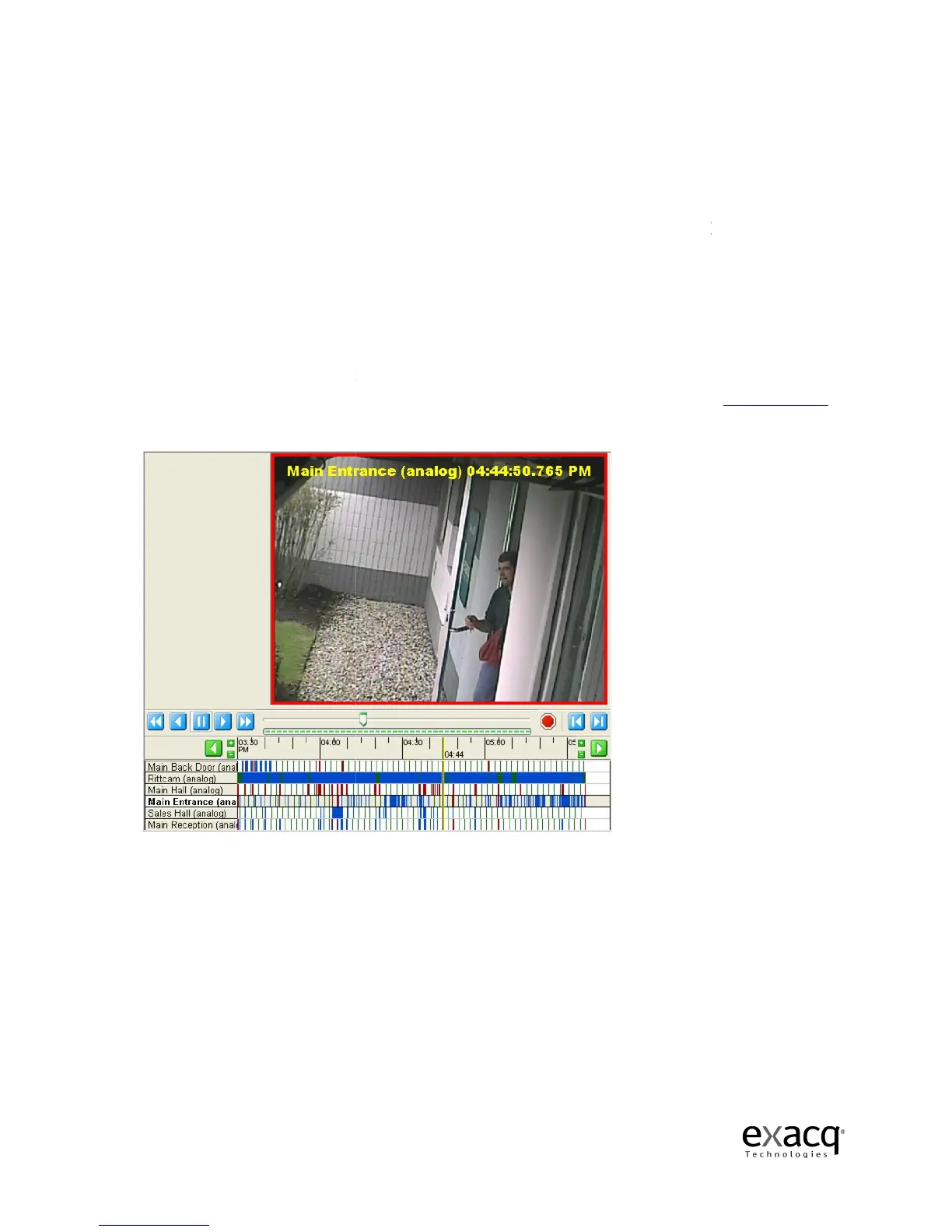
The video clip shown in the figure above was set up to record on motion and it has an alarm linked
to the front door opening.
The blue border indicates that the recording occurred using the motion
mode.
A red border around the playback window indicates an alarm triggered the recording.
Page 71
playback,
click on a camera name in the search results area. To select
multiple cameras for playback, press and hold the Control key and then click each of the camera
names. To select a range of consecutive cameras, press and h
old the Shift key, click the first
camera name in the range, and then click the final camera name in the range.
all selected cameras simultaneously
until you reach the time of the video
Clicking once will change the location of the Video Cursor.
of all the cameras included in the search
screen.
The date, time (milliseconds), or camera names are
displayed in the Video Playback windows depending
on the configurations
The video clip shown in the figure above was set up to record on motion and it has an alarm linked
The blue border indicates that the recording occurred using the motion
A red border around the playback window indicates an alarm triggered the recording.
click on a camera name in the search results area. To select
multiple cameras for playback, press and hold the Control key and then click each of the camera
old the Shift key, click the first
camera name in the range, and then click the final camera name in the range.
your mouse
or pressing the play
Video Playback
The date, time (milliseconds), or camera names are
Camera Setup, page
The video clip shown in the figure above was set up to record on motion and it has an alarm linked
The blue border indicates that the recording occurred using the motion
A red border around the playback window indicates an alarm triggered the recording.


 To Next Page