exacqVision User Manual
1/24/2011
Site Tree Navigation
Since you may not want to view your cameras in the order they appear in the
your
on creating camera groups, go to
view the cameras in the order you choose regardless of how they are listed in the
Tree.
Once you setup the camera groups, you to
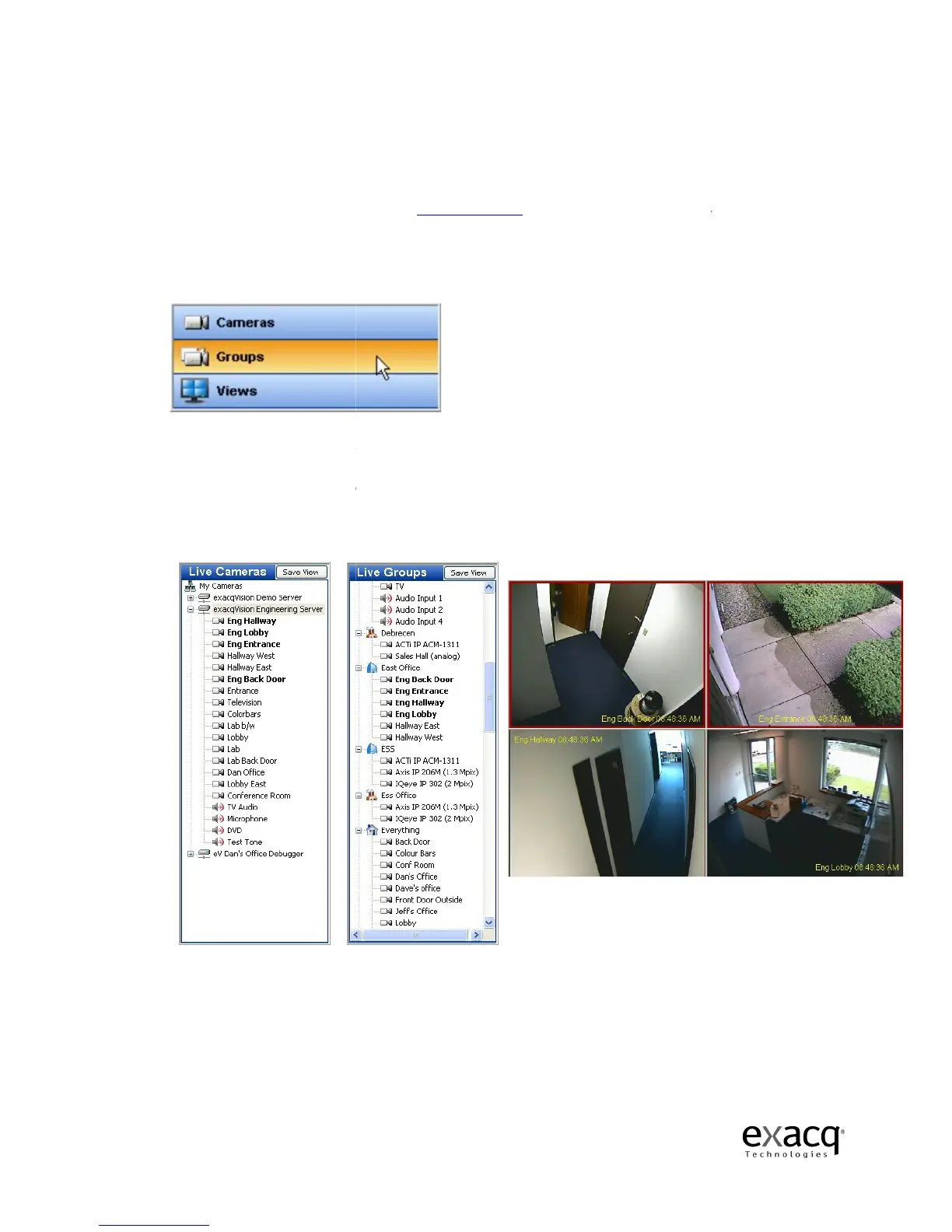
on the Group button in the Navigation Pane.
For example,
if you want to view the Back Door, Front Desk, West Hall, and Reception Desk
cameras you would have to individually drag and drop these cameras in the Video View Panel
because they are not listed in order in the Site Tree.
double click on the first camera in the Perimeter Group and the other cameras in that group
will be displayed in the Video View Panel in the order they are listed.
Page 49
Since you may not want to view your cameras in the order they appear in the
allows you to organize
your cameras into Groups.
on creating camera groups, go to
Camera Setup, page 135.)
This will enable you to eff
view the cameras in the order you choose regardless of how they are listed in the
Once you setup the camera groups, you to
select the cameras in those groups by
on the Group button in the Navigation Pane.
if you want to view the Back Door, Front Desk, West Hall, and Reception Desk
cameras you would have to individually drag and drop these cameras in the Video View Panel
because they are not listed in order in the Site Tree.
Using the Live Groups navigation
double click on the first camera in the Perimeter Group and the other cameras in that group
will be displayed in the Video View Panel in the order they are listed.
Since you may not want to view your cameras in the order they appear in the
Live Site Tree,
your cameras into Groups.
(For instructions
This will enable you to eff
iciently
view the cameras in the order you choose regardless of how they are listed in the
Live Site
select the cameras in those groups by
clicking
if you want to view the Back Door, Front Desk, West Hall, and Reception Desk
cameras you would have to individually drag and drop these cameras in the Video View Panel
Using the Live Groups navigation
, you can
double click on the first camera in the Perimeter Group and the other cameras in that group


 To Next Page