exacqVision User Manual
1/24/2011
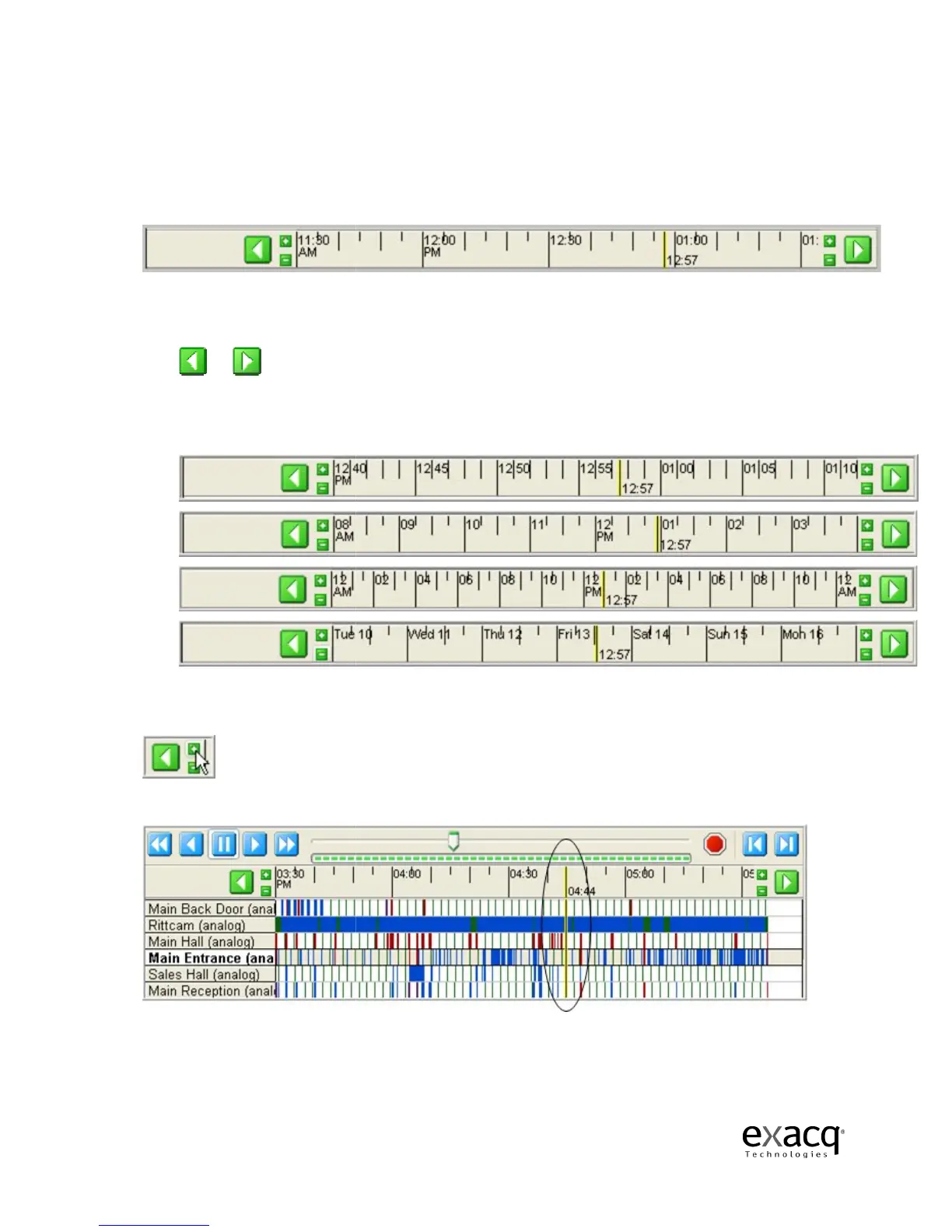
Video Timeline
Just above the
Camera Selection List and the Recorded Video Bars
Line.
The system will automatically display a two
You can adjust the search
time by clicking the left or right arrows or
the Start Time field and
In addition to 30 minute increments
increments of five minutes
A.
B.
C.
D.
You can adjust the time increments
the display to shorter increments.
The yellow Video Cursor
Page 70
Camera Selection List and the Recorded Video Bars
, y
The system will automatically display a two
-hour timeline in
time by clicking the left or right arrows or
by
typing a new start time in
the Search button.
In addition to 30 minute increments
(shown above), t
he Video Timeline can be displayed in
, one hour (B), two hours (C), or 24 hours
You can adjust the time increments
by using the Zoom buttons. Click the (-
the display to shorter increments.
Click the (+) button to display longer increments.
a segment of recorded video.
Video Time
.
typing a new start time in
he Video Timeline can be displayed in
.
Click the (+) button to display longer increments.



 To Next Page