exacqVision User Manual
1/24/2011
Search Mode Overview
Search Mode
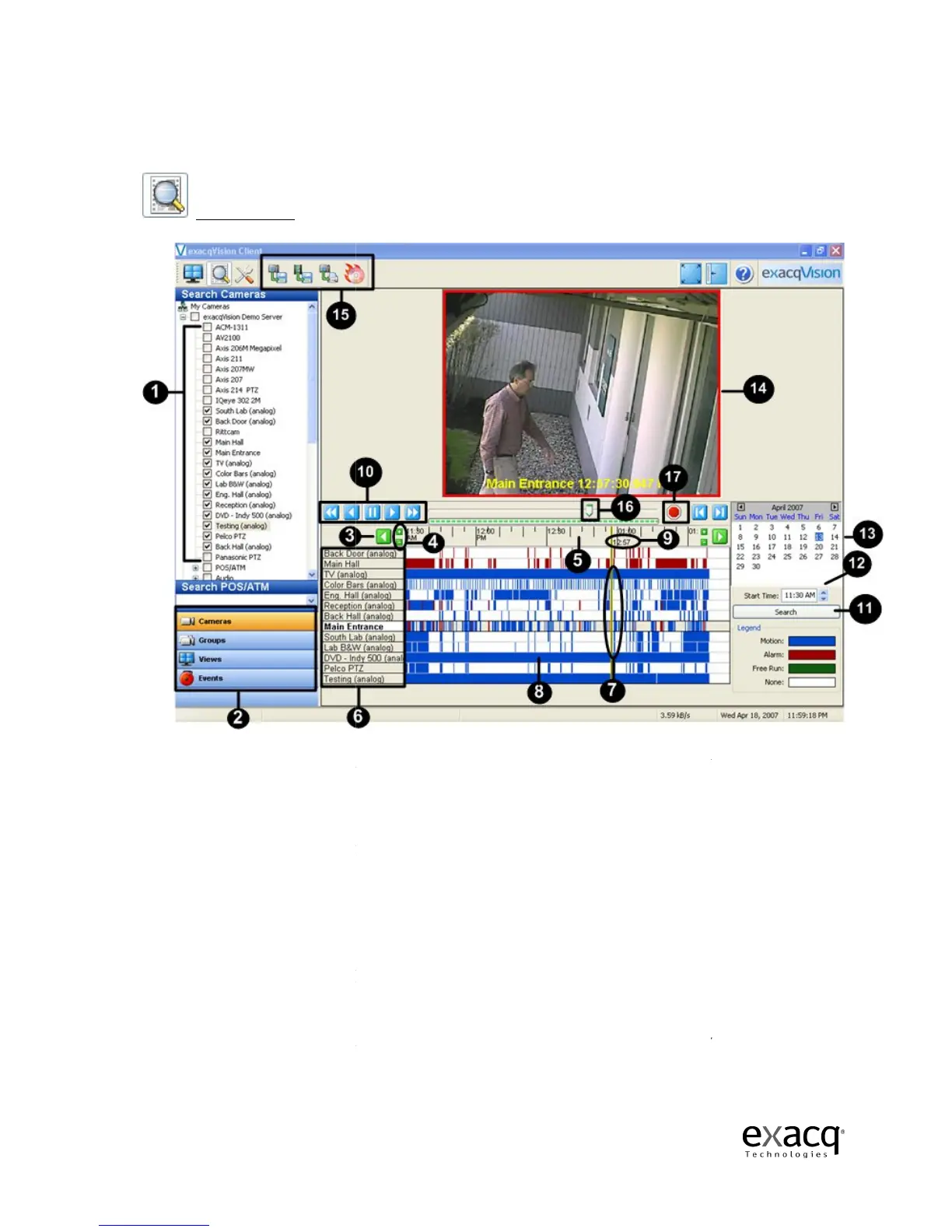
allows users the ability to search for recorded video.
(1)
to search.
(2) Navigation Pane
views.
(3)
Left and Right Scroll Buttons
left or right scroll button
new search.
(4)
Zoom In (+) and Zoom Out (
(5) Video Time Line
is displayed in views of 5 minutes, 1, 8 and 24 hours.
of the video time line then clicking and dragging either up or down allows expanding or
shrinking the camera selection list and associated video bars
playback display.
(6)
the camera tree.
time line bar.
Page 65
allows users the ability to search for recorded video.
– Check the box to select the camera(s)
displays cameras, video, audio, and events in organized groups and
Left and Right Scroll Buttons
–
Scrolls left and right on the time line.
left or right scroll button
increments the time line by
Zoom In (+) and Zoom Out (
-) Buttons –
– time line of video that is displayed as
is displayed in views of 5 minutes, 1, 8 and 24 hours.
Hovering your cursor on the top
of the video time line then clicking and dragging either up or down allows expanding or
shrinking the camera selection list and associated video bars
–
list of cameras that have been selected with the check box in
displayed
in bold when it has been clicked on
displays cameras, video, audio, and events in organized groups and
Scrolls left and right on the time line.
Clicking on the
, and initiates a
video time line.
The video time line
Hovering your cursor on the top
of the video time line then clicking and dragging either up or down allows expanding or
list of cameras that have been selected with the check box in
in bold when it has been clicked on
video


 To Next Page