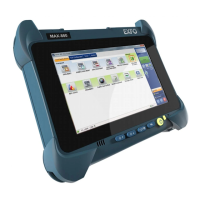
Setting Up the MaxTester MAX-610
MaxTester Copper Test 29
Upload Setup
To configure the setup options:
1. Press the up/down arrows to select the desired parameter.
2. Press the left/right arrow keys to view and select the options.
OR
3. Press on a value to open a list box of options or the alphanumeric
editor screen and use the navigation keys to scroll through.
4. Press to confirm the value.
Wi-Fi Setup
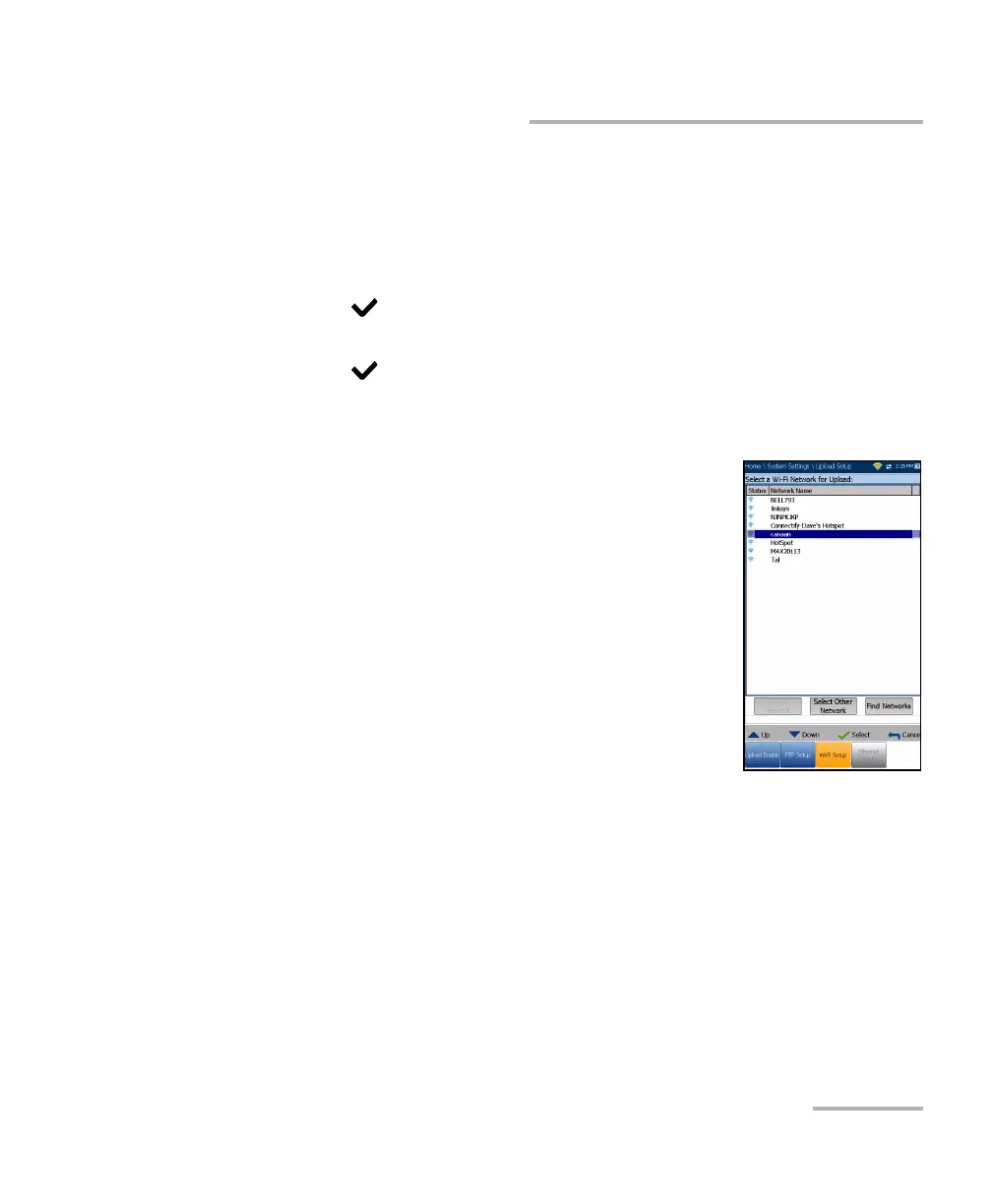
The Wi-Fi Setup pages allows you to connect your
MaxTester to a Wi-Fi network.
Select a Wi-Fi Network for Upload lists the
available secure Wi-Fi networks in range and
presently connected. (Unsecured Wi-Fi networks
are not supported.) The last three networks that
were connected are also listed, whether or not
they are presently connected to the MaxTester.
Note: If you select a network from the list of previously
selected networks (last 3), the MaxTester will try to
join that network using the credentials saved for the
selected network.
Status displays a Wi-Fi symbol if the device is connected, and is
dynamically updated with the present connectivity state of the
networks.
Network Name is the Wi-Fi network name.
A third, right-hand column displays a checkmark indicating the
network selected for upload.
Forget Network button removes a previously joined network from the
list.






 To Next Page