▪ The autonomy controls are grouped together. They duplicate those on the “Click and Inspect”
screen (Section 7.3.4). Select a mission using the drop-down box. To launch or stop the
mission click the buttons underneath. Missions will be started from the docking station.
▪ Hovering over an icon or text will often provide more information.
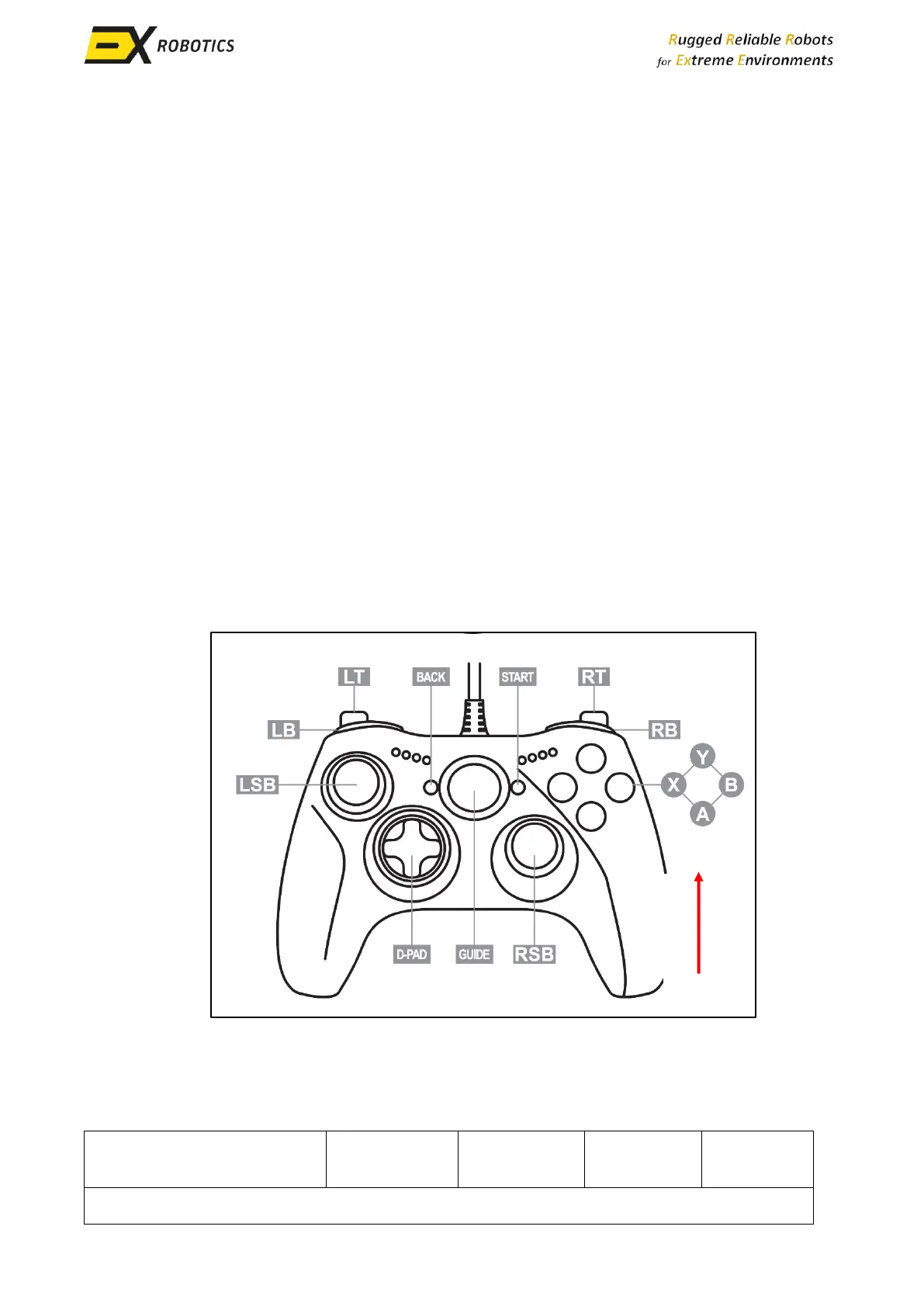
A typical controller is illustrated below:
▪ The green “A” button activates remote control by enabling the controller and drive motors. It
typically takes 30 seconds for the motors to be activated.
▪ The yellow “Y” button deactivates remote control by disabling the controller.
▪ The red “B” button on the controller stops the robot and isolates the motors, identical to the
“Stop” icon on the Driver Screen.
▪ The analogue joysticks are used to drive (LSB) and steer (RSB) the robot.
▪ Holding down the LB/RB buttons changes speed mode (slowest - no buttons pressed, fastest -
both buttons pressed).
▪ If the LT button is held down, the RSB controls whichever PTZ and elevating mast combination
that’s fitted to the robot. Remember some robots do not have a tilting PTZ or mast. Push the
RSB button:
o Left to rotate the field of view (FoV) anticlockwise.
o Right to rotate the FoV clockwise.
o Forwards to raise the FoV or mast.
o Backwards to lower the FoV or mast.
o Down to reset the camera (point it forwards).
For safety reasons, robots cannot be remotely controlled when the driver is using another
application on their control station. A pop-up will appear with a warning. Clicking on the pop-up will
re-enable remote control.



 To Next Page