AvediaStream e2635/e3635 and e2655/e3655 Encoders V1.1
Administrator’s Guide 33
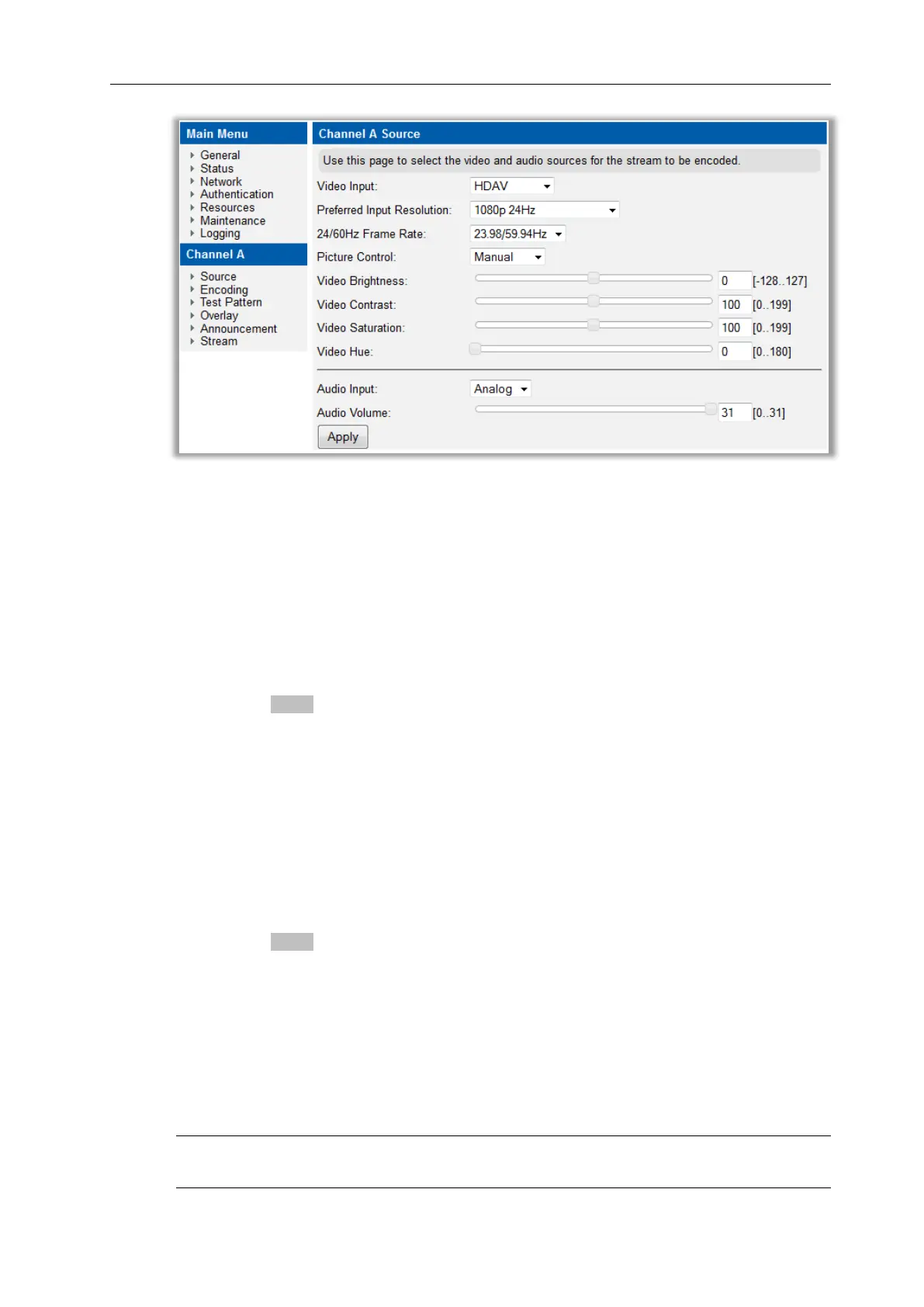
Figure 16 AvediaStream e3635 – Source Page Manual Controls
Video Input
You must select the Video Input to match the applied video input and physical connection to
the encoder. Valid input options are HDAV, RGBHV and Component (YPbPr). For more
information about the video input connections refer to the AvediaStream e2635/e3635
Interface on Page 14. The default is HDAV.
To specify the video input:
1. Click Source.
2. Choose an option from the Video Input drop down list.
3. Click the Apply button.
Video Aspect Ratio (Component and RGBHV only)
If you select the Component or RGBHV video input you can also specify the aspect ratio of
the input video signal. This setting is not available when HDAV is selected. The default is
Auto.
To specify the HD video format:
1. Click Source.
2. With Component or RGBHV as the configured Video Input, select 4:3, 16:9 or Auto from
the Video Aspect Ratio drop down list.
3. Click the Apply button.
Preferred Input Resolution (RGBHV and HDAV only)
Devices with HDMI and RGBHV inputs make EDID (Extended Display Identification Data)
available to source devices, for example a camera or a PC, to advertise its supported
capability and preferred settings. You can set the preferred resolution for the AvediaStream
encoder when RGBHV or HDAV is the selected input, causing the source device to output at
the specified value when connected. The default is 1080p 24Hz.
Note: Some devices ignore EDID content and output at their configured resolution and must
be manually configured if a specific resolution and frame rate is required.


 To Next Page