AvediaStream e2535/e3635 and e2655/e3655 Encoders V1.1
34 Administrator’s Guide
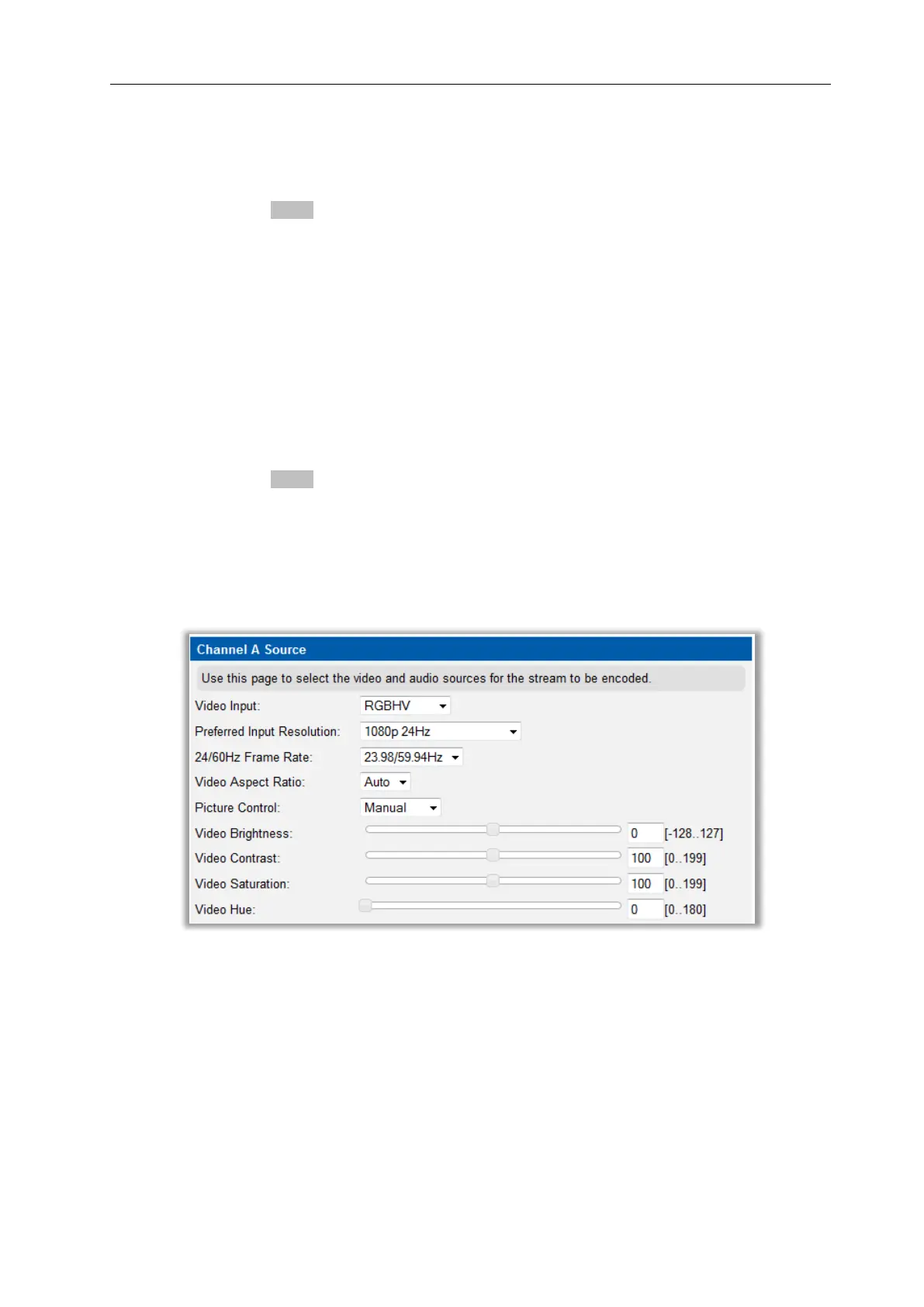
To specify the Preferred Input Resolution:
1. Click Source.
2. With RGBHV or HDAV as the configured video input, select the required value from the
Preferred Input Resolution drop down list.
3. Click the Apply button.
Frame Rate (RGBHV and HDAV only)
Frame Rate sets the AvediaStream encoder frame rate to match that of the applied video input
signal. Valid options are 24.00/60.00Hz or 23.98/59.94Hz. The default is 23.98/59.94Hz.
HD material can either be true 24/60Hz, or may be offset by a 1/1.001 divider to give 23.98Hz
or 59.94Hz. For consistent stable operation the AvediaStream encoder setting must match that
of the applied video signal.
To specify the Frame Rate:
1. Click Source.
2. With RGBHV or HDAV as the configured video input, select the best suited option from the
24/60Hz Frame Rate drop down list.
3. Click the Apply button.
Picture Control
Picture Controls allow you to use the default brightness, contrast, saturation and hue settings
of the video images in the streamed output from the encoder, or to manually adjust each
parameter if required.The default is Automatic.
To specify the picture control settings:
1. Click Source.
2. Choose Manual from the Picture Control drop down list.
3. Click on the Video Brightness slider and drag it to the required level, or click in the entry
field and enter a value between -128 and 127. The default value is 0, no adjustment.
4. Click on the Video Contrast slider and drag it to the required level, or click in the entry
field and enter a value between 0 and 199. The default value is 100, no adjustment.
5. Click the Video Saturation slider and drag it to the required level, or click in the entry field
and enter a value between 0 and 199. The default value is 100, no adjustment.
6. Click the Video Hue slider and drag it to the required level, or click in the entry field and
enter a value between 0 and 180. The default value is 0, no adjustment.


 To Next Page