AvediaStream e2635/e3635 and e2655/e3655 Encoders V1.1
Administrator’s Guide 35
7. Click the Apply button.
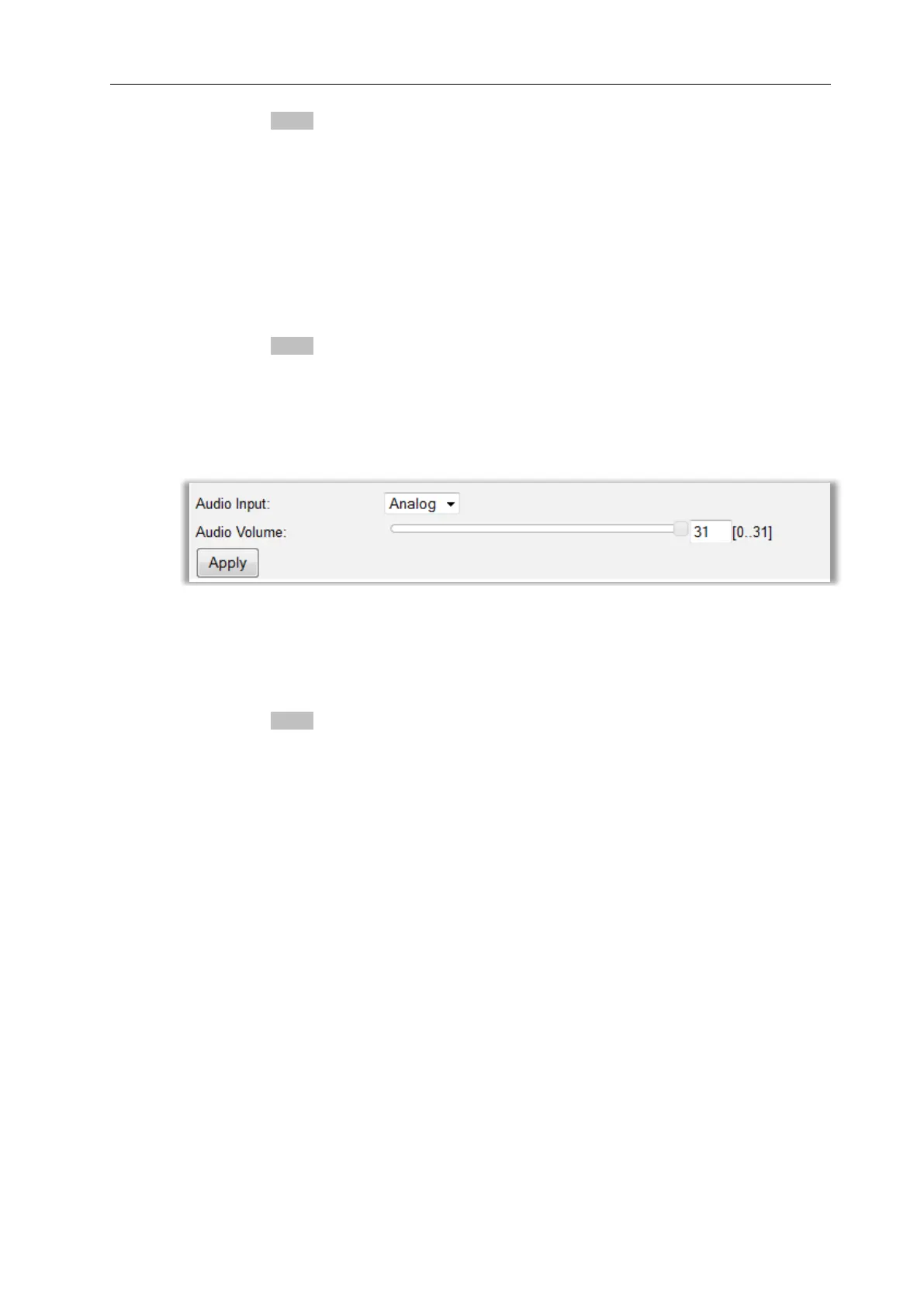
Audio Input
Audio Input specifies the type of audio applied to the encoder. Valid settings are Analog,
S/PDIF, and HDAV. HDAV audio is not available for RGBHV video input. Refer to the
AvediaStream e2635/e3635 Interface on page 14 for more information about audio
connections. The default setting is Analog.
To specify the audio input:
1. Click Source.
2. Choose an option from the Audio Input drop down list.
3. Click the Apply button.
Audio Volume (Analog only)
With Analog configured for the Audio Input, you can adjust the Audio Volume between 0
and 31. The Default is 31.
To specify the audio volume:
1. Click Source.
2. Choose Analog from the Audio Input drop down list.
3. Click on the Audio Volume slider and drag it to the required level, or click in the entry field
and enter a value between 0 and 31. The default value is 31, no adjustment.
4. Click the Apply button.
HDCP
High-bandwidth Digital Content Protection (HDCP) is a form of copy protection commonly
used with devices equipped with digital connection interfaces such as DisplayPort, HDMI, and
DVI. Consumer equipment such as Blu-ray players, most up-scaling DVD players and some
cable/satellite/terrestrial set top boxes protect HDMI outputs when copy-protected content is
being played. Some PCs also protect their HDMI/DVI outputs with HDCP.
AvediaStream e2635 or e3635 encoders cannot encode copy protected material. When copy
protected content is applied to the encoder across an HDCP protected connection the
protected connection is indicated on the web interface Status as shown in the following
example:
Stream: Unsupported HDCP protected input
Video Input: HD AV (720p 59.940 Hz - HDCP protected content)


 To Next Page