FOX3 T 201 Transmitter • Configuration Software 29
TCP/IP Panel
The TCP/IP panel connects PCS to a specific device through Ethernet or USB over IP.
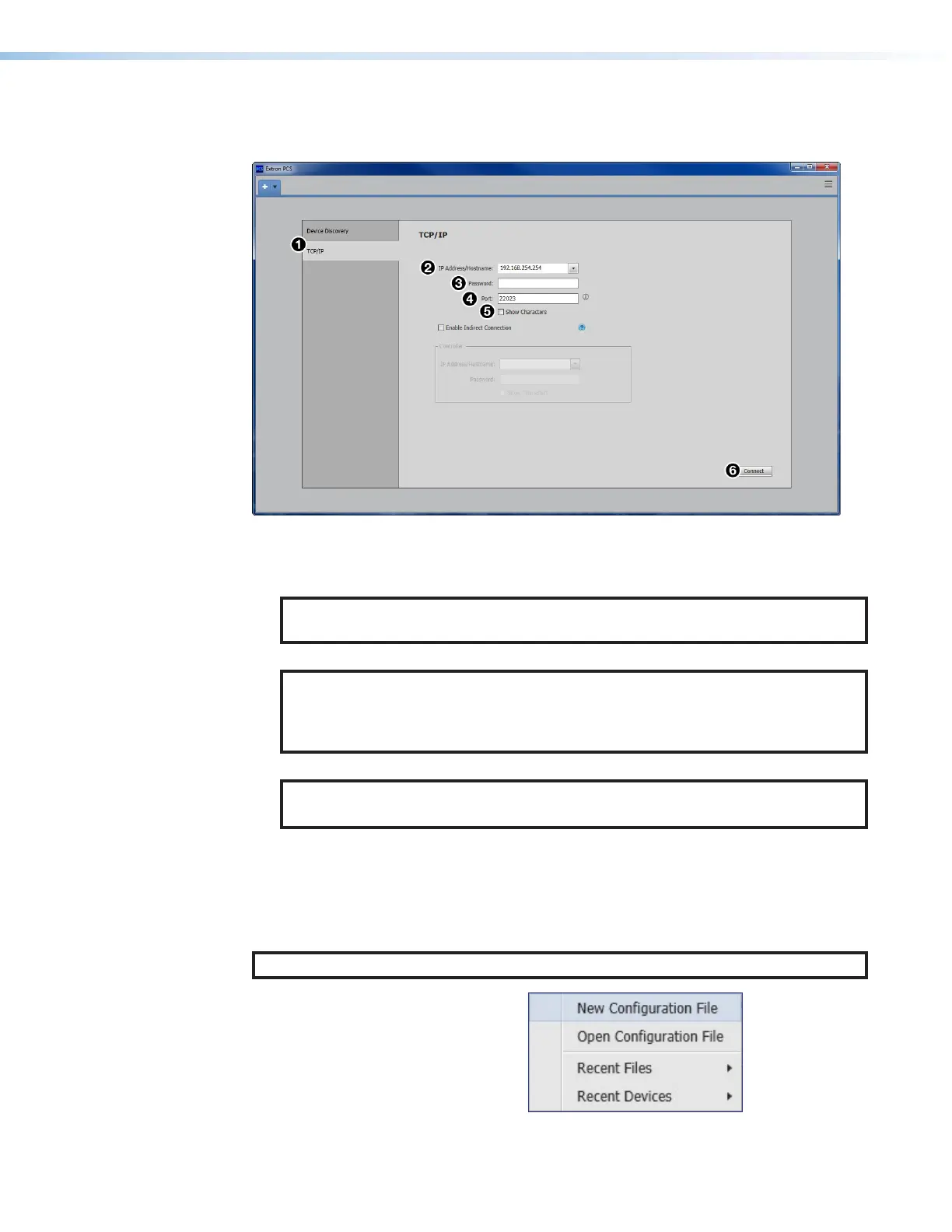
Figure 18. Comm Port Selection Windows
1. Click the TCP/IP tab (see figure18,
1
).
2. In the IP Address/Hostname field (
2
), enter the IP address of the desired device.
NOTE: If the IP address has not been changed, it is 192.168.254.254 for the LAN
port or 203.0.113.22 for the front panel USB port.
3. In the Password field (
3
), enter the device password.
NOTE: The factory configured passwords for all accounts on this device have
been set to the device serial number. In the event of a complete system reset, the
passwords convert to the default, which is extron (see Roles and Permissions
Panel on page39 to change a password).
4. In the Port field (
4
), enter the port 22023 of the desired device.
NOTE: Select the Show Characters checkbox (
5
) to display the password
characters.
5. Click the Connect button (
6
). A new device tab opens.
Offline Device Preview
Opening a new device tab for an offline device displays the interface and configuration
options for the device without connecting to it. However, settings cannot be changed.
NOTE: This is a view only mode. The FOX3 cannot be configured in this view.
To open a scaler device tab:
1. From the Configuration
File drop-down list, select
New Configuration File (see
figure19).
Figure 19. Configuration File Drop-Down List
18
19


 To Next Page