FOX3 T 201 Transmitter • Internal Web Page 35
Internal Web Page
The FOX3201 transmitter features an internal web server, displayed as a web page. Monitor
and adjust certain settings of the FOX3201 device via a LAN or WAN connection. Use a
web browser to view the pages on a PC connected to the device LAN port or front panel
USB port.
This section gives an overview of the internal web page, which is always available and
cannot be erased or overwritten. Topics in this section include:
• Accessing the Internal Web Page
• Web Page Panels
Accessing the Internal Web Page
Access the FOX3 transmitter internal web page as follows:
1. Connect the FOX3 device to a LAN or WAN using the rear panel RJ-45 LAN port or the
front panel USB port (see figure2 on page5 or figure9 on page12).
2. Open a web browser on a PC connected on the same LAN or WAN or connected to
the front panel USB port.
NOTE: Compatible web browsers are Microsoft
®
Edge
®
, Modzilla
®
Firefox
®
, Google
Chrome™, and Apple
®
Safari
®
.
3. Enter the FOX3transmitter IP address in the browser Address field.
NOTE: If the IP address has not been changed, it is 192.168.254.254 for the LAN
port or 203.0.113.22 for the front panel USB port.
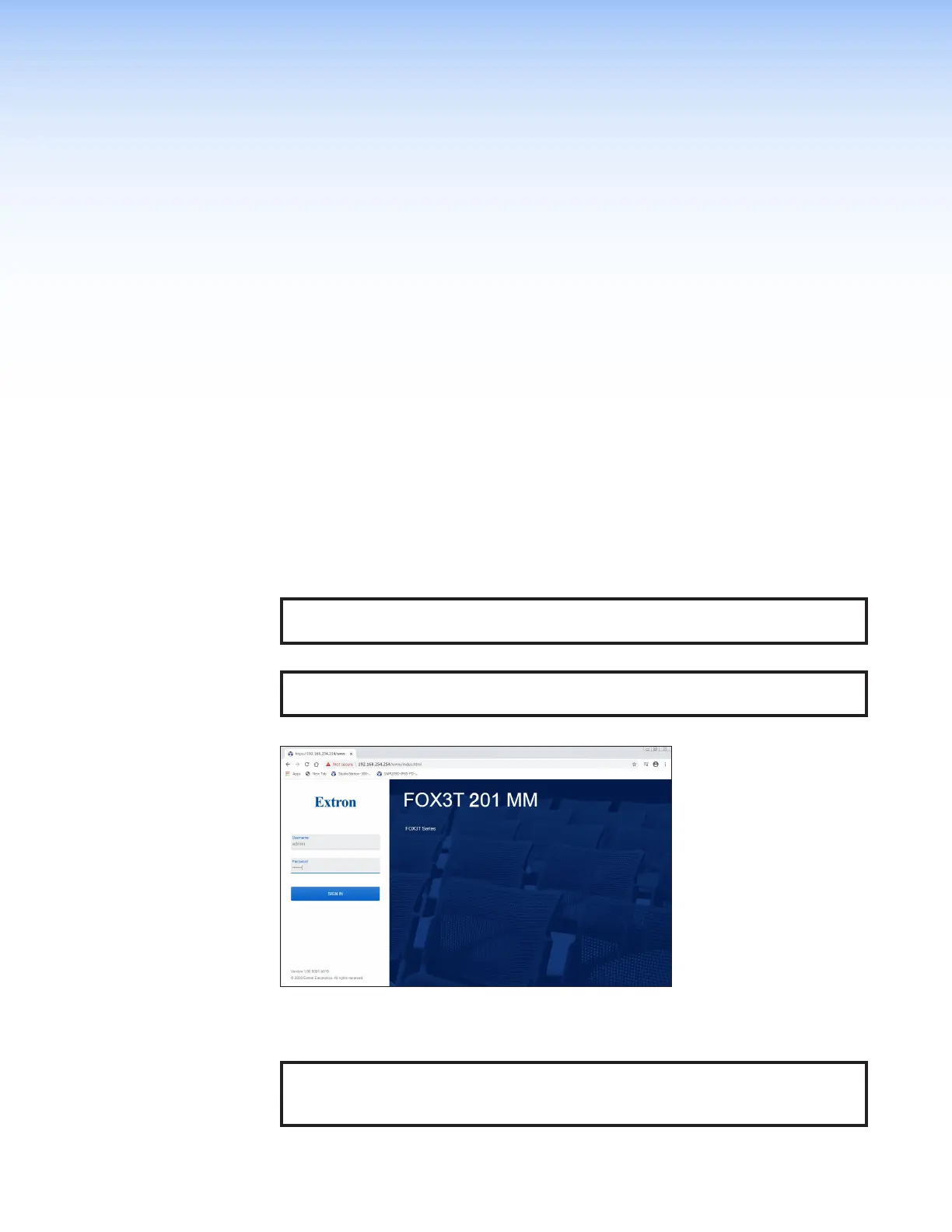
4. Press the <Enter> key on the keyboard. The web page password page opens.
Figure 28. Network Password Prompt
5. The FOX3 is password protected. Enter a user name entry (user or admin) in the
Username field and the password in the Password field when prompted (see figure28).
NOTE: The factory configured passwords for all accounts on this device have
been set to the device serial number. In the event of a complete system reset, the
passwords convert to the default, which is extron.
6. Click the Sign in button, if the unit is password protected.
28


 To Next Page