FOX3 T 201 Transmitter • Internal Web Page 39
3. Double-click the firmware file name.
The Open window closes, and the
selected firmware file name appears in
the Update Firmware panel on the web
page.
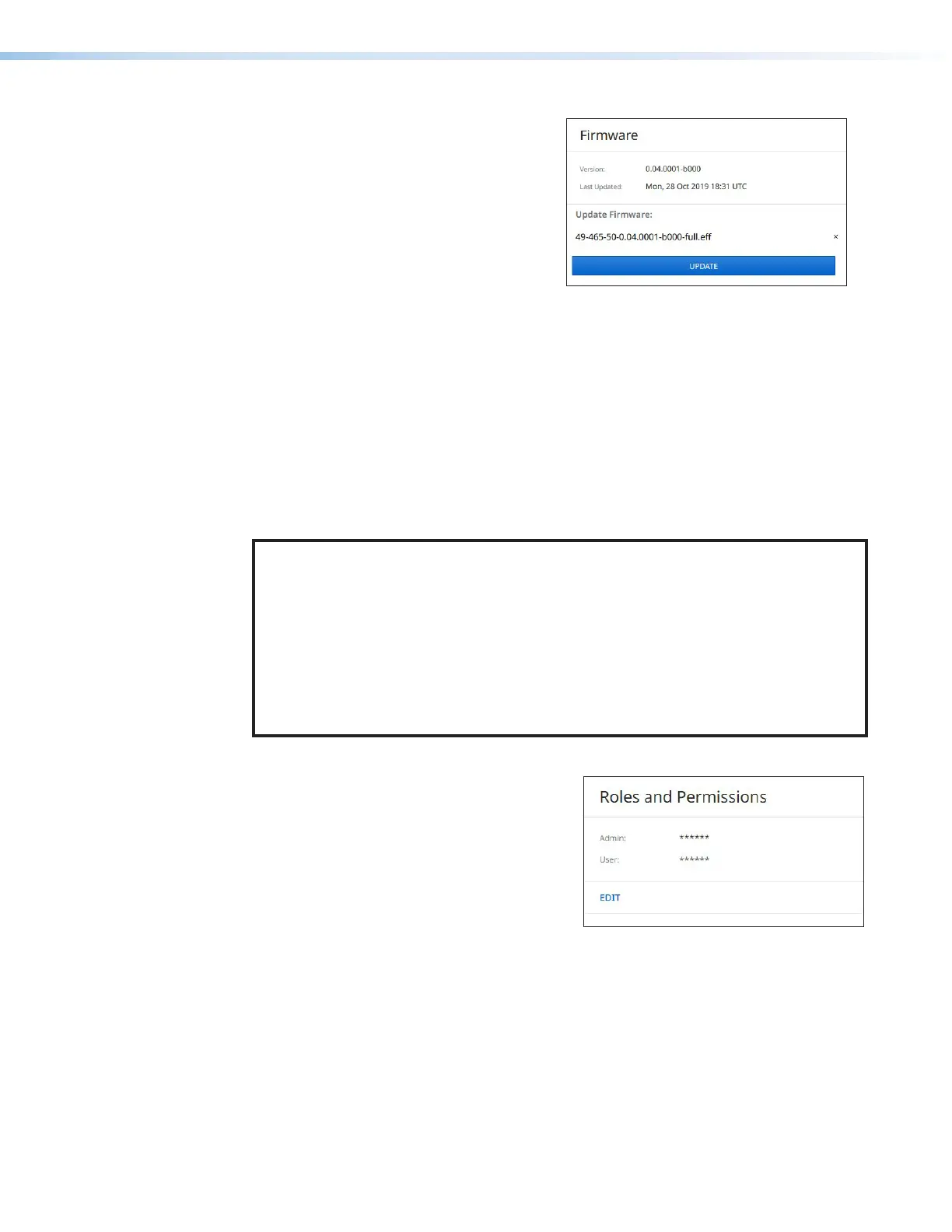
4. Click UPDATE to begin (see figure34). To
cancel the update, click the X button in
the Update Firmware panel.
During the updating process, a window
appears in the middle of the screen,
Figure 34. Firmware Update Dialog Box
showing messages giving the progress of the update: Initializing, Installing the
Firmware, and Rebooting Device.
When the update is completed, the message window closes and the message
Firmware Upload Complete appears near the top of the screen. The new firmware
filename appears beside Version in the Firmware panel.
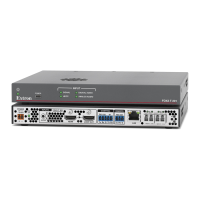
Roles and Permissions Panel
The Roles and Permissions panel (see figure29,
5
, on page36) displays whether
Admin and User passwords have been set. It does not display the actual password.
NOTE: The following rules apply to passwords:
• Length is 1-128 characters.
• All human-readable characters are permitted except |.
• The password cannot be a single space.
• Passwords are case-sensitive.
• If the Admin password is cleared, the user password is cleared as well.
• The factory configured passwords for all accounts on this device have been set to
the device serial number. In the event of a complete system reset, the passwords
convert to the default, which is extron.
To assign administrator and user passwords:
1. In the Roles and Permissions panel,
click EDIT (see figure35). The Role and
Permission Settings dialog box opens.
2. In the Admin panel, click the Change
Admin Password link and enter the new
administrator password in the field below
(see figure36 on page40).
3. Click in the Confirm Admin Password
field and enter the password from the
Change Admin Password field.
4. To assign a user password, repeat steps 2
and 3 in the User panel.
Figure 35. Roles and Permissions
Panel
34
35


 To Next Page