FOX3 T 201 Transmitter • Internal Web Page 37
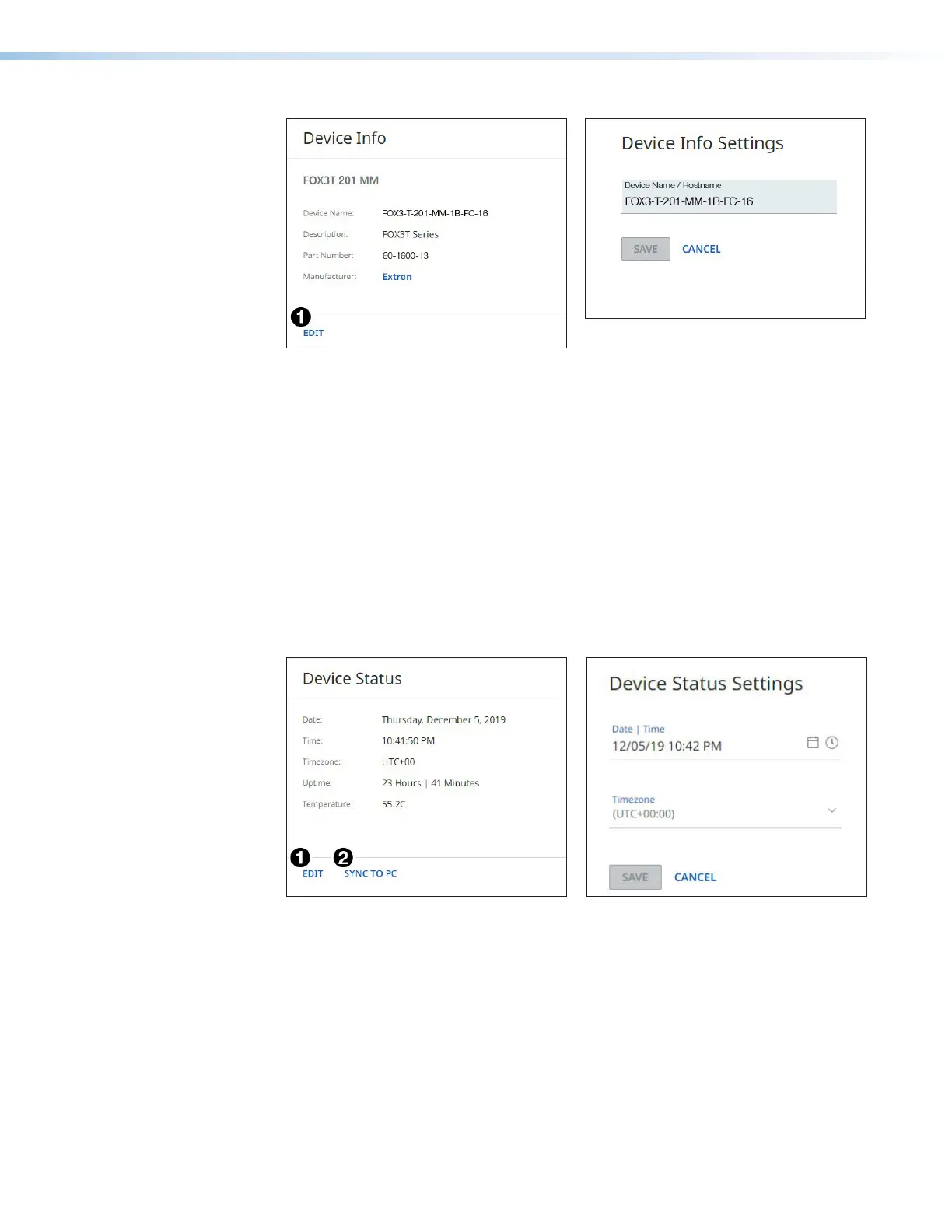
Figure 30. Device Info Panel
2. Edit the Device Name as desired.
3. When finished editing, click SAVE to confirm your changes or CANCEL to close the
window without making changes. Clicking the X in the upper-right corner of the screen
also closes the window.
Device Status Panel
The Device Status panel (see figure29,
2
on page36) displays the current date,
time, time zone, the amount of time the device has been running (Uptime), and the internal
temperature in degrees Celsius.
To set the date and time:
1. Click EDIT (see figure31 [left],
1
) in the Device Status panel. The Device Status
Settings panel opens to allow edits (right).
Figure 31. Device Status Panel
2. Edit the Date/Time and Timezone as desired.
3. When finished editing, click SAVE to confirm your changes or CANCEL to close the
window without making changes. Clicking the X in the upper-right corner of the screen
also closes the window.
4. Alternatively, click SYNC TO PC (
2
) to set the date and time according to your PC.
Network Settings Panel
In the Network Settings panel (see figure29,
3
on page36), set the IP address,
subnet mask, and gateway address for your FOX3, and turn DHCP On and Off.
30
31


 To Next Page