Room Scheduling System • Room Agent Installation and Configuration 30
4444444444
22
2222222
111111111
33
33333333
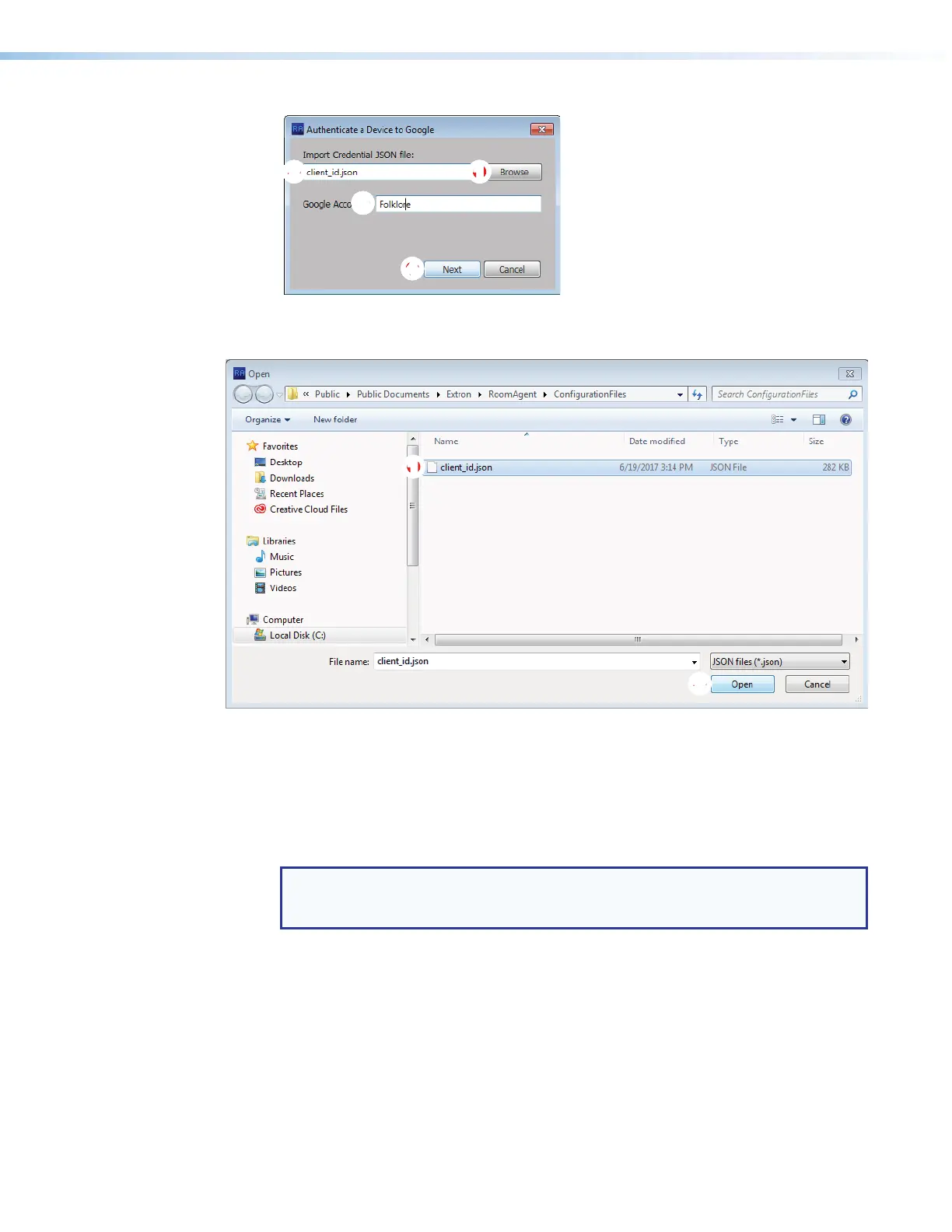
Figure 29. Authenticate a Device to Google Dialog Box
3.
Click Browse (
1
). The Open dialog box opens (see figure 30).
1111111111
22
22222222
Figure 30. Open Dialog Box
4.
Navigate to the folder wher
e you saved the JSON file. Select the file (
1
).
5. Click Open (
2
). The Authenticate a Device to Google dialog box returns to the top
with the JSON file entered in the Import Credential JSON File field (see figure 29,
2
).
6. Enter a value in the Google Account field (
3
).
NOTE: You can enter anything for the Google Account, such as an e-mail address
or a meaningful name. The software uses this value as an identifier to keep track of
Google accounts.
7. Click Next (
4
). The Authenticate a Device to Google dialog box closes.



 To Next Page