User’s Manual
12
NOTE: Even after changing the DVR settings by importing saved settings, the time-related settings (Date/Time,
Time Zone and Daylight Saving Time) will NOT be changed.
CAUTION: The USB device must be FAT16 or FAT32 format.
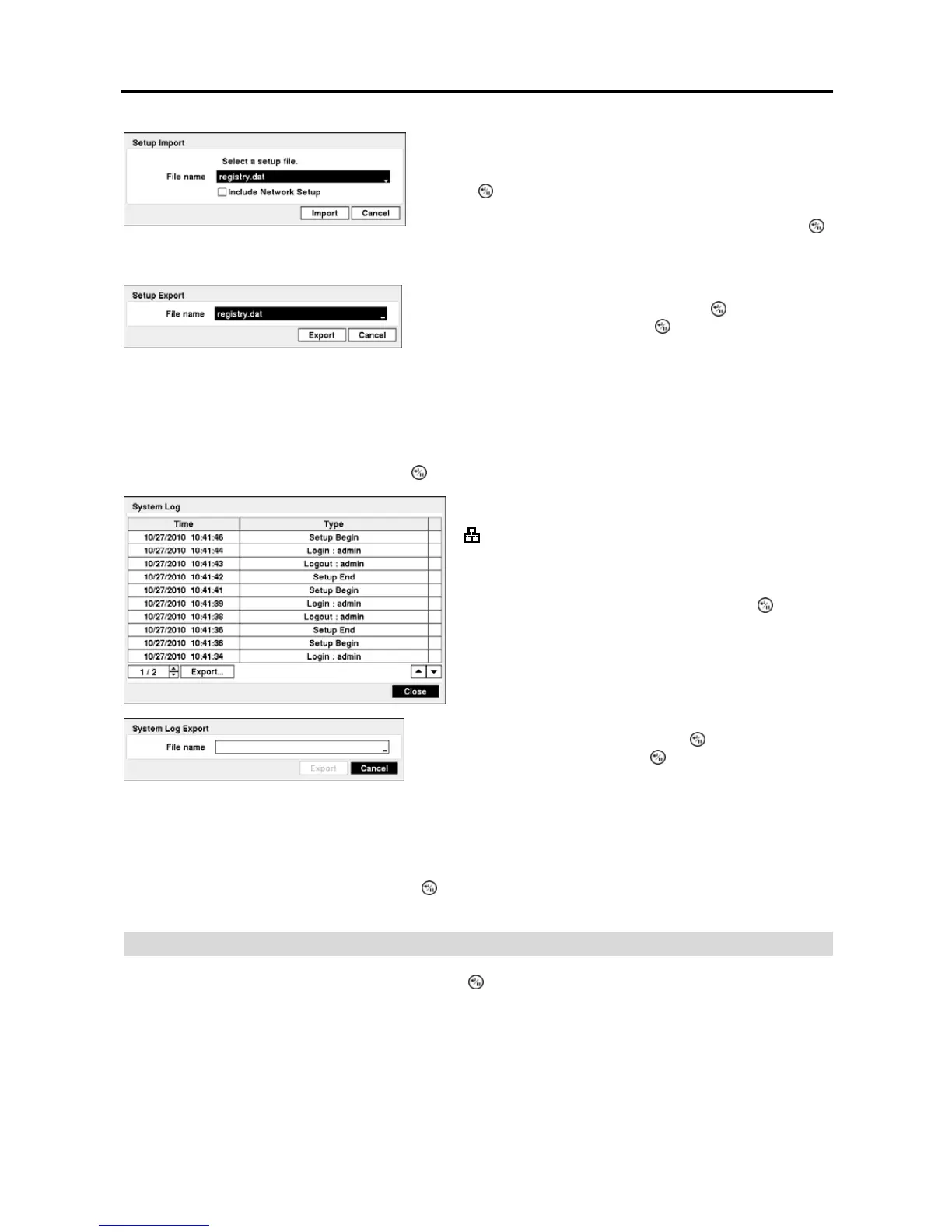
Highlight Show System Log… and press the
button to display the System Log.
To export the system log information, connect the USB device to
the DVR. Highlight Export… and press the button. Highlight the
box beside File name and press the
button. A virtual keyboard
allows you to enter the file name. Selecting Export will save the
log information in .txt file format on the USB device.
NOTE: When opening the saved .txt file, setting to the proper character encoding and using fixed width fonts
will be required to read the file properly.
The box beside Recorded Data – From / To displays the time information of recorded data.
Highlighting Clear All Data… and pressing the button will clear all video data. You will be asked to verify that
you wish to clear all data before the DVR erases the video data. Clear All Data… will not clear the System Log.
Date/Time
Highlight Date/Time in the System menu and press the
button. The Date/Time setup screen appears.
You can import saved DVR settings or export the current DVR settings.
To import saved DVR settings, connect the USB device containing
the setup file (.dat) to the DVR. Highlight Setup – Import… and
press the button. Select the desired setup file and press the Import
button to import the selected settings and change the DVR settings
accordingly. Highlight Include Network Setup and press the
button to toggle between On and Off. When set to Off, the network
settings will not be changed.
To export the current DVR settings, connect the USB device to the
DVR. Highlight Setup – Export… and press the
button. Highlight
the box beside File name and press the
button. A virtual keyboard
allows you to enter the file name. Selecting Export will save the current
settings in .dat file format on the USB device.
The System Log screen lists system activities (up to 5,000 from
the latest) that have occurred along with the time and date. The
icon will be displayed in the last column for system activities
of the remote site. You can scroll through the log pages by
using the Up and Down arrows, or you can go directly to a log
page by entering the log page number in the box at the bottom
left of the screen. Highlight Close and press the
button to
exit the screen.


 To Next Page