User’s Manual
22
NOTE: If the DVR is configured for DHCP or an ADSL network, the IP address of the DVR might change whenever
the unit is turned on.
Highlight the DVRNS tab, and the DVRNS setup screen displays.
NOTE: You can use the domain name instead of IP address if you already set up the DNS Server when setting
up the LAN.
Highlight the box beside Port and press the button. Set the port number of the DVRNS server using the Up and
Down arrow buttons to increase or decrease the numbers.
Highlight Enable NAT and press the button to toggle between On and Off.
NOTE: When using the NAT (Network Address Translation) device, refer to the NAT manufacturer’ instructions
for the proper network settings.
Highlight the box beside DVR Name and press the button. A virtual keyboard appears allowing you to enter the
DVR name to be registered on the DVRNS server.
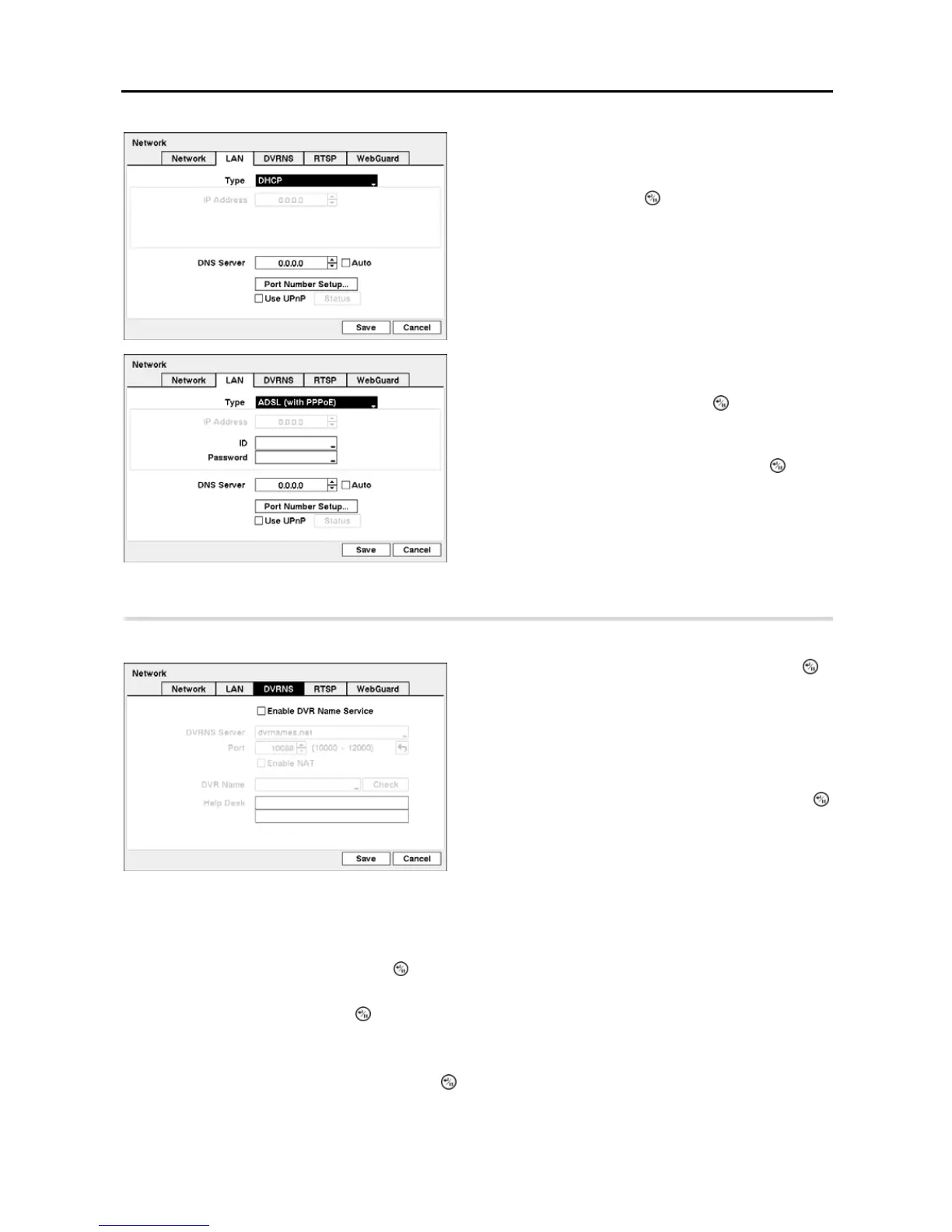
Selecting DHCP from the Type and highlighting Save
button reads the current IP address of the DVR configured
by DHCP (Dynamic Host Configuration Protocol) network.
Highlight Auto and press the button to toggle between On
and Off. When it is On, the DVR will obtain the IP address of
the DNS server automatically.
NOTE: Selecting Auto will only be enabled when the DVR
is configured for DHCP network.
Selecting ADSL (with PPPoE) allows you to set up the ADSL
network.
Highlight the box beside ID and press the button. A virtual
keyboard appears allowing you to enter the ID for ADSL
connection.
Highlight the box beside Password and press the button.
A virtual keyboard appears allowing you to enter the password
for ADSL connection.
NOTE: Entering the ID and Password and highlighting OK
reads the current IP address of the DVR configured by the
ADSL network.
Figure 23 ─ DVRNS setup screen.
Highlight Enable DVR Name Service and press the
button to toggle between On and Off.
NOTE: The DVRNS (DVR Name Service) allows the DVR to
use Dynamic IP addresses for remote connection. When
this feature is On, you can access your DVR remotely using
the DVR name instead of its IP address. For the DVRNS
feature, the DVR should be registered on the DVRNS server.
Highlight the box beside DVRNS Server and press the
button. A virtual keyboard appears allowing you to enter the
IP address or domain name of the DVRNS server.
NOTE: You will need to get the IP Address or domain name
of the DVRNS Server from your network administrator.


 To Next Page