User’s Manual
14
Last Sync-Time displays the last time the DVR was synchronized with the time server.
Highlight Run as Server and press the button. Pressing the button toggles between On and Off. When it is
On, the DVR you are setting up will run as a time server.
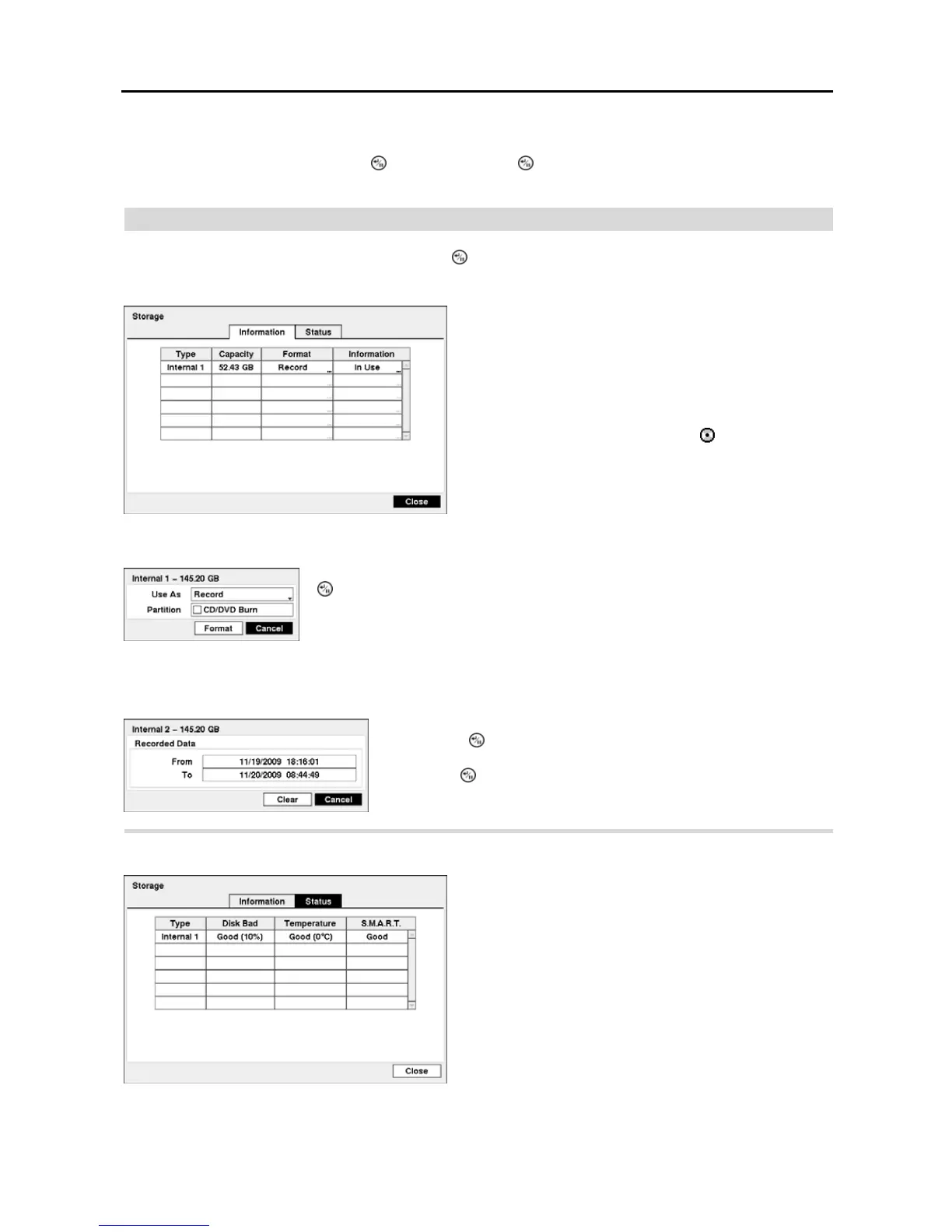
Storage
Highlight Storage in the System menu and press the
button. The Storage setup screen appears and displays
information about the DVR’s storage devices.
The Information column displays whether the device is being used or not. Other indicates the device has been used
for another DVR.
Highlight the Status tab, and the Storage Status setup screen displays.
Figure 13 ─ Storage Information setup screen.
The information in the Type column describes the storage
device.
The capacity of the storage device is displayed in the Capacity
column.
The Format column displays whether the device is used for
recording (Record) or not (Not Using). Not formatted
indicates the device is not formatted. indicates when the
device has temporary space set aside so that video clips can
be saved on a CD-RW.
Highlight the box in the Format column for the desired storage device and press the
button. You will be able to format the device for recording. When selecting Not
Using from Use As and highlighting the Format button, the device will not be used
for recording. You can also set aside space to store temporary files for CD burning by
selecting Partition – CD/DVD Burn.
Highlight the box in the Information column for the desired storage device
and press the
button. The box beside Recorded Data – From / To
displays the time information of recorded data. Highlighting Clear and
pressing the button will clear all video data. You will be asked to verify
that you wish to clear all data before the DVR erases the video data. Clear
All Data… will not clear the System Log.
Figure 14 ─ Storage Status setup screen.
The Type column displays the type of storage device.
The Disk Bad column displays the percentage of bad sectors.
Not formatted indicates the device is not formatted.
The Temperature column displays the temperature of the
storage device.
Good – The temperature is normal.
Bad – The temperature is 70
o
C (158
o
F) or higher.
N/A – The DVR cannot read the temperature.


 To Next Page