4-Channel Digital Video Recorder
61
④ The DVR information window displays the login information of WebGuard.
⑤ Click the screen format to select the desired display mode. When changing the screen format, the selected camera
on the current screen will be located in the first cell of the new layout.
⑥ Click the camera button to select the camera to be viewed.
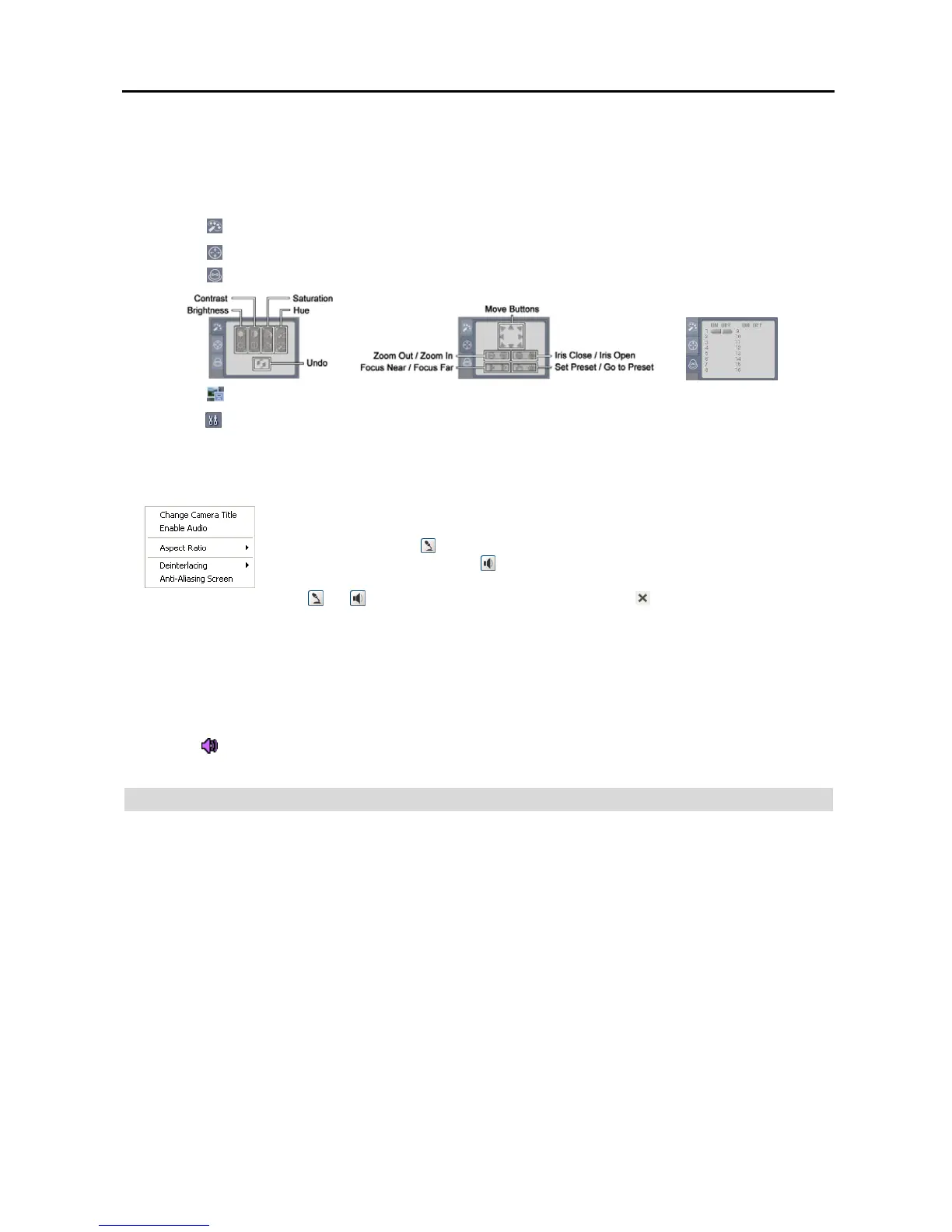
⑦ Click the to adjust the brightness, contrast, saturation and hue of monitoring image.
⑧ Click the
to control pan, tilt and zoom of the camera from a remote site.
⑨ Click the to control alarm out devices at the remote site.
⑩ Click the to save the current image as a bitmap or JPEG file format.
⑪ Click the to set up the image drawing mode and OSD display. You can adjust the display speed by changing the
image drawing mode, and select OSD information to be displayed on the screen.
⑫ The event status window at the bottom displays a list of events that were detected from the remote site.
⑬ Selecting a camera on the screen and clicking the right mouse button displays the text menu screen.
Change Camera Title: Changes the camera name.
Enable Audio: Enables audio communication with the remote site. When the audio control
panel displays, click the
to send audio to the connected remote site and click the button again
to stop sending audio. Click the
to monitor live audio from the connected remote site
through the attached speaker and click the button again stop monitoring live audio. Clicking
both and allows two-way communication. Clicking the disables audio communication.
Aspect Ratio: Changes the image aspect ratio.
Deinterlacing: Using a deinterlace filter for interlaced video enhances image display quality
by eliminating horizontal scan lines and noise in areas with motion.
Anti-Aliasing Screen: Enhances image display quality by eliminating stair stepping (aliasing)
effects in the enlarged image.
NOTE: A camera name change in the Web Watch mode does not affect the camera name set up on the remote
site. Leaving the Camera Title blank causes the camera name set up on the remote site to display.
NOTE: The icon will display on each camera screen when audio communication is available between the
WebGuard system and a DVR.
Web Search Mode
WebSearch is a remote web search program that allows you to search recorded video on the remote DVR.
NOTE: The remote site connection in the Web Search mode will automatically be disconnected if there is no
activity for 30 minutes.


 To Next Page