4-Channel Digital Video Recorder
47
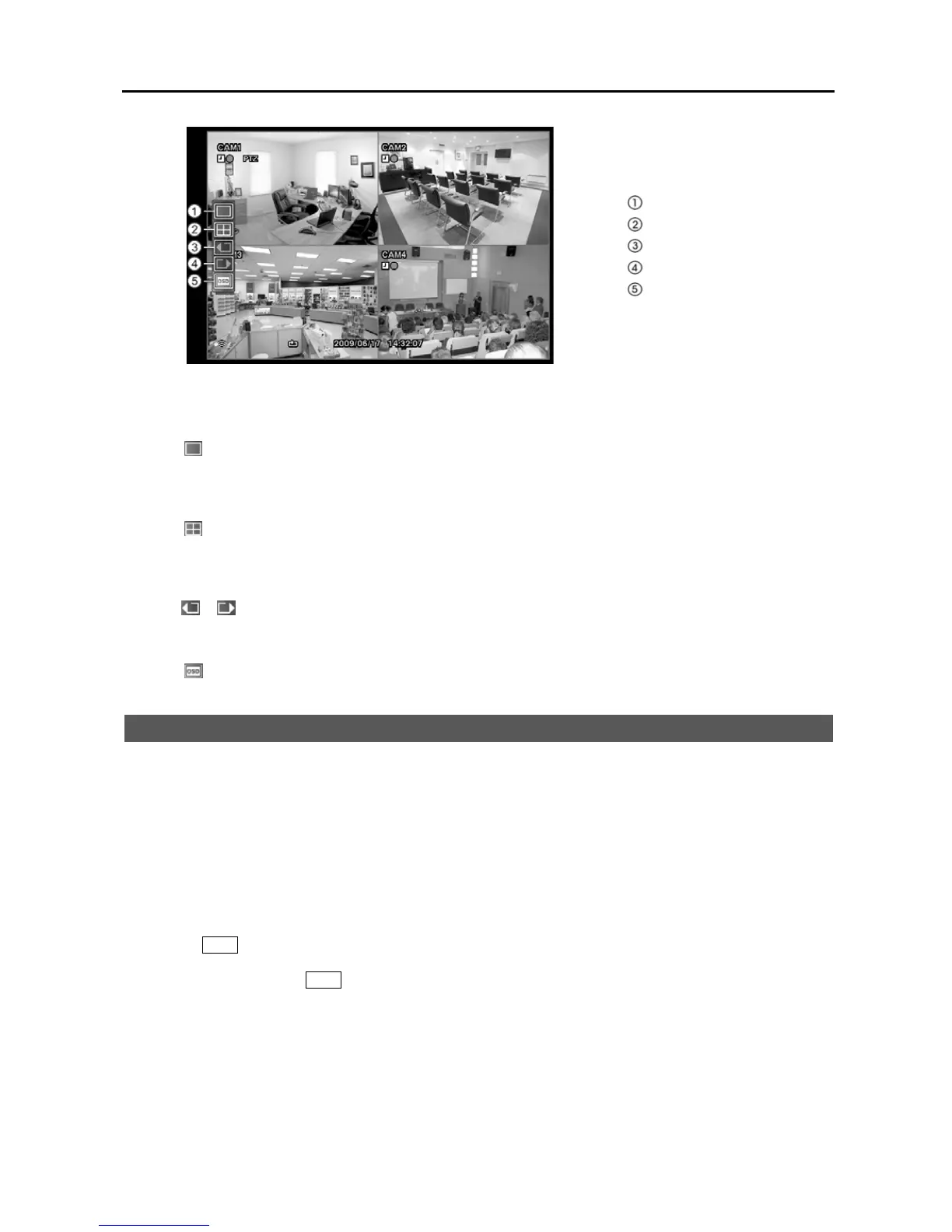
Full Screen
2x2
Previous Camera
Next Camera
OSD
Figure 62 ─ Mouse Display menu.
Full Screen
Selecting (Full Screen) in the Mouse Display menu and choosing the camera number button displays the selected
camera full screen. It is the same as pressing the individual camera buttons on the front panel.
2x2
Selecting (2x2) in the Mouse Display menu displays the cameras in the quad (2x2) screen mode. It is the same as
pressing the individual camera buttons in the full screen mode.
Previous Camera, Next Camera
Selecting or (Previous Camera or Next Camera) in the Mouse Display menu moves to the previous or next camera.
OSD
Selecting (OSD) in the Mouse Display menu toggles OSD On and Off.
Recording Video
Once you have installed the DVR following the instructions in Chapter 2 ─ Installation, it is ready to record. The DVR
will start recording based on the settings you made in the Record setup screen. See Chapter3 ─ Configuration.
Recycle On or Recycle Off. The factory default is Recycle On. It does this by recording over the oldest video once
the hard disk is full. Setting the DVR to Recycle Off causes it to stop recording once the hard disk is full.
Standard (CIF), High (Half D1) or Very High (D1). The factory default resolution is Standard. When set to Standard,
the DVR has a maximum recording speed of 120 ips. When set to High, the DVR has a maximum recording speed of
60 ips. When set to Very High, the DVR has a maximum recording speed of 30 ips.
Pressing the
Panic button starts panic recording of all cameras, and pressing the button again stops panic recording.
If you set the Panic Recording Duration in the Record Screen, panic recording will stop automatically according to the
preset duration as long as the
Panic button is not pressed.
NOTE: When the DVR is not in the Recycle mode and all available storage space has been used, panic recording
will not operate.
Although you will be able to record without changing the unit from its original factory settings, you will want to take
advantages of the DVR’s many tools. See Chapter 3 ─ Configuration for detailed descriptions of the recording mode options.


 To Next Page