4-Channel Digital Video Recorder
17
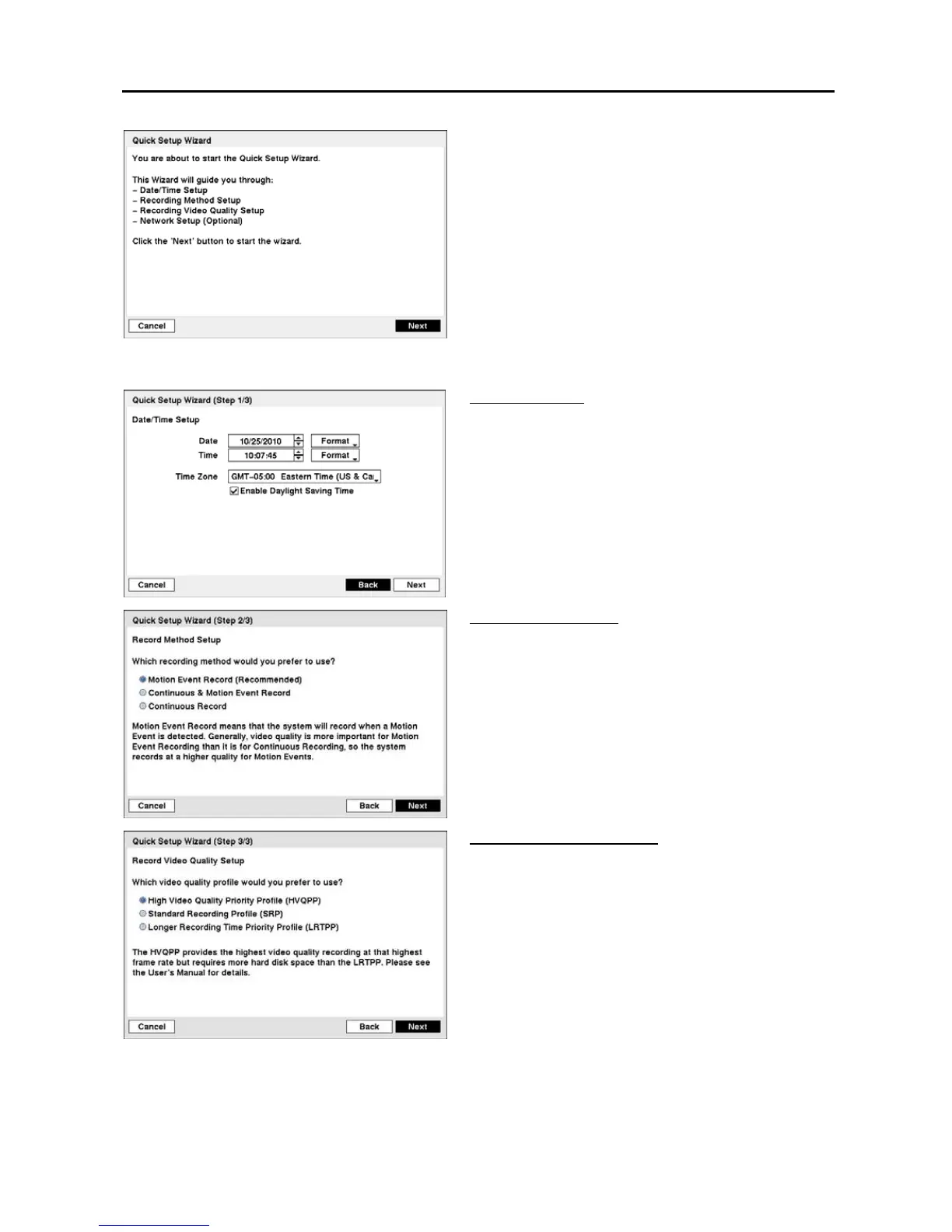
Figure 17 ─ Quick Setup Wizard screen.
If you selected the Quick wizard, selecting the Next button
starts the Quick Setup Wizard.
Date/Time Setup
Date: Set the system date and select the date format.
Time: Set the system time and select the time format.
Time Zone: Select your time zone.
Use Daylight Saving Time: Selecting the box sets the
system to use daylight saving time.
NOTE: The Date/Time will be set, and the clock will start
when you click the Next button.
Record Method Setup
Select the desired recording mode from:
– Motion Event Record (Recommended)
– Continuous & Motion Event Record
– Continuous Record
NOTE: You should understand each recording mode before
setting the DVR’s recording method.
Record Video Quality Setup
Select the desired video quality profile from:
– Higher Video Quality Priority Profile
– Standard Recording Profile
– Longer Recording Time Priority Profile
NOTE: The higher quality setting requires more storage
space.
NOTE: The recording resolution will be set to Very High
when selecting High Video Quality Priority Profile, High
when selecting Standard Recording Profile, and Standard
when selecting Longer Recording Time Priority Profile.


 To Next Page