User’s Manual
16
Alarm-Out Control – The user can reset the DVR’s outputs including the internal buzzer during an alarm by pressing
any button on the front panel or remote control on a local system or alarm-out control button on a PC running RAS.
Covert Camera View – The user can view video from cameras set as Covert while in the Live Monitoring or Search
mode on a local system or a PC running RAS.
Search – The user can access the Search mode on a local system or a PC running RAS.
Clip-Copy – The user can copy video clips on a local system or a PC running RAS.
Setup – The user without Setup authority cannot establish any system settings excluding system shutdown and logout
on a local system or a PC running RAS.
System Time Change – The user can change the system date and time on a local system or a PC running RAS.
Data Clear – The user can clear all video data or format disks on a local system or a PC running RAS.
PTZ Setup – The user can establish all PTZ settings on a local system or a PC running RAS.
Alarm-Out Setup – The user can establish all Alarm-Out settings on a local system or a PC running RAS.
Covert Camera Setup – The user can establish all Covert Camera settings on a local system or a PC running RAS.
Record Setup – The user can establish all Record settings on a local system or a PC running RAS.
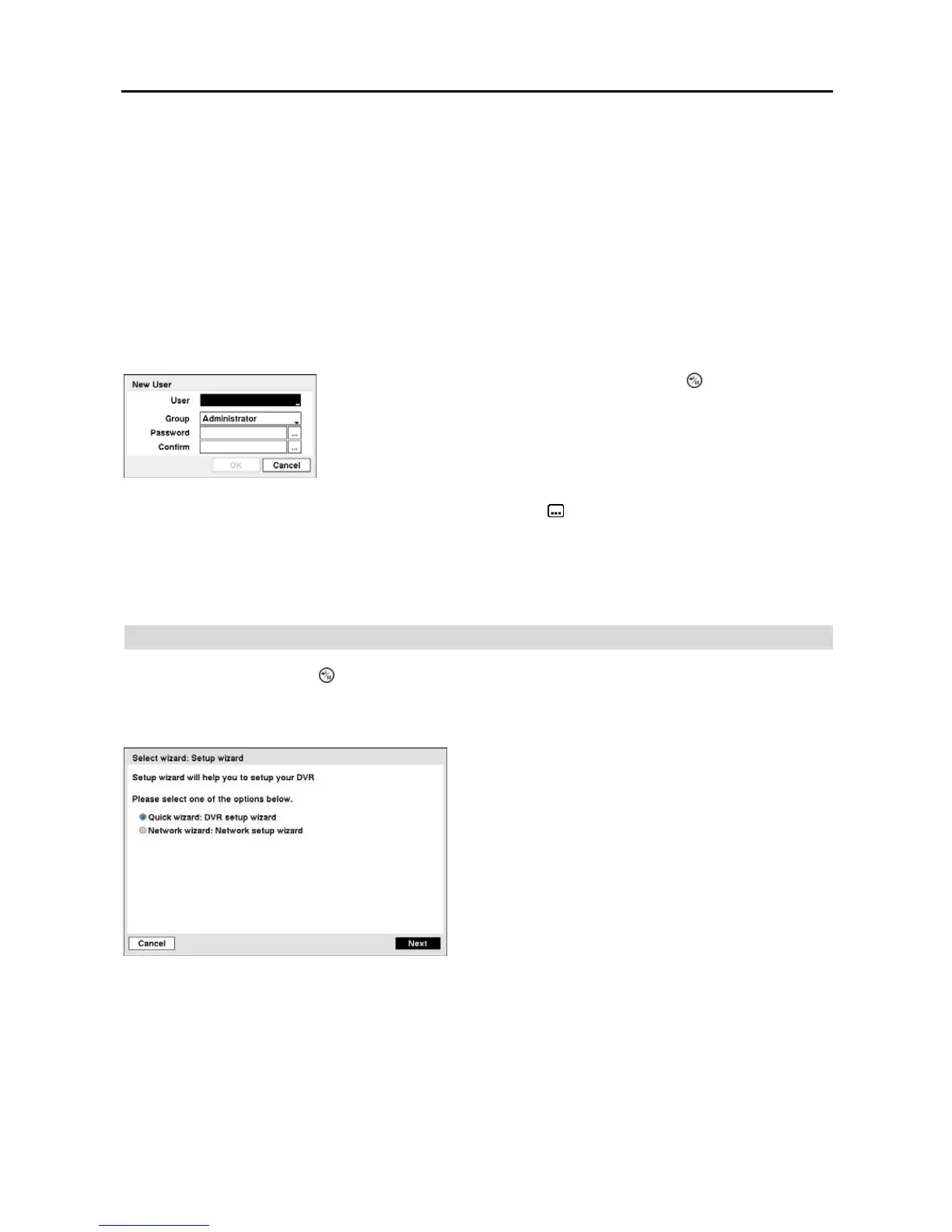
To add a User, highlight the + User… box and press the button. A virtual
keyboard appears allowing you to enter the User Name. Enter the name and assign
the User to a Group and password. You can use camera buttons 1 to 4 on the front
panel to assign the password. The password can be up to 8 digits. You will be asked
to confirm the password.
NOTE: In addition to using the front panel buttons or the infrared remote control, you can use the virtual keyboard
to assign the password. To display the virtual keyboard click the
button using the mouse (not supplied).
Highlighting the box beside Auto Login allows you to select a User to be automatically logged in when the DVR is
powered up. It can also be set to never automatically login a user.
Highlighting the box beside Auto Logout allows you to select from a list of times that the user will be automatically
logged out. The options are: Never, 1 min., 3 min., 5 min., 10 min., 15 min., 20 min., 25 min., 30 min. and 1 hr.
Wizard
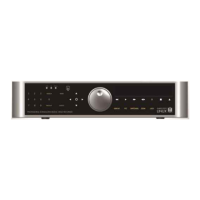
Highlight Wizard and press the
button. The Setup wizard screen appears. The Setup wizard guides you through
configuring the system for basic operation.
NOTE: This Setup wizard screen can only be accessed when logged on as the admin user.
Figure 16 ─ Setup wizard screen.
Select either Quick wizard or Network wizard and select the
Next button to start the selected setup wizard.
NOTE: Selecting the Cancel button throughout the screens
exits the Setup Wizard without saving your changes and
returns to the main setup screen.


 To Next Page