4-Channel Digital Video Recorder
29
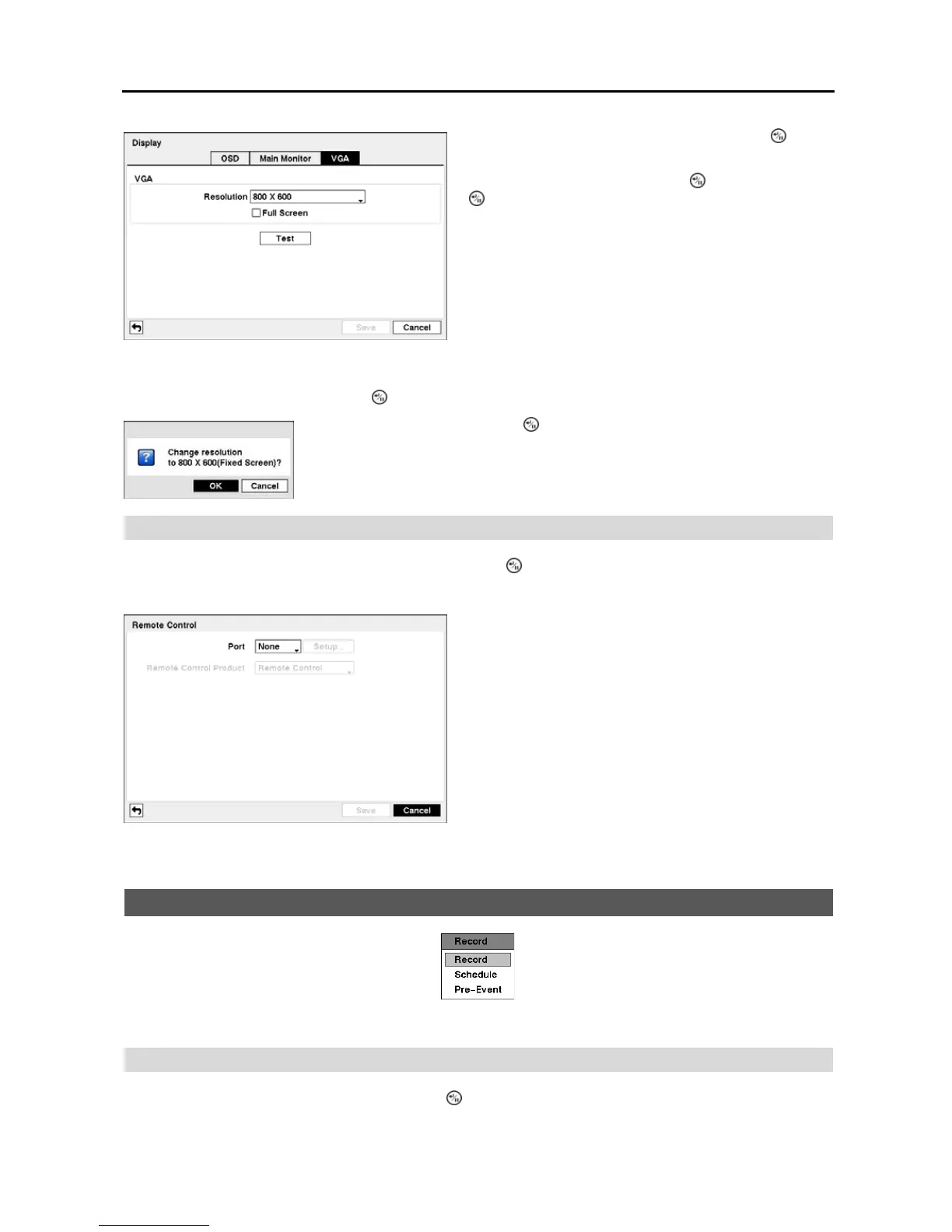
Highlight the box Test box and press the button to test how the screen will be displayed with the resolution you set.
Remote Control
Highlight Remote Control in the Devices menu and press the
button. The Remote Control setup screen allows
you to select a port and make correct settings for a remote keyboard.
Recording Setup
Figure 38 ─ Record menu.
Record
Highlight Record in the Record menu and press the
button. The Record setup screen appears.
Figure 36 ─ VGA setup screen.
Highlight the box beside Resolution and press the button.
You can select from 800x600, 1024x768 and 1280x1024.
Highlight Full Screen and press the button. Pressing the
button toggles between On and Off. When it is On, the
screen on the VGA monitor displays in full screen mode.
Highlighting OK and pressing the button applies resolution changes.
Figure 37 ─ Remote Control setup screen.
Highlight the box beside Port and select between None, RS232
and RS485. If the RS232 port and RS485 port is in use for
PTZ control, networking or text input, the remote keyboard
cannot be configured.
Highlight Setup… and select the correct Baud Rate, Parity,
Data Bits and Stop Bits for the device you are connecting to
the DVR.
Highlight the box beside Remote Control Product and select
the device from the list.


 To Next Page