23
• Press the preferred PLU position (numeric key 0 ~ 9), then press [Print/M+] to save to that PLU
position or
• Press [Print/M+] to utilize the code immediately but without saving to PLU, or
• Press [Zero] to quit.
6. To go to other internal function, press [Unit] or [Func] or press [Zero] to quite to operation status.
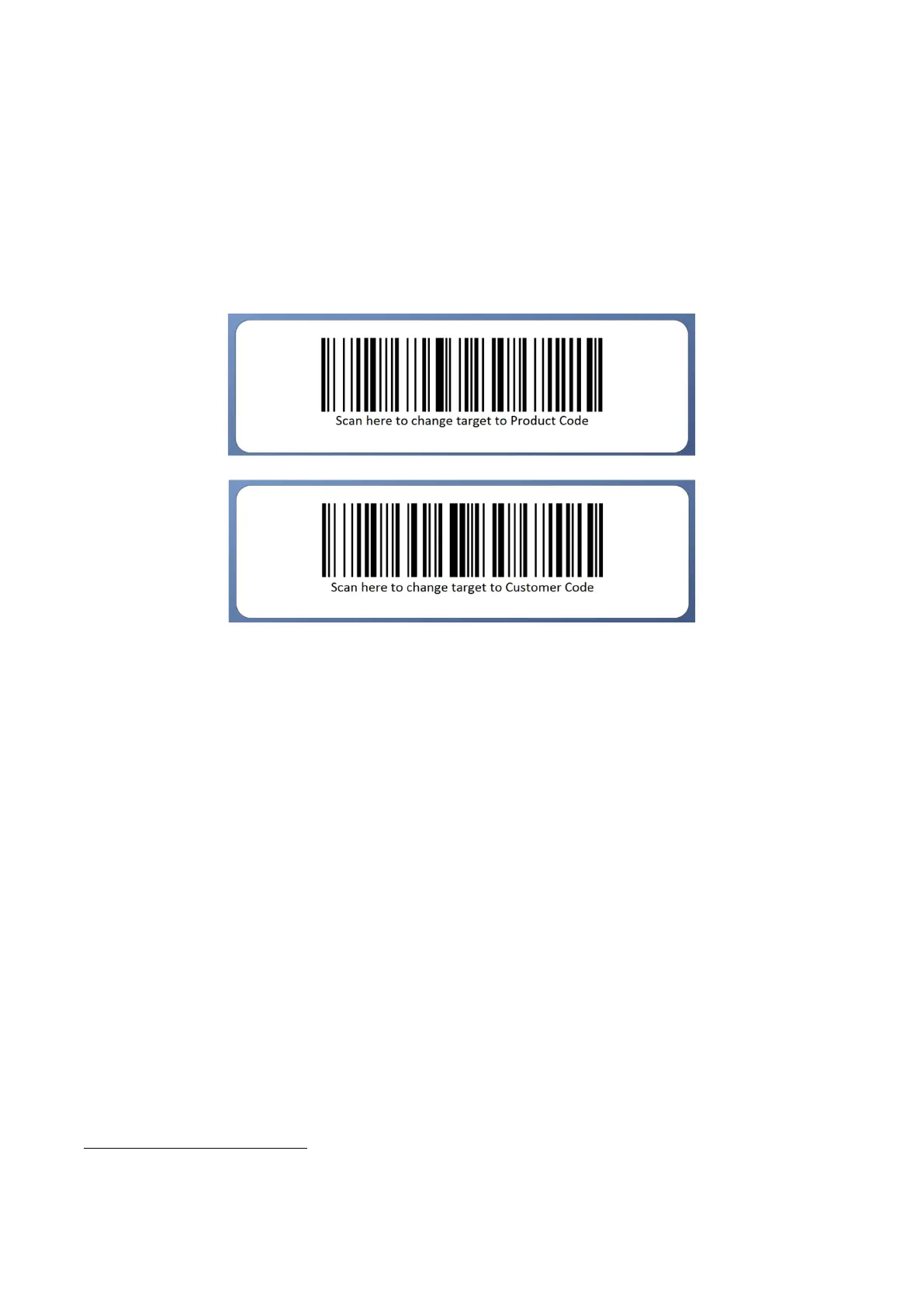
6.10.2 Enter a customer & product code by scanner
Default scanner input target is product code. To change scanner input target, scan either one of the below
barcodes, then scan a customer or product barcode.
6.10.3 Clear a customer & product code entered
To clear a customer/product code entered, press [CE/x10] for procedures 2, 3 and 4 on paragraph 6.10.1.
6.10.4 Print a customer & product code entered
Once a customer/product code is entered, it will be printed automatically through the assigned comport. No
other setting is required.
6.11 Quick Access PLU
10 each quick access PLUs are available for each of the below: -
a. Weight limits for each of the weight unit (g, kg and lb).
b. Quantity limit for Piece Count Mode.
c. Preset Tare value for each of the weight unit (g, kg and lb).
d. Customer Code.
e. Product Code.
6.11.1 Weight limits PLUs
6.11.1.1 Save weight limits to PLU
Follow the below steps to save Lo and Hi Limit for weight value.
1. Select desired operation mode and weight unit, then press [Check].
2. Instrument displays Low followed by a 6-digital value. Enter the Lo weight limit through numeric keys
then press [Print/M+].
Print format LAB 1 does not support customer/product code.


 To Next Page