57
E.4 Create & Upload Label to TSC Printer
E.4.1 Selecting the Correct Edition for Bartender Software
To enable label uploading from computer to TSC printer, it is necessary to run as Bartender as Automation or Enterprise
Automation edition. Procedures as below: -
1. Install Bartender Software to computer. The Bartender software usually comes with the TSC printer. If not,
please contact your printer supplier.
2. Run Bartender, then click on Help, then click on Edition Selection.
3. Select Enterprise Automation or Automation, then click OK.
4. At this point, correct Bartender edition is selected.
E.4.2 Adding Information from Instrument to Label & Uploading to a TSC Printer
The below procedures are based on Bartender Label Software. If a different label creating software is used, contact
your label software for more details if in doubt.
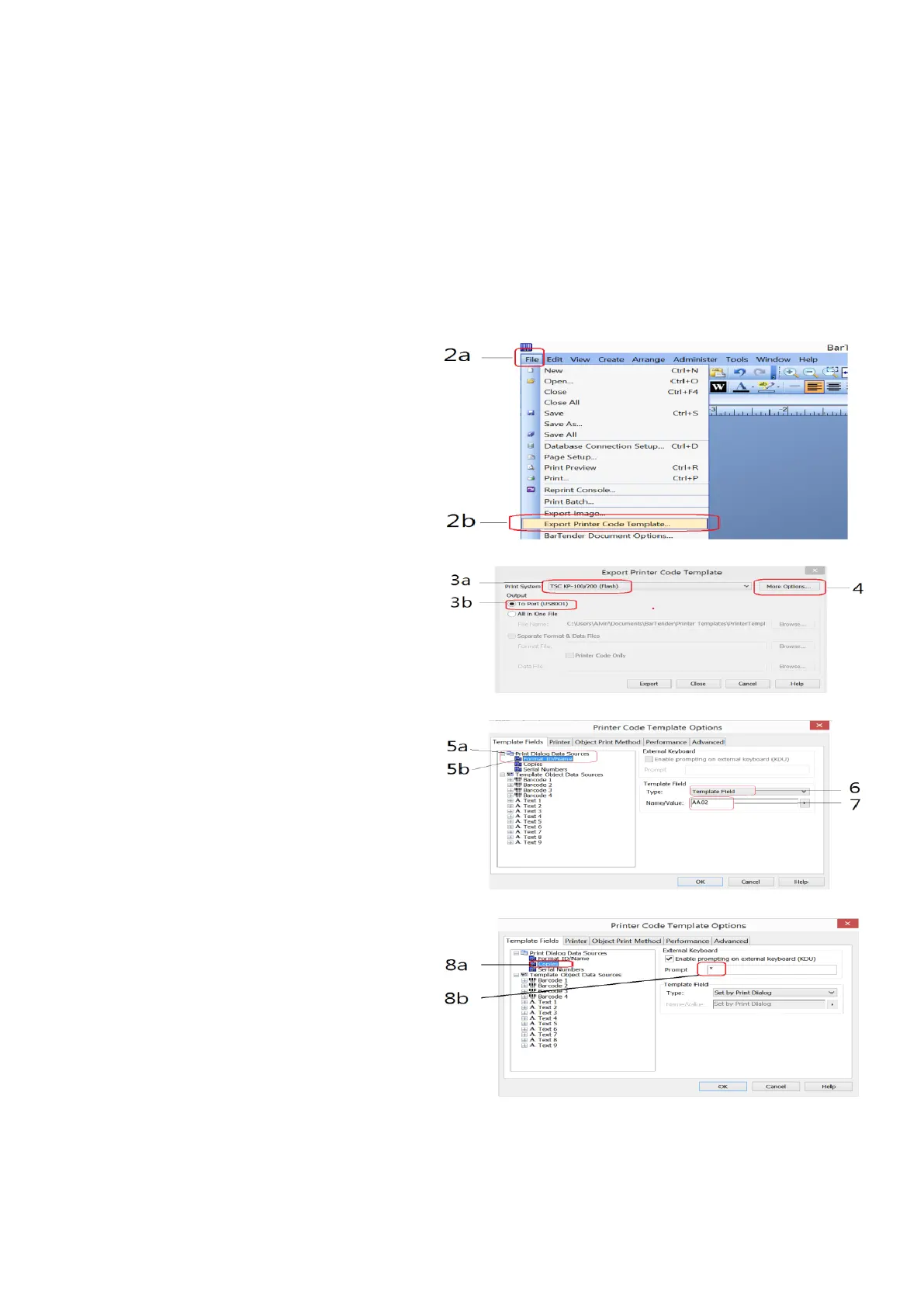
1. Create the foundation of a label by
Bartender. All information to be obtained
from instrument should be added afterward.
2. Once the label foundation has been
completed; (a) click on File and (b) select
Export Printer Code Template.
3. On Print System; (a) select TSC KP-100/200
(Flash) and (b) select to Port.
4. Click More Option.
5. Then (a) click Print Dialog Data Sources,
then (b) click on Format ID/Name.
6. On Template Field, select Template Field for
Type.
7. Enter the correct label file name on
Name/Value. Refer to 16.1 for correct file
name format.
8. (a) Click Copies, check KDU and (b) input
asterisk (*) on Prompt box.
9. Below procedures explain how to edit
information to be obtained from instrument.
10. Click Template Object Data Sources and
Select the object which information from
instrument (for example net, gross, tare
weight and product code) to be sent to
printer and printed on label.


 To Next Page