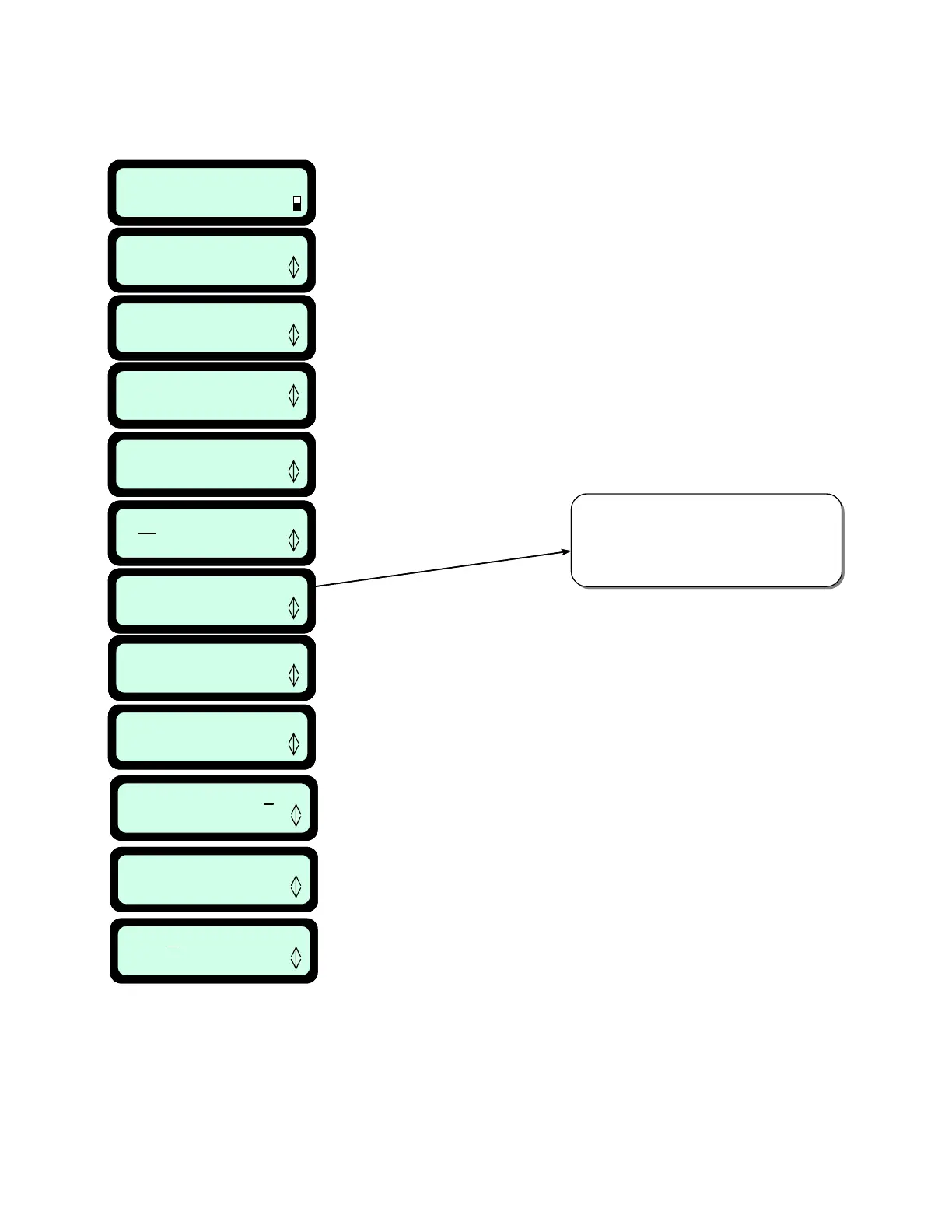
4.2 Setting the Weekly Program
Entry point: 1
Confirm
Manual
User Options
User Preferences
Press GO
Weekly program
Press GO
Set program
Press GO
M T W T F S S
Press GO
Docking options
Press GO
Work time: 2:00
Confirm
Scroll to set the work time for the
programmed day and press ‘GO’
Press ‘GO’
Scroll up or down until the
‘Docking options’ is displayed
Press ‘GO’
Scroll to the day you want
to set and Press ‘GO’
Press ‘GO’
Press ‘GO’
Scroll to set the time and Press ‘GO’
for the next digit (‘C’ is used to go back)
Scroll to set the entry point for the
programmed day and press ‘GO’
Depart: 00:00
Confirm
Note: this option is displayed only after
‘Set entry points’ is done (refer to 6.4.1).
You can set specific entry point or to
set ‘Cyclic’, which means that the mower
uses all entry points set cyclic mode.
Entry point: 1
Confirm
Manual
User Options
User Preferences
Press GO
Weekly program
Press GO
Set program
Press GO
M T W T F S S
Press GO
Docking options
Press GO
Work time: 2:00
Confirm
Scroll to set the work time for the
programmed day and press ‘GO’
Press ‘GO’
Scroll up or down until the
‘Docking options’ is displayed
Press ‘GO’
Scroll to the day you want
to set and Press ‘GO’
Press ‘GO’
Press ‘GO’
Scroll to set the time and Press ‘GO’
for the next digit (‘C’ is used to go back)
Scroll to set the entry point for the
programmed day and press ‘GO’
Depart: 00:00
Confirm
Note: this option is displayed only after
‘Set entry points’ is done (refer to 6.4.1).
You can set specific entry point or to
set ‘Cyclic’, which means that the mower
uses all entry points set cyclic mode.
Depart 12:30
Next digit
Mode Edge + Mow
Confirm
M T W T F S S
Press GO
Press ‘GO’ to confirm
Scroll to the required operation
mode and press ‘GO’ to confirm
(‘Edge+mow’ or ‘Mow’ only –
‘None’ use to cancel active day)
Scroll to the next day you
want to set and press ‘GO’
Remove the Manual Controller and follow the steps as outlined below:
(For a shortcut to the weekly program setting, refer to paragraph 4.4 – section 2).
Pressing the ‘C’ button at any time will change the display back to the main screen.
Important! For best cutting performance, it is recommended to set the weekly program, so the RoboMower
and the sprinkler never run simultaneously.
Fi
ure 4.2
Settin
the Weekly Pro
ram
44






 To Next Page