User Preferences
Press GO
Press ‘GO’
User Preferences
Press GO
User Preferences
Press GO
Press ‘GO’Press ‘GO’
Rain sensor
Press GO
Anti theft
Press GO
Rain sensor
Press GO
Anti theft
Press GO
Sound on
Press GO
Wire Position
Press GO
Language
Press GO
Wide scan off
Press GO
Blades replaced
Press GO
Zones setup
Press GO
Fast edge on
Press GO
Enable dock on
Press GO
Sound on
Press GO
Wire Position
Press GO
Language
Press GO
Wide scan off
Press GO
Blades replaced
Press GO
Zones setup
Press GO
Zones setup
Press GO
Fast edge on
Press GO
Fast edge on
Press GO
Enable dock on
Press GO
Enable dock on
Press GO
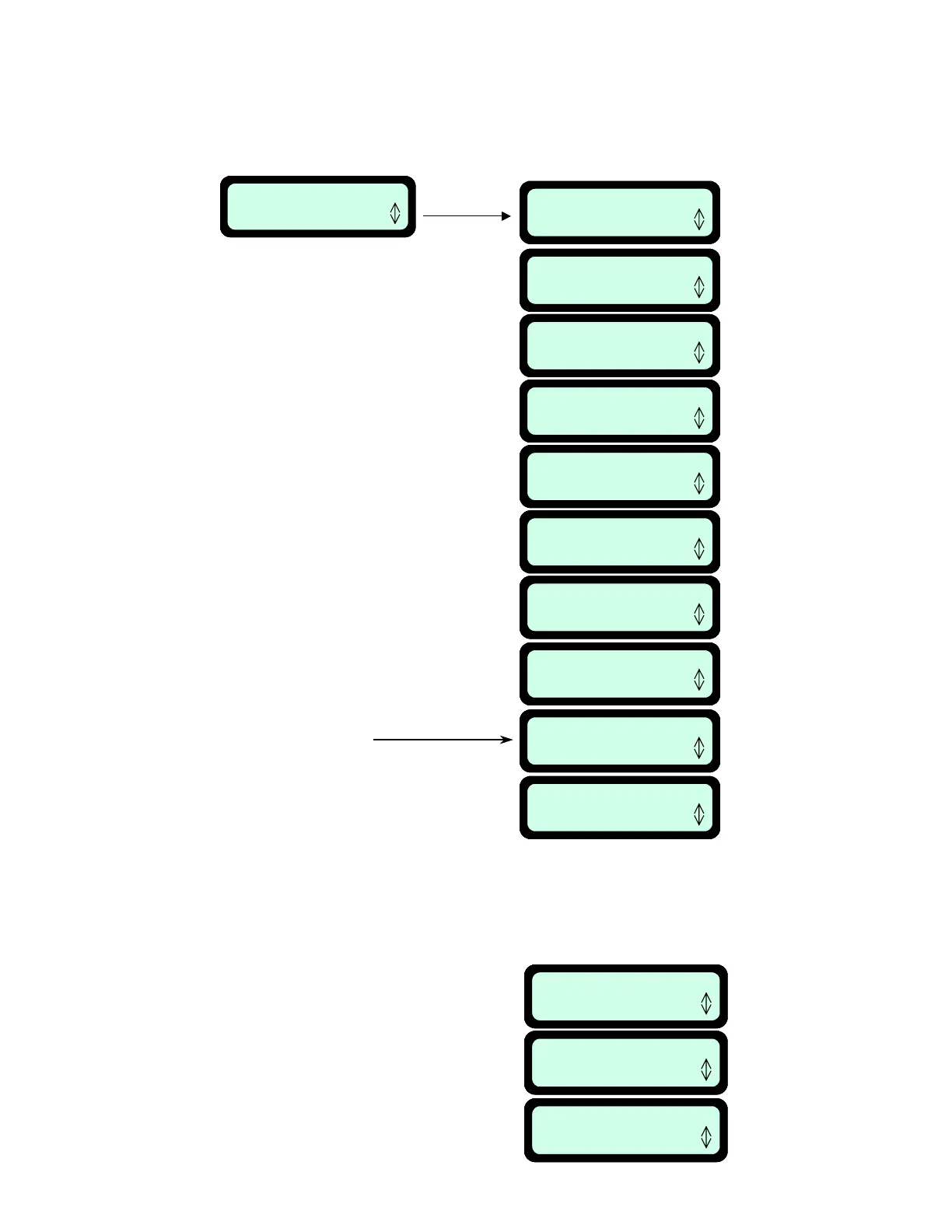
6.2 User Preferences
Press ‘GO’ to view the menu of user preferences, beginning with ‘Zones setup’, Figure 6.3. Using
the ‘Up ⇑ Down ⇓’ arrow keys will allow you to scroll through these menu items. Pressing ‘GO’ will
take you to these various preferences. Figure 6.3.
Displayed only when using
Enhanced Manual Controller
with rain sensor
(Available as an accessory –
refer to Cha
ter 10
.
Work time
Press GO
Learn edge
Press GO
Set default edge
Press GO
Work time
Press GO
Work time
Press GO
Learn edge
Press GO
Learn edge
Press GO
Set default edge
Press GO
Set default edge
Press GO
6.2.1 Zones setup
Allows user to set the parameters that are specific per zone (Figure 6.4):
Figure 6.3
User preferences options
Figure 6.4
Zones setup options
52




 To Next Page