PAG.
21
rev 1.1
ENGLISH
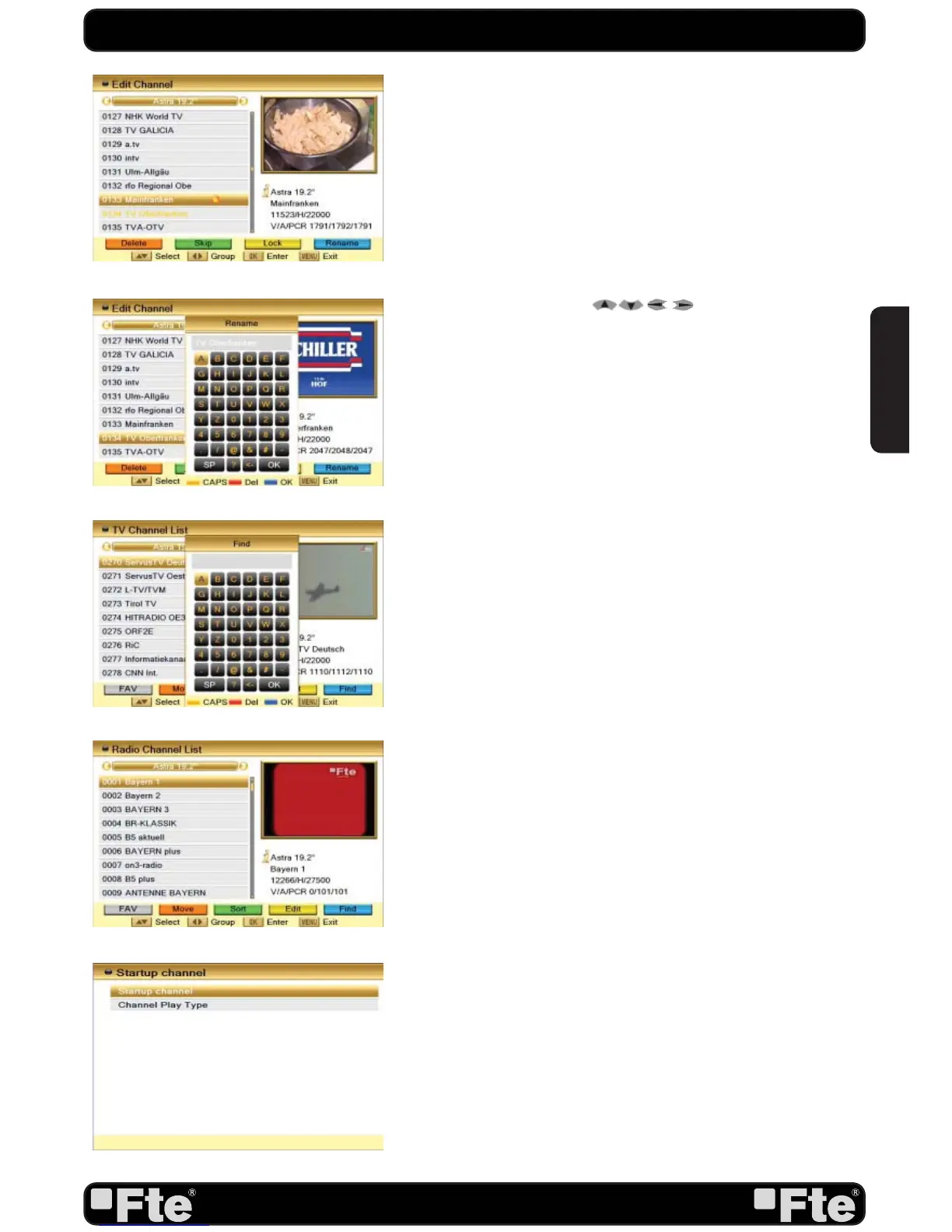
3.1.4.4 RENAME
In “TV Channel List Edit” menu, pressing the [Blue] button you
can enter edit box like below (OSD 24): After modification,
move highlight to “OK” item and press [OK] key can save the
modified value and exit “Edit” mode. Otherwise, press [Exit] key
can exit “Edit” mode and won’t save any modification.
3.1.5. FIND
1. Press [Blue] button to open the “Find” window like showed
besides (OSD 25). Press [
] to select the leading
character of the channel name and press [OK] to confirm it.
2. After entering the character(s) highlight “OK” in the window
and press [OK] on the RCU.
3. Press [Exit] button to close the Find window and brings you
back to the channel list.
3.2. RADIO CHANNEL LIST
Basically the operation of “Radio Channel List” is same as “TV
Channel List”, except that in the small channel window the
Univers Logo will be displayed (OSD 26).
3.3. CHANNEL SETUP
When you enter the “Channel Setup” menu you will see a
screen like (OSD 27):
3.3.1. START-UP CHANNEL
Press [OK] to enter “Start-up Channel” menu to see the screen
like (OSD 28):
1. If you set of “Boot on Channel” to “On” you can edit the
following two items. If the setting is “Off” the box always starts
with the channel that was running when the box has been
switched off.
2. On the “Mode” item you can select either “TV channel” or
“Radio channel”.
3. On “Start-up Channel” item you can open the channel list by
pressing [OK]. Then you can select the channel of you choice.
Press [OK] again to confirm.
3.3.2. CHANNEL PLAY TYPE
Press [OK] to enter “Channel Play Type” menu (OSD 29).
1. Here you can select the “playing channels” as “Free”,
“Scrambled” or “All”.
2. If you select “Free” then all scrambled channels will be
skipped when you change channels with [CH+/-].
3. Press [Exit] to leave the “Channel Setup” menu.
CHANNEL
OSD 23
OSD 24
OSD 25
OSD 26
OSD 27


 To Next Page