PAG.
40
rev 1.1
ENGLISH
OSD 105
INTERNET
8.6 INTERNET VIDEO
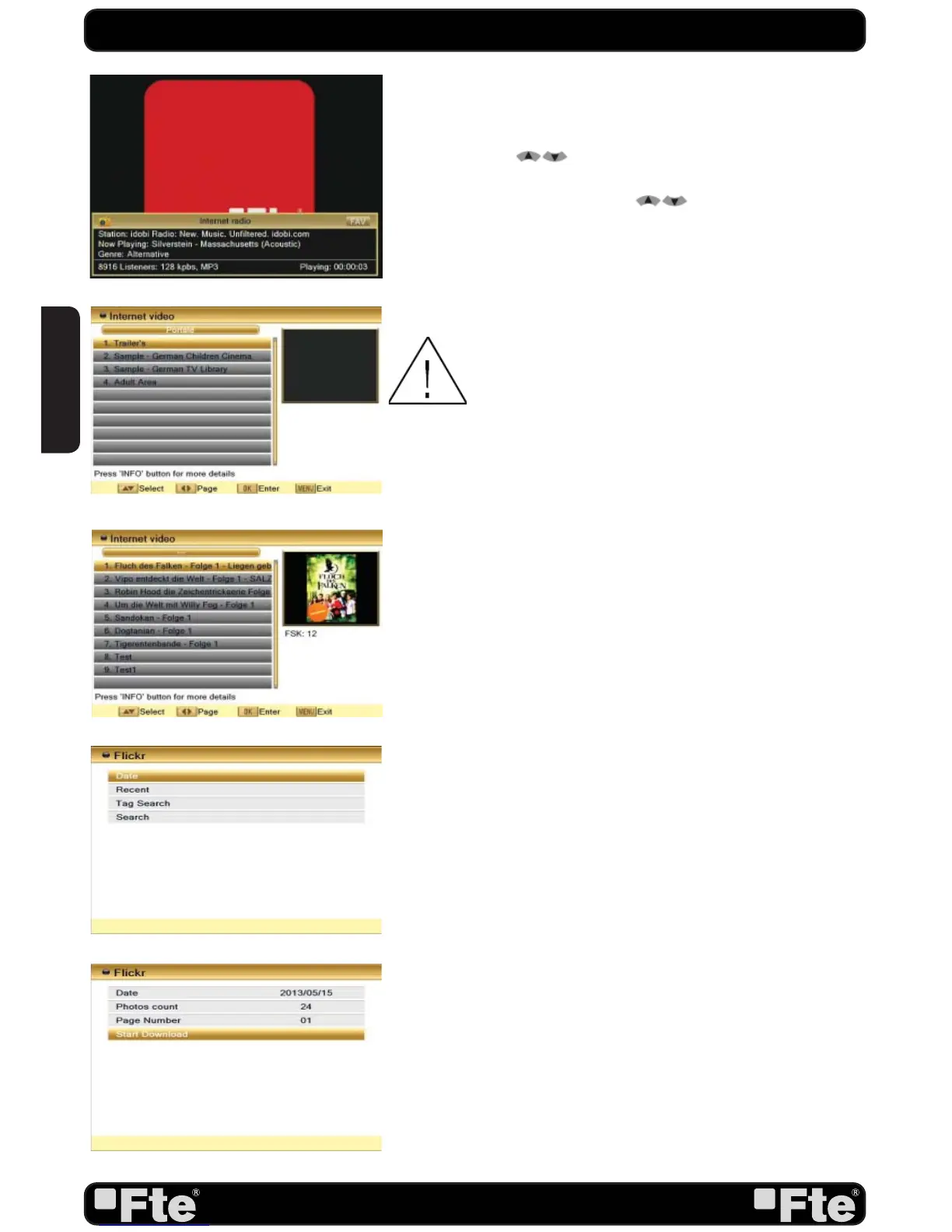
When you enter the “Internet video” menu you can see a window
like the one beside (OSD 102).
1. Use the keys [
] to select a video list and press [OK] to
enter. A list of videos is shown on screen (OSD 103).
2. To see a video, select it with [
] keys and press [OK].
The video file is played on screen.
3. Pressing the touch [Info] you can see information of video
file.
OSD 101
OSD 102
OSD 103
OSD 104
8.7. FLICKR
With the Flickr menu you can search and display images of the
Flickr site. Entering this menu you can see a window as (OSD
104).
8.7.1 DATE
With this option you can search images by date of creation
(OSD 105).
1. Date: use the numbers on the remote control to introduce
the date.
2. Photos count: use the numbers on the remote control to
introduce the number of photos you want to display.
3. Page Number: use the numbers on the remote control to
introduce the number of Flickr page you want to display.
4. Press [OK] in “Start Download” option to search the images.
A new window will appear showing the images (OSD 106).
- Use arrow keys to select photos and [OK] to show in full
screen mode. Press [Exit] key to return to menu.
- With colored keys you can change the size of photos on the
screen.
8.7.2 RECENT
1. Press [OK] in this option to display last images created on
Flickr site. A new window will appear showing the images.
- Use arrow keys to select photos and [OK] to show in full
screen mode. Press [Exit] key to return to menu.
- With colored keys you can change the size of photos on the
screen.
NOTE: In the area of Internet video, there is offered
some Adult content. This area is specially secu-
re. Please change the default password in the
Parental Lock menu of the System Setup menu.


 To Next Page